
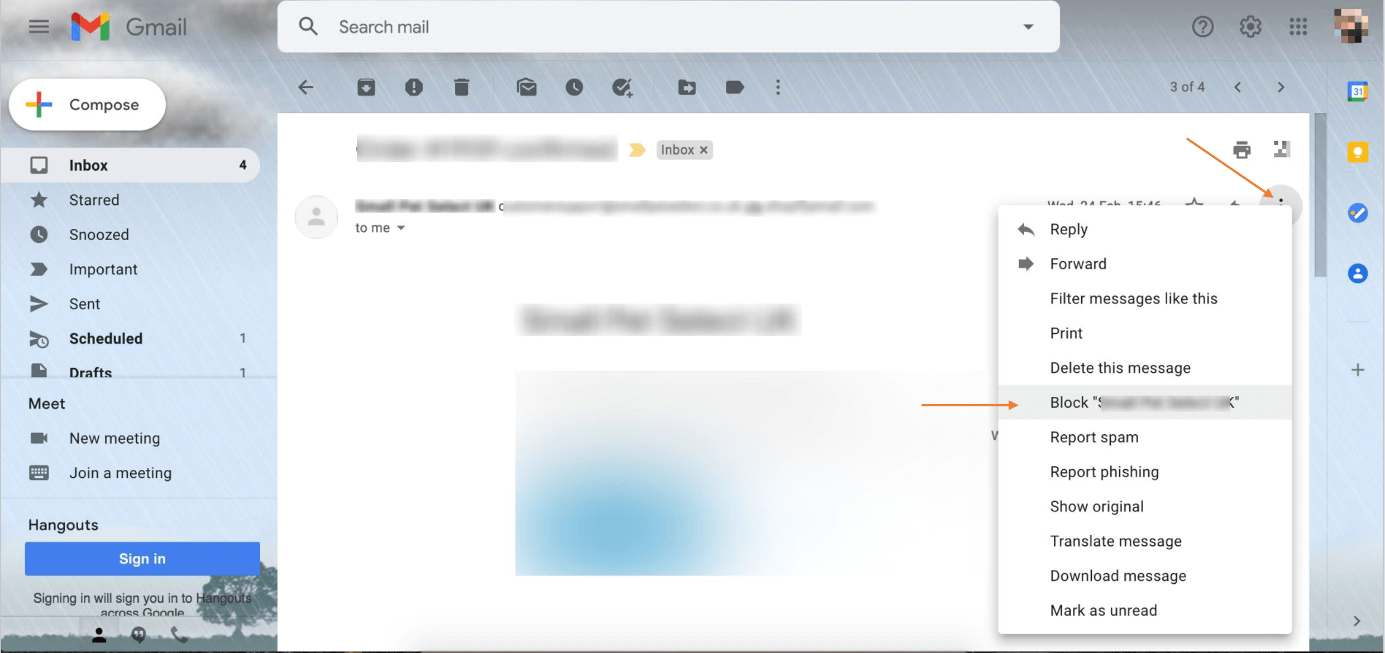
How to Unblock an Address Email on Gmail
Are you tired of seeing emails from a particular address stuck in your spam folder? Or perhaps you’ve accidentally blocked someone’s email address and now want to unblock it? In this article, we’ll guide you through the step-by-step process of unblocking an address email on Gmail.
Why Unblock an Email Address?
You might be wondering why you’d want to unblock an email address in the first place. Well, there are several reasons for this:
- You’ve accidentally blocked someone’s email address and now need to unblock it.
- A legitimate sender has been mistakenly flagged as spam and you want to unblock their emails.
- You’re trying to recover a lost connection with a friend or family member whose email address was previously blocked.
How to Unblock an Email Address on Gmail (Web Version)
To unblock an email address on the web version of Gmail, follow these steps:
- Sign in to Your Google Account: Start by signing in to your Google account using your credentials.
- Access The Gmail Interface: Once you’re signed in, access the Gmail interface and navigate to the “Filters and Blocked Addresses” page.
- Select The Email Address: From the list of blocked addresses, select the one you want to unblock.
- Click on “Unblock”: Click on the “Unblock” button next to the selected email address.
- Confirm Your Action: Confirm your action by clicking on the “Unblock” button again.
How to Unblock an Email Address on Gmail (Mobile App)
To unblock an email address on the mobile app version of Gmail, follow these steps:
- Open The Gmail App: Open the Gmail app on your Android or iOS device.
- Access The Spam Folder: Access the Spam folder and select the email message you want to unblock.
- Tap on “…”: Tap on the three dots (or ellipsis) next to the selected email message.
- Choose “No Spam”: Choose the “No spam” option from the menu.
- Confirm Your Action: Confirm your action by tapping on the “OK” button.
How to Unblock an Email Address on Gmail (Client Version)
To unblock an email address using a client version of Gmail, such as Outlook or Apple Mail, follow these steps:
- Access The Blocked Addresses List: Access the blocked addresses list in your client software.
- Select The Email Address: Select the email address you want to unblock from the list.
- Click on “Unblock”: Click on the “Unblock” button next to the selected email address.
- Confirm Your Action: Confirm your action by clicking on the “OK” button.
How to Unblock an Email Address on Outlook
To unblock an email address using Outlook, follow these steps:
- Access The Blocked Addresses List: Access the blocked addresses list in Outlook.
- Select The Email Address: Select the email address you want to unblock from the list.
- Click on “Unblock”: Click on the “Unblock” button next to the selected email address.
- Confirm Your Action: Confirm your action by clicking on the “OK” button.
How to Unblock an Email Address on Apple Mail
To unblock an email address using Apple Mail, follow these steps:
- Access The Blocked Addresses List: Access the blocked addresses list in Apple Mail.
- Select The Email Address: Select the email address you want to unblock from the list.
- Click on “Unblock”: Click on the “Unblock” button next to the selected email address.
- Confirm Your Action: Confirm your action by clicking on the “OK” button.
Conclusion
In conclusion, unblocking an email address on Gmail is a relatively straightforward process that can be completed using various methods, including the web version, mobile app, and client software versions of Gmail. By following these steps, you should be able to recover lost connections with friends or family members whose email addresses were previously blocked.
Faqs
- Q: How do I Unblock an Email Address on Gmail?
A: To unblock an email address on Gmail, access the “Filters and Blocked Addresses” page, select the email address you want to unblock, and click on the “Unblock” button. - Q: Can I Unblock Multiple Email Addresses at Once?
A: Yes, you can unblock multiple email addresses at once by selecting them from the list of blocked addresses. - Q: How do I Prevent Emails From a Particular Address From Being Marked as Spam?
A: To prevent emails from a particular address from being marked as spam, add the sender’s email address to your contact list and mark it as “Not Spam.” - Q: Can I Unblock an Email Address on The Mobile App Version of Gmail?
A: Yes, you can unblock an email address on the mobile app version of Gmail by accessing the Spam folder, selecting the email message you want to unblock, tapping on the three dots next to the selected email message, and choosing “No spam.” - Q: How do I Prevent Emails From a Particular Domain From Being Marked as Spam?
A: To prevent emails from a particular domain from being marked as spam, add the domain name to your blocked addresses list and mark it as “Not Spam.”
We hope this article has been helpful in guiding you through the process of unblocking an email address on Gmail. If you have any further questions or concerns, please don’t hesitate to reach out!


