
Unlocking Chrome’s Potential: How to Unblock Pop-ups on Google Chrome
Are you tired of being bombarded by annoying pop-ups every time you browse the internet? Do you want to know how to unblock them without sacrificing your browsing experience? Look no further! In this article, we’ll show you how to unblock pop-ups on Google Chrome for PC, Mac, Android, and iPhone.
Why Unblock Pop-ups?
Pop-ups can be a real nuisance when browsing the internet. They often appear unexpectedly and can disrupt your online experience. However, some websites use pop-ups as a legitimate way of communicating with users. By unblocking them, you can enjoy a more seamless browsing experience while still allowing websites to interact with you.
Unblocking Pop-ups on Google Chrome For PC
To unblock pop-ups on Google Chrome for PC, follow these simple steps:
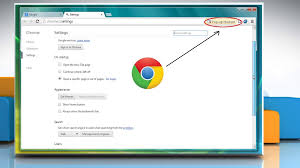
- Click on The Three Dots: Click on the three dots in the top right corner of your browser window.
- Select Settings: From the dropdown menu, select “Settings”.
- Scroll Down to Privacy And Security: Scroll down to the section labeled “Privacy and security”.
- Enable Pop-ups And Redirects: Enable the toggle switch next to “Allow websites to open pop-ups without blocking.”
- Add Exceptions: Add any specific websites that you want to allow to display pop-ups by clicking on the “Add” button.
Unblocking Pop-ups on Google Chrome For Mac
To unblock pop-ups on Google Chrome for Mac, follow these steps:
- Click on The Three Dots: Click on the three dots in the top right corner of your browser window.
- Select Settings: From the dropdown menu, select “Settings”.
- Scroll Down to Privacy And Security: Scroll down to the section labeled “Privacy and security”.
- Enable Pop-ups And Redirects: Enable the toggle switch next to “Allow websites to open pop-ups without blocking.”
- Add Exceptions: Add any specific websites that you want to allow to display pop-ups by clicking on the “Add” button.
Unblocking Pop-ups on Google Chrome For Android
To unblock pop-ups on Google Chrome for Android, follow these steps:
- Tap on The Three Dots: Tap on the three dots in the top right corner of your browser window.
- Select Settings: From the dropdown menu, select “Settings”.
- Scroll Down to Advanced: Scroll down to the section labeled “Advanced”.
- Enable Pop-ups And Redirects: Enable the toggle switch next to “Allow websites to open pop-ups without blocking.”
- Add Exceptions: Add any specific websites that you want to allow to display pop-ups by tapping on the “Add” button.
Unblocking Pop-ups on Google Chrome For Iphone
To unblock pop-ups on Google Chrome for iPhone, follow these steps:
- Tap on The Three Dots: Tap on the three dots in the top right corner of your browser window.
- Select Settings: From the dropdown menu, select “Settings”.
- Scroll Down to Block Pop-ups And Redirects: Scroll down to the section labeled “Block Pop-ups and redirects”.
- Enable Allow Websites to Open Pop-ups Without Blocking: Enable the toggle switch next to this option.
- Add Exceptions: Add any specific websites that you want to allow to display pop-ups by tapping on the “Add” button.
Conclusion
Unblocking pop-ups on Google Chrome is a straightforward process that can greatly enhance your browsing experience. By following these simple steps, you can enjoy a more seamless online experience while still allowing websites to interact with you. Whether you’re using a PC, Mac, Android, or iPhone, we’ve got you covered!
Faqs
- Why Are Pop-ups Blocked by Default?
Pop-ups are blocked by default because they can be annoying and disrupt your browsing experience. - Can I Unblock Pop-ups For Specific Websites?
Yes, you can unblock pop-ups for specific websites by adding them to the exceptions list. - Will Unblocking Pop-ups Affect my Browser’s Performance?
Unblocking pop-ups should not affect your browser’s performance unless you have a lot of pop-ups enabled at once. - Can I Block Pop-ups Again if I Change my Mind?
Yes, you can block pop-ups again by following the same steps as above and disabling the toggle switch next to “Allow websites to open pop-ups without blocking.” - Will Unblocking Pop-ups Allow Malicious Websites to Interact With Me?
No, unblocking pop-ups will not allow malicious websites to interact with you. Google Chrome has built-in security features that protect you from malicious websites. - Can I Block Pop-ups For All Websites Except Specific Ones?
Yes, you can block pop-ups for all websites except specific ones by adding them to the exceptions list and disabling the toggle switch next to “Allow websites to open pop-ups without blocking.” - Will Unblocking Pop-ups Affect my Browsing Experience on Other Browsers?
Unblocking pop-ups will only affect your browsing experience on Google Chrome. - Can I Block Pop-ups For a Specific Website But Allow Others to Display Them?
Yes, you can block pop-ups for a specific website while allowing others to display them by adding the website to the exceptions list and disabling the toggle switch next to “Allow websites to open pop-ups without blocking.”


