
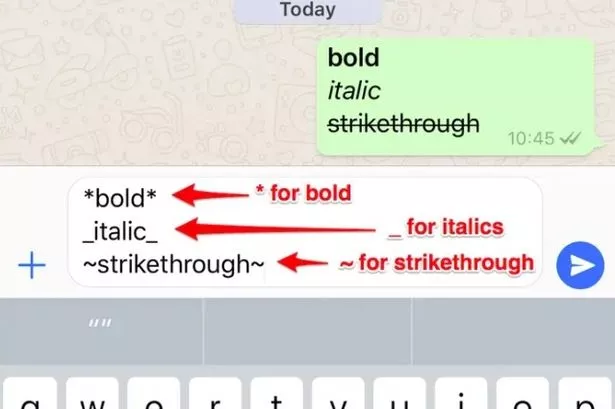
How to Underline Text on Whatsapp
Are you tired of not being able to underline text on WhatsApp? Do you find yourself wondering how to do it, but can’t seem to figure it out? Well, wonder no more! In this article, we’ll show you how to underline text on WhatsApp, and even highlight important messages or photos.
Why Can’t I Underline Text on Whatsapp?
You’re not alone in your frustration. Many users have been left wondering why they can’t simply underline text on WhatsApp like they can on other platforms. The answer is simple: WhatsApp doesn’t support underlining by default. However, there are workarounds that you can use to achieve this.
How to Underline Text on Whatsapp (Android)
If you’re using an Android device, you can use the Text Converter app to underline text. Here’s how:
- Download the Text Converter app from the Google Play Store.
- Open the app and select the “Stylish” tab.
- Type in the text you want to underline into the app’s input field.
- Select the font style that includes underlining (you can find this by scrolling down to the bottom of the list).
- Tap on the icon next to the font style to copy it.
- Open WhatsApp and select the chat where you want to send the underlined text.
- Tap and hold on the text input field, then tap on the “Paste” option.
- Choose the underlined font style from the menu.
How to Underline Text on Whatsapp (iPhone)
If you’re using an iPhone, you can use the Text of Fantasy app to underline text. Here’s how:
- Download the Text of Fantasy app from the App Store.
- Open the app and select the “Fonts” tab.
- Scroll down to the bottom of the list and select the underlined font style.
- Type in the text you want to underline into the input field.
- Tap on the icon next to the input field to copy it.
- Open WhatsApp and select the chat where you want to send the underlined text.
- Long press on the text input field, then tap on the “Paste” option.
- Choose the underlined font style from the menu.
How to Underline Text on Whatsapp (PC)
If you’re using a PC, you can use the YayText website to underline text. Here’s how:
- Go to the YayText website and type in the text you want to underline into the input field.
- Select the underlined font style from the list of available fonts.
- Click on the “Copy” button to copy the underlined text.
- Open WhatsApp Web or the desktop client and select the chat where you want to send the underlined text.
- Right-click in the message input field, then tap on the “Paste” option.
- Choose the underlined font style from the menu.
How to Highlight Text on Whatsapp
In addition to underlining text, you can also highlight important messages or photos on WhatsApp. Here’s how:
- Open WhatsApp and select the chat where you want to highlight a message.
- Long press on the message you want to highlight until it turns blue.
- Tap on the star icon that appears next to the message.
- The message will be added to your “Important Messages” list.
How to Highlight Photos on Whatsapp
You can also highlight parts of photos on WhatsApp. Here’s how:
- Open WhatsApp and select the chat where you want to highlight a photo.
- Tap on the camera icon in the bottom right corner of the screen.
- Select the photo you want to highlight.
- Use your finger to draw a rectangle around the part of the image you want to highlight.
- Add text to the highlighted area if desired.
Conclusion
As you can see, underlining text on WhatsApp is not as difficult as it seems. With these simple workarounds, you can add emphasis to your messages and make them stand out in a crowded chat. Whether you’re using an Android device, iPhone, or PC, we’ve got you covered. Happy chatting!
Faqs
- Q: Why Doesn’t Whatsapp Support Underlining by Default?
A: We don’t know for sure, but it’s likely due to the platform’s focus on simplicity and ease of use. - Q: Can I Underline Text in Multiple Colors?
A: No, unfortunately not. The workarounds we’ve provided only allow you to use a single underlined font style. - Q: How do I Remove Highlighting From Messages or Photos?
A: Simply long press on the highlighted message or photo and tap on the star icon again to remove it.


