
Understanding Which Apps Consume Battery on Your Device
Are you tired of wondering why your smartphone or portable computer’s battery seems to be running out of juice faster than usual? Do you find yourself constantly asking, “Why does my phone or laptop not last all day?” If so, you’re in the right place! In this article, we’ll guide you through the process of understanding which apps are consuming battery on your device.
The Problem of Battery Drain
We’ve all been there – you’re about to leave for work or school, and your phone or laptop suddenly runs out of battery. It’s frustrating, especially when you need it most. But have you ever stopped to think about what might be causing this issue? The culprit is often apps that are running in the background and consuming more power than they should.
Android: Checking Which Apps Consume Battery
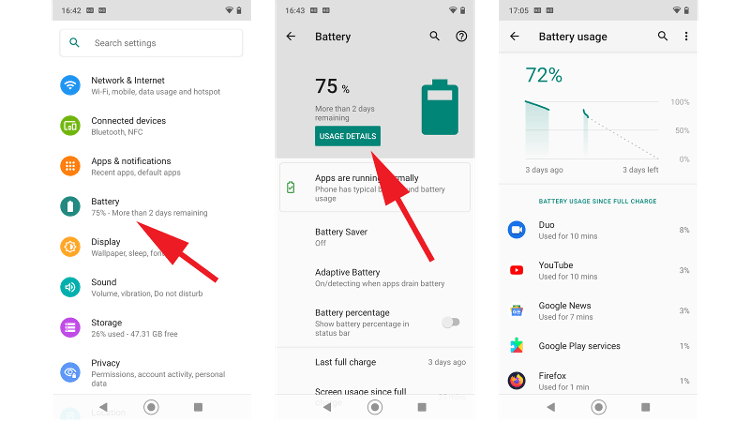
If you’re using an Android device, you can easily check which apps are consuming battery by following these steps:
- Open Settings: Find the “Settings” app on your home screen or in your app drawer.
- Select Battery: Tap on the “Battery” option within Settings.
- View Battery Details: You’ll see a chart that displays the percentage of battery usage for each app.
- Check Background Apps: Look for apps that are running in the background and consuming more power than usual.
Ios/ipados: Checking Which Apps Consume Battery
If you’re using an iOS or iPadOS device, here’s how to check which apps consume battery:
- Open Settings: Find the “Settings” app on your home screen.
- Select Battery: Tap on the “Battery” option within Settings.
- View Battery Details: You’ll see a list of apps that have consumed the most battery in the last 24 hours or 10 days.
Windows 10/11: Checking Which Apps Consume Battery
If you’re using a Windows device, here’s how to check which apps consume battery:
- Open Settings: Press the Windows key + I to open Settings.
- Select System: Click on “System” within Settings.
- Battery Section: Look for the “Battery” section and click on it.
- View Battery Details: You’ll see a chart that displays the percentage of battery usage for each app.
Macos: Checking Which Apps Consume Battery
If you’re using a Mac, here’s how to check which apps consume battery:
- Open Activity Monitor: Use Spotlight or search for “Activity Monitor” in your Launchpad.
- Select Energy Tab: In the top menu bar, select “Window” > “Merge All Windows.”
- View Energy Consumption: Look for apps that are consuming more energy than usual.
What to Do Next
Now that you’ve identified which apps are consuming battery on your device, it’s time to take action! Here are some steps you can follow:
- Close unused apps to prevent them from running in the background.
- Update your operating system and apps to ensure you have the latest security patches and performance enhancements.
- Consider uninstalling or limiting the usage of apps that consume excessive battery power.
Conclusion
Understanding which apps consume battery on your device is a simple yet effective way to extend its lifespan. By following these steps, you can identify and address potential issues before they become major problems. Remember to stay vigilant and take action when necessary to ensure your device runs smoothly and efficiently.
Frequently Asked Questions (FAQs)
- Q: Why do Some Apps Consume More Battery Than Others?
A: Apps that use more resources, such as graphics or network connections, tend to consume more battery power. - Q: Can I Prevent Certain Apps From Running in The Background?
A: Yes, you can close unused apps to prevent them from running in the background and consuming battery power. - Q: How Often Should I Check my Device’s Battery Usage?
A: It’s a good idea to regularly check your device’s battery usage to identify any potential issues before they become major problems. - Q: Can Updating my Operating System And Apps Help Reduce Battery Consumption?
A: Yes, updating your operating system and apps can often include performance enhancements that improve battery life. - Q: Are There Any Specific Apps That I Should be Aware of in Terms of Battery Consumption?
A: Some apps, such as social media or gaming apps, tend to consume more battery power than others. Be mindful of these apps and consider limiting their usage if you notice excessive battery drain. - Q: Can I Recover Lost Battery Life on my Device?
A: Yes, by identifying and addressing the causes of battery drain, you can often recover some of the lost battery life on your device. - Q: How do I Know Which Apps Are Running in The Background on my Device?
A: You can check your device’s task manager or activity monitor to see which apps are currently running in the background.
We hope this article has provided you with a clear understanding of how to identify and address battery consumption issues on your device. If you have any further questions or concerns, feel free to ask!


