
How to Unify Rows in Pdf: A Step-by-step Guide
Are you tired of having multiple PDF documents scattered across your computer, each with its own separate rows? Do you want to combine them into a single, unified document without the hassle of manual editing? Look no further! In this article, we’ll explore the various software and online services that can help you unify rows in PDF.
Why Unify Rows in Pdf?
Unifying rows in PDF can be a game-changer for anyone who works with documents regularly. By combining multiple PDFs into one, you can:
- Reduce clutter on your computer
- Make it easier to access and manage your documents
- Improve collaboration and sharing among team members
- Enhance the overall user experience
Software Options
If you’re looking for a reliable software solution to unify rows in PDF, here are some top options to consider:
Adobe Acrobat (Windows/Mac)
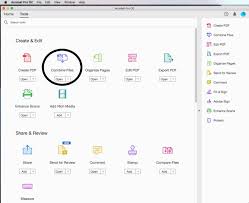
The first instrument on our list is Adobe Acrobat, the industry-standard software for creating, editing, and managing PDFs. With Acrobat, you can combine multiple PDFs into one, edit text and images, add signatures, and more.
To use Acrobat, follow these steps:
- Download and install Acrobat from the official website.
- Open the software and click on “File” > “Open” to select the first PDF document you want to unify.
- Click on “Edit” > “Combine Files” and select the additional PDFs you want to add.
- Arrange the pages as desired and save the combined document.
Cost: Free trial, then $15.85/Month (basic plan) or $20.95/Month (professional plan)
Pdfill Pdf Tools (Windows)
Another powerful software solution is PDFill PDF Tools, a free and easy-to-use tool that can help you unify rows in PDF. With PDFill, you can combine multiple PDFs into one, edit text and images, add watermarks, and more.
To use PDFill, follow these steps:
- Download the software from the official website.
- Open the software and click on “File” > “Open” to select the first PDF document you want to unify.
- Click on “Tools” > “Combine PDFs” and select the additional PDFs you want to add.
- Arrange the pages as desired and save the combined document.
Cost: Free
Trailer (Mac)
If you’re a Mac user, Trailer is another excellent software solution that can help you unify rows in PDF. With Trailer, you can combine multiple PDFs into one, edit text and images, add watermarks, and more.
To use Trailer, follow these steps:
- Download the software from the official website.
- Open the software and click on “File” > “Open” to select the first PDF document you want to unify.
- Click on “Edit” > “Combine Files” and select the additional PDFs you want to add.
- Arrange the pages as desired and save the combined document.
Cost: Free trial, then $9.99/Month (basic plan) or $14.99/Month (professional plan)
Online Services
If you’re not comfortable installing software on your computer or prefer a more convenient solution, online services can be an excellent option. Here are some top online services that can help you unify rows in PDF:
Ilovepdf
One of the most popular online services is iLovePDF, which offers a range of tools to edit and manage PDFs. With iLovePDF, you can combine multiple PDFs into one, edit text and images, add watermarks, and more.
To use iLovePDF, follow these steps:
- Go to the iLovePDF website.
- Click on “Combine PDFs” and select the first PDF document you want to unify.
- Upload additional PDFs as needed.
- Arrange the pages as desired and save the combined document.
Cost: Free (basic plan), then $4/month (premium plan)
Online2pdf
Another excellent online service is Online2PDF, which offers a range of tools to edit and manage PDFs. With Online2PDF, you can combine multiple PDFs into one, edit text and images, add watermarks, and more.
To use Online2PDF, follow these steps:
- Go to the Online2PDF website.
- Click on “Combine PDFs” and select the first PDF document you want to unify.
- Upload additional PDFs as needed.
- Arrange the pages as desired and save the combined document.
Cost: Free
Pdf Candy
Lastly, PDF Candy is another online service that can help you unify rows in PDF. With PDF Candy, you can combine multiple PDFs into one, edit text and images, add watermarks, and more.
To use PDF Candy, follow these steps:
- Go to the PDF Candy website.
- Click on “Combine PDFs” and select the first PDF document you want to unify.
- Upload additional PDFs as needed.
- Arrange the pages as desired and save the combined document.
Cost: Free (basic plan), then $4/month (premium plan)
Mobile Apps
If you prefer a mobile app solution, here are some top options for Android and iOS/iPadOS devices:
Pdf Merge (Android/iOS/iPadOS)
One of the most popular mobile apps is PDF Merge, which can help you unify rows in PDF on-the-go. With PDF Merge, you can combine multiple PDFs into one, edit text and images, add watermarks, and more.
To use PDF Merge, follow these steps:
- Download and install the app from the App Store or Google Play.
- Open the app and select the first PDF document you want to unify.
- Add additional PDFs as needed.
- Arrange the pages as desired and save the combined document.
Cost: Free (basic plan), then $11.99 (Premium plan)
Ilovepdf (Android/iOS/iPadOS)
Another excellent mobile app solution is iLovePDF, which offers a range of tools to edit and manage PDFs on-the-go. With iLovePDF, you can combine multiple PDFs into one, edit text and images, add watermarks, and more.
To use iLovePDF, follow these steps:
- Download and install the app from the App Store or Google Play.
- Open the app and select the first PDF document you want to unify.
- Add additional PDFs as needed.
- Arrange the pages as desired and save the combined document.
Cost: Free (basic plan), then $5.99/Month (premium plan)
Pdf Tools (Android)
Lastly, PDF Tools is another mobile app solution that can help you unify rows in PDF on-the-go. With PDF Tools, you can combine multiple PDFs into one, edit text and images, add watermarks, and more.
To use PDF Tools, follow these steps:
- Download and install the app from the Google Play.
- Open the app and select the first PDF document you want to unify.
- Add additional PDFs as needed.
- Arrange the pages as desired and save the combined document.
Cost: Free (basic plan), then $2.49 (Premium plan)
Pdf Expert (iOS/iPadOS)
Lastly, PDF Expert is another mobile app solution that can help you unify rows in PDF on-the-go. With PDF Expert, you can combine multiple PDFs into one, edit text and images, add watermarks, and more.
To use PDF Expert, follow these steps:
- Download and install the app from the App Store.
- Open the app and select the first PDF document you want to unify.
- Add additional PDFs as needed.
- Arrange the pages as desired and save the combined document.
Cost: Free (basic plan), then $48.99/Year (premium plan)
In conclusion, unifying rows in PDF can be a daunting task, but with the right software or online service, it’s easier than ever! Whether you’re a Mac user, Android user, or iOS/iPadOS user, there are plenty of options available to help you get the job done. Happy combining!


