
How to Uninstall a Program on Windows 11: A Step-by-step Guide
Are you tired of dealing with unnecessary programs taking up space on your computer? Do you want to free up some precious disk space and speed up your system? Look no further! In this article, we’ll show you how to uninstall a program on Windows 11 using various methods.
Why Uninstall Unused Programs?
Before we dive into the process of uninstalling programs, let’s talk about why it’s essential to do so. Over time, you may have installed numerous programs that you no longer use or need. These programs can occupy valuable space on your hard drive, slow down your system, and even create security risks.
Method 1: Using The Start Menu
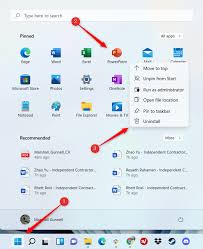
The most straightforward way to uninstall a program on Windows 11 is by using the Start menu. Here’s how:
Step 1: Access The Start Menu
Click on the Start button located at the bottom left corner of your screen.
Step 2: Open The Apps & Features Page
In the search bar, type “Apps & Features” and select the result.
Step 3: Find The Program to Uninstall
Scroll through the list of installed programs and find the one you want to uninstall.
Step 4: Click on Uninstall
Click on the three dots next to the program’s name and select “Uninstall.”
Method 2: Using The Settings App
Another way to uninstall a program is by using the Settings app. Here’s how:
Step 1: Open The Settings App
Press the Windows key + I to open the Settings app.
Click on the “Apps” tab and then select “Apps & Features.”
Step 3: Find The Program to Uninstall
Scroll through the list of installed programs and find the one you want to uninstall.
Step 4: Click on Uninstall
Click on the three dots next to the program’s name and select “Uninstall.”
Method 3: Using The Control Panel
If you’re using an older version of Windows, you might need to use the Control Panel to uninstall a program. Here’s how:
Step 1: Open The Control Panel
Press the Windows key + X and select “Control Panel” from the menu.
Click on the “Programs” tab and then select “Programs & Features.”
Step 3: Find The Program to Uninstall
Scroll through the list of installed programs and find the one you want to uninstall.
Step 4: Click on Uninstall
Click on the program’s name and select “Uninstall” from the context menu.
Using Third-party Uninstaller Tools
In some cases, using the built-in uninstaller tools might not be enough. That’s where third-party uninstaller tools come in. Two popular options are:
Bulk Crap Uninstaller (BCUninstaller)
This free, open-source tool can remove programs and their associated files, registry entries, and other residues.
Revo Uninstaller
Another popular option that offers a free version with features like cleaning up extensions and monitoring system changes. The paid Pro version adds more functionality.
Conclusion
Uninstalling unused programs is an essential part of maintaining your computer’s health and performance. By following the methods outlined in this article, you can easily get rid of unwanted programs and free up space on your hard drive. Remember to always be cautious when using third-party tools and to back up your system before making any significant changes.
Frequently Asked Questions
- What Happens if I Uninstall a Program That I Need?
If you accidentally uninstall a program that you need, don’t panic! You can try reinstalling it from the Microsoft Store or by downloading an installation file from the official website. - How do I Uninstall Multiple Programs at Once?
To uninstall multiple programs simultaneously, use the “Bulk Crap Uninstaller” tool, which allows you to select and remove multiple programs in one go. - What’s The Difference Between Uninstalling And Deleting a Program?
Uninstalling a program removes it from your system, while deleting a program only removes its associated files and folders. - Can I Recover my Data After Uninstalling a Program?
Yes, most uninstaller tools create a backup of your data before removing the program. You can restore this data if needed. - How Often Should I Check For Unused Programs on my Computer?
It’s recommended to regularly review your installed programs and uninstall any that you no longer use or need. This helps maintain your system’s performance and prevents clutter buildup.
I hope this article has helped you understand the importance of uninstalling unused programs on Windows 11!


