
How to Uninstall a Program on Windows 7: A Step-by-step Guide
Are you tired of dealing with unwanted programs on your Windows 7 PC? Do you want to know how to uninstall them effectively? Look no further! In this article, we will guide you through the process of uninstalling a program on Windows 7, covering both standard and advanced procedures.
Understanding The Importance of Uninstalling Programs
Before we dive into the steps, it’s essential to understand why uninstalling programs is crucial. When you install software on your PC, it can sometimes leave behind unwanted files, registry entries, or other system components that can cause problems later on. By uninstalling these programs, you can free up space on your hard drive, resolve conflicts with other software, and maintain a clean and efficient computing experience.
Standard Procedure For Uninstalling a Program on Windows 7
The standard procedure for uninstalling a program on Windows 7 is relatively straightforward:
- Click Start: Press the Windows key + X and select “Control Panel” from the context menu.
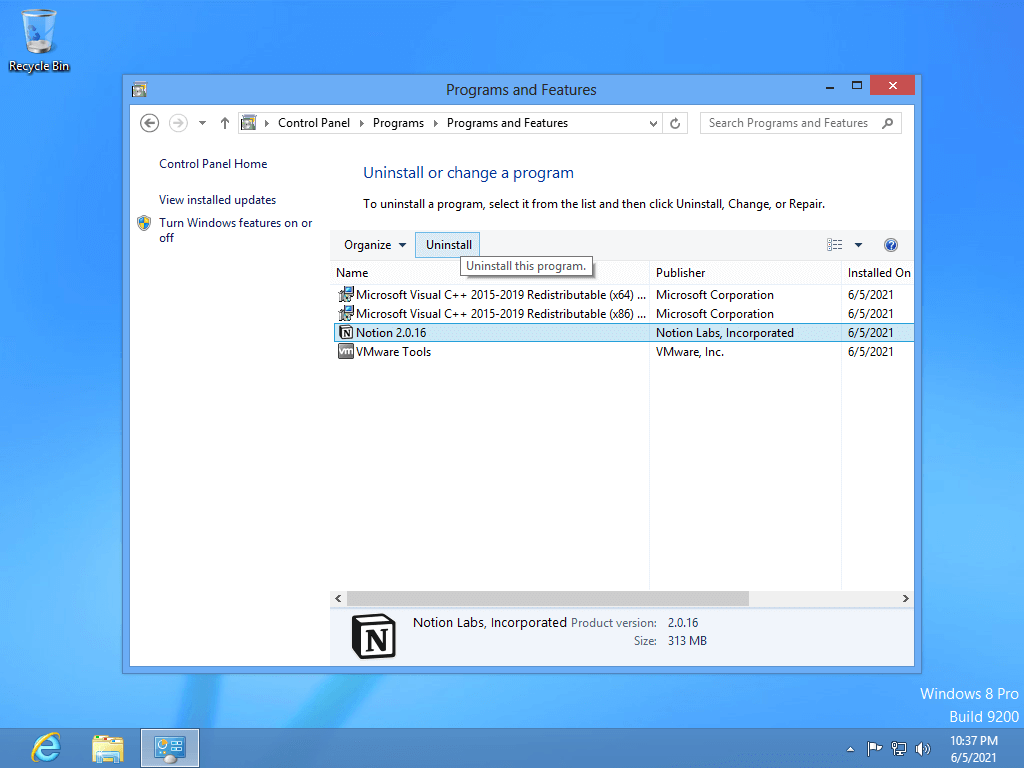
- Select Programs And Features: In the Control Panel, click on “Programs and Features.”
- Choose The Program to Uninstall: Find the program you want to uninstall in the list of installed programs.
- Click Uninstall: Select the program and click the “Uninstall” button.
- Confirm The Uninstallation: Click “Yes” to confirm that you want to uninstall the program.
Using The Utility of Official Removal
Some software, like antivirus programs, may require a special tool for removal. You can find these tools by searching online using keywords like “[program name] uninstall utility” or “[program name] removal tool.” Download and run the tool to ensure a smooth uninstallation process.
Advanced Procedure: Using Revo Uninstaller
If you’re dealing with stubborn programs that won’t uninstall properly, try using Revo Uninstaller. This free utility can scan for leftover files and registry entries and remove them safely.
- Download Revo Uninstaller: Visit the official website and download the portable version.
- Run Revo Uninstaller: Extract the ZIP file and run the executable file.
- Select The Program to Uninstall: Choose the program you want to uninstall from the list.
- Scan For Leftover Files: Click “Scanning” to scan for leftover files and registry entries.
- Remove The Program: Select the unwanted files and click “Delete” to remove them.
Restoring Windows 7 to a Previous State
If you’re experiencing stability issues after uninstalling a program, try restoring your system to a previous state using System Restore.
- Click Start: Press the Windows key + X and select “Control Panel.”
- Select System And Security: Click on “System and Security.”
- Choose System Restore: Select “System Restore” from the list.
- Select a Previous Date: Choose a date when the system was stable before installing the problematic program.
- Restore Windows 7: Follow the prompts to restore your system to the previous state.
Using Antimalware Tools
If you’re dealing with malicious programs or browser hijackers, consider using antimalware tools like Malwarebytes AdwCleaner or Malwarebytes Anti-Malware.
- Download The Tool: Visit the official website and download the tool.
- Run The Tool: Run the executable file and follow the prompts.
- Scan For Malicious Programs: Click “Scan” to scan for malicious programs.
- Remove The Threats: Select the unwanted programs and click “Delete” or “Quarantine” to remove them.
Conclusion
Uninstalling programs on Windows 7 can be a straightforward process, but sometimes advanced procedures are required. By following these steps and using the right tools, you can ensure a smooth and effective uninstallation experience. Remember to always back up your system before making significant changes, and don’t hesitate to seek help if you’re unsure about any step.
Frequently Asked Questions (FAQs)
- Q: How do I Know Which Program to Uninstall?
A: Check the list of installed programs in the Control Panel or use a tool like Revo Uninstaller to scan for leftover files and registry entries. - Q: What if The Program Doesn’t Uninstall Properly?
A: Try using Revo Uninstaller or System Restore to restore your system to a previous state. - Q: How do I Remove Browser Hijackers?
A: Use antimalware tools like Malwarebytes AdwCleaner or Malwarebytes Anti-Malware to scan for and remove malicious programs. - Q: Can I Use System Restore to Fix Stability Issues?
A: Yes, try restoring your system to a previous state using System Restore if you’re experiencing stability issues after uninstalling a program. - Q: How do I Prevent Unwanted Programs From Installing in The Future?
A: Be cautious when downloading software and always read reviews before installing new programs. - Q: Can I Use Revo Uninstaller to Remove All Leftover Files And Registry Entries?
A: Yes, Revo Uninstaller can scan for and remove leftover files and registry entries left behind by uninstalled programs. - Q: How do I Know if a Program is Malicious or Not?
A: Use reputable antimalware tools like Malwarebytes AdwCleaner or Malwarebytes Anti-Malware to scan for and identify malicious programs. - Q: Can I Use System Restore to Fix Problems Caused by Uninstalled Programs?
A: Yes, try restoring your system to a previous state using System Restore if you’re experiencing issues after uninstalling a program.
We hope this guide has been helpful in answering your questions about uninstalling programs on Windows 7!


