
How to Uninstall a Program Definitively: A Step-by-step Guide
Are you tired of dealing with leftover files and folders after uninstalling a program on your computer? Do you want to know how to completely remove a software from your system without any residue? Look no further! In this article, we will guide you through the process of uninstalling a program definitively on both Windows and macOS.
Understanding The Problem
When you uninstall a program on your computer, it’s not uncommon for some files and folders to remain behind. These leftover files can take up space on your hard drive and even cause issues with other programs. This is because many programs are designed to leave behind certain files or settings that are necessary for their proper functioning.
The Solution: Uninstalling a Program Definitively
Fortunately, there are ways to uninstall a program definitively on both Windows and macOS. Here’s how:
Uninstalling a Program Definitively on Windows
To uninstall a program definitively on Windows, follow these steps:
- Click Start (or press the Windows key) to access the Start menu.
- Right-click on the name of the program you want to uninstall from the Start menu.
- Select “Uninstall” or “Change” from the context menu.
- Follow the prompts to complete the uninstallation process.
Alternatively, you can also use the built-in “Programs and Features” tool in Windows:
- Click on the Start button (or press the Windows key) to access the Start menu.
- Type “programs and features” in the search bar.
- Select “Add or remove programs” from the results.
- Find the program you want to uninstall and click “Uninstall.”
- Follow the prompts to complete the uninstallation process.
Using Official Uninstallation Tools
If the standard procedure for uninstalling a program doesn’t work, you can try using an official uninstallation tool provided by the software developer. These tools are designed specifically for that particular program and can be downloaded from the manufacturer’s website. For example, if you’re trying to uninstall an antivirus program, you might need to use the vendor’s removal tool.
Using Third-party Uninstallation Tools
If the official uninstallation tool doesn’t work, or you prefer a more manual approach, you can try using a third-party uninstallation tool like Revo Uninstaller. This software scans your system for leftover files and folders related to the program you want to uninstall and provides a simple way to remove them.
Uninstalling a Program Definitively on Macos
To uninstall a program definitively on macOS, follow these steps:
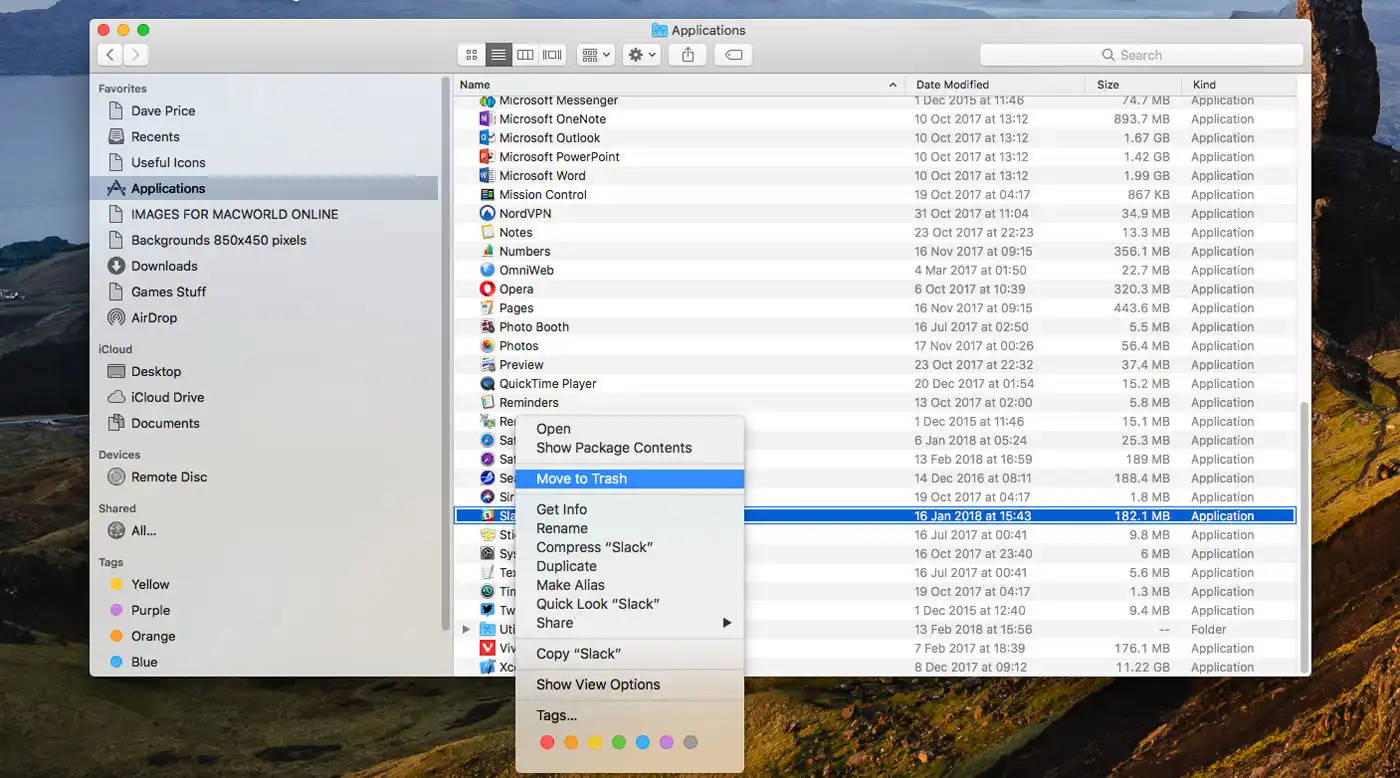
- Open The Applications Folder by going to Finder > Applications.
- Drag The Program Icon to the Trash.
- Empty The Trash by right-clicking on the Trash can and selecting “Empty.”
- Alternatively, you can also use the “Launchpad” tool:
- Click on the Launchpad icon in the Dock.
- Find the program you want to uninstall and click on it.
- Click the X button in the top-right corner of the window.
Using Official Uninstallation Tools on Macos
Just like on Windows, some programs may require an official uninstallation tool to be uninstalled completely. You can usually find these tools by searching online or visiting the manufacturer’s website. For example, if you’re trying to uninstall a security software, you might need to use the vendor’s removal tool.
Using Third-party Uninstallation Tools on Macos
If you prefer a more manual approach or want an additional layer of protection, you can try using a third-party uninstallation tool like AppCleaner. This software scans your system for leftover files and folders related to the program you want to uninstall and provides a simple way to remove them.
Conclusion
Uninstalling a program definitively on both Windows and macOS is easier than you might think! By following these steps, you can ensure that all files and folders associated with a program are removed from your system. Whether you use an official uninstallation tool or a third-party one, the goal is the same: To completely remove the software without any residue.
Faqs
Q: How do I know if a program has been uninstalled definitively?
A: You can check by searching for the program’s name in the Start menu (Windows) or Launchpad (macOS). If it’s not there, it should have been uninstalled completely.
Q: What happens to leftover files and folders after uninstallation?
A: Leftover files and folders are usually removed automatically when you uninstall a program using an official tool. However, if you’re unsure, you can use a third-party tool like Revo Uninstaller (Windows) or AppCleaner (macOS).
Q: Can I reinstall a program that was uninstalled definitively?
A: Yes! If you need to reinstall the same software, simply download and install it again from its official source.
Q: Will uninstalling a program affect other programs on my system?
A: In most cases, no. Uninstalling one program should not affect other installed software on your computer.
Q: Can I use an uninstallation tool on a different operating system than the one I originally installed the program on?
A: No! It’s essential to use an official uninstallation tool specifically designed for the same operating system where you initially installed the program.


