
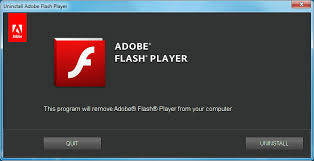
Adobe Flash Player Uninstallation: A Step-by-step Guide
As of December 31, 2020, Adobe has officially discontinued support for Flash Player, citing security concerns and the introduction of newer technologies like HTML5 and WebGL. In this article, we will provide a comprehensive guide on how to uninstall Adobe Flash Player from your Windows, Mac, Android, iOS, and iPadOS devices.
Why Uninstall Adobe Flash Player?
Adobe Flash Player has been a staple in the world of web browsing for over two decades. However, its security vulnerabilities have become too great to ignore. The continued use of Flash Player puts users at risk of exploitation by hackers, making it essential to uninstall this outdated software.
Uninstalling Adobe Flash Player on Windows 10
If you’re using Windows 10, you’re likely already protected from the risks associated with Flash Player. Microsoft released an optional update (KB4577586) in October 2020 that automatically removes Flash Player from your system and prevents its reinstallation. This update became mandatory in February 2021.
To confirm whether you’ve received this update:
- Check for updates in Settings > Update & Security
- If you’ve installed Flash Player through alternative means, you can download the uninstaller tool from Adobe’s website
Uninstalling Adobe Flash Player on Windows 7
If you’re using Windows 7, Microsoft has ended support for Flash Player as of January 2020. To uninstall Flash Player:
- Close all browsers and applications
- Open Start > Control Panel > Programs and Features (or Programs in some versions)
- Select Adobe Flash Player X and click Uninstall
- Follow the prompts to complete the uninstallation
Uninstalling Adobe Flash Player on Mac
If you’ve installed Flash Player on your Mac:
- Visit Adobe’s website and download the official uninstaller tool
- Run the uninstaller tool, following the prompts to remove Flash Player
- Manually delete any remaining folders containing Flash Player files:
- Go > Library > Preferences > Macromedia > Flash
- Delete the Flash Player folder
Uninstalling Adobe Flash Player on Android, Ios, And Ipados
Since Flash Player is not compatible with these platforms, you don’t need to worry about uninstalling it. However, if you’re using a browser like Puffin Web Browser that supports Flash content:
- Remove the Puffin app from your device
- Follow any additional steps provided in our guides for uninstalling apps on Android and iOS/iPadOS devices
Conclusion
Uninstalling Adobe Flash Player is an essential step to protect yourself from security risks associated with this outdated software. By following these simple steps, you can ensure the safe removal of Flash Player from your Windows, Mac, Android, iOS, and iPadOS devices.
Frequently Asked Questions (FAQs)
- Why Did Adobe Discontinue Flash Player?
Adobe discontinued Flash Player due to security concerns and the introduction of newer technologies like HTML5 and WebGL. - Do I Need to Uninstall Flash Player if I’m Using a Browser That Supports It?
Yes, you should still uninstall Flash Player to ensure your system is secure. - Can I Reinstall Flash Player on my Device?
No, Adobe has discontinued support for Flash Player, making it difficult to find compatible versions or install the software. - What Happens if I Don’t Uninstall Flash Player?
Continued use of Flash Player puts you at risk of exploitation by hackers and potential system crashes. - Can I Still Access Flash Content on my Device?
You can explore alternative browsers that support HTML5, such as Google Chrome or Mozilla Firefox.
We hope this guide has provided you with the necessary information to uninstall Adobe Flash Player from your devices. If you have any further questions, feel free to ask!


