
How to Uninstall Apps on Samsung Devices: A Step-by-step Guide
Are you tired of cluttered apps on your Samsung smartphone, tablet, or TV? Do you want to free up space on your device without deleting them permanently? Look no further! This article will guide you through the process of uninstalling unwanted apps on Samsung devices, ensuring a smoother and more efficient user experience.
Why Uninstall Apps on Samsung Devices?
Before we dive into the step-by-step guide, let’s explore why uninstalling apps is essential for your device. Here are some reasons:
- Free up Space: Unwanted apps take up valuable storage space on your device, slowing it down and affecting performance.
- Reduce Clutter: A cluttered app drawer can be overwhelming and confusing. Uninstalling unnecessary apps helps maintain a clean and organized interface.
- Improve Battery Life: Running multiple apps in the background consumes battery power, leading to faster drain times. Uninstalling unused apps saves energy and extends your device’s lifespan.
Uninstalling Apps on Samsung Smartphones
If you’re using a Samsung smartphone, follow these steps:
- Access The App Drawer: Open the app drawer by swiping up or down from the home screen.
- Find The App: Locate the unwanted app in the app drawer and hold your finger on its icon.
- Option Menu: Tap the three vertical dots at the top-right corner of the app icon to access the option menu.
- Uninstall: Select the “Uninstall” option from the menu.
Alternatively, you can use the “Settings” app:
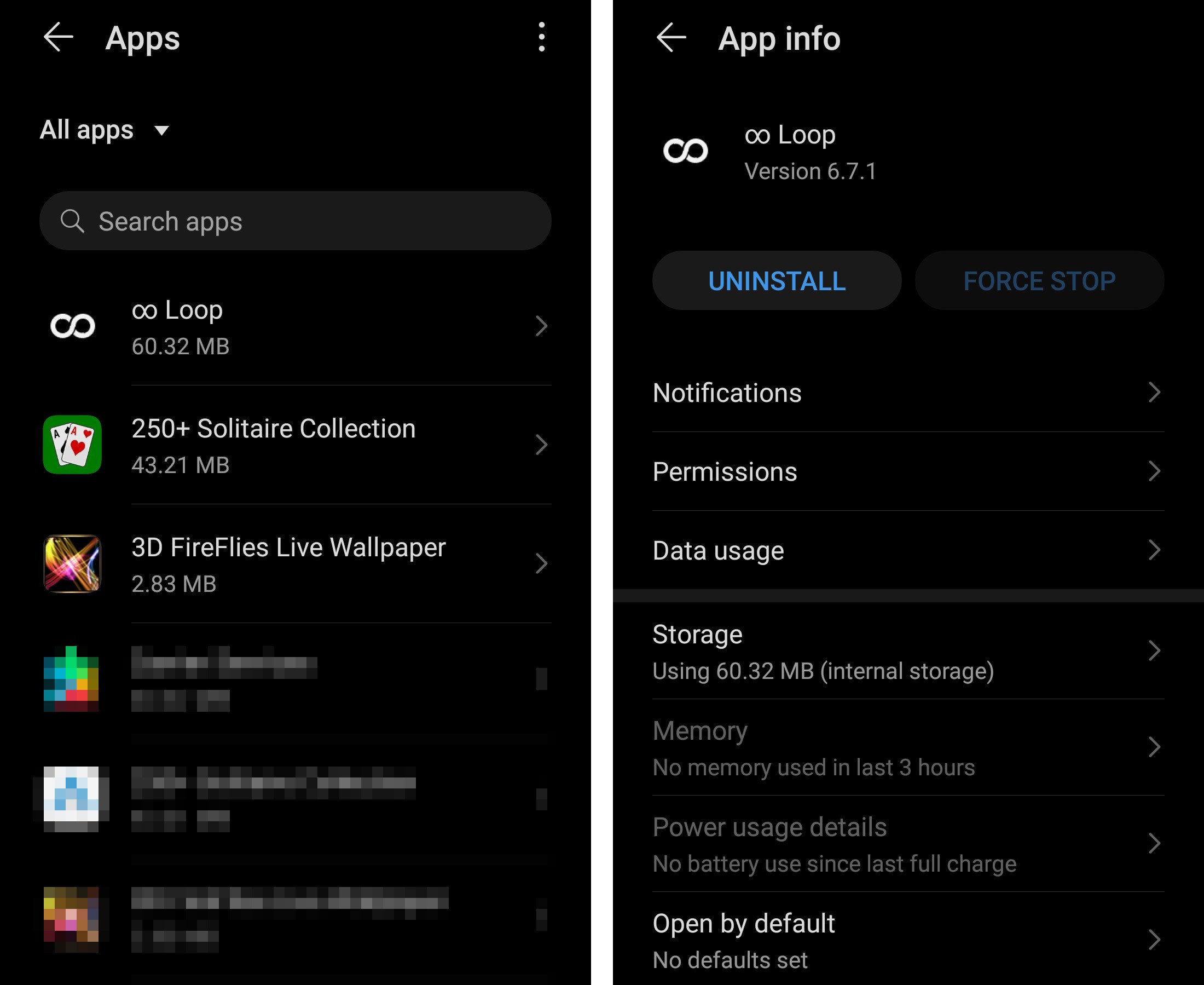
- Access Settings: Open the Settings app on your Samsung smartphone.
- Applications: Scroll down and select “Applications” (or “Apps” on some devices).
- List of Installed Apps: Browse through the list of installed apps and find the one you want to uninstall.
- Uninstall: Select the app, then tap the “Uninstall” button.
Uninstalling Apps on Samsung Tablets
If you’re using a Samsung tablet, follow these steps:
- Access Settings: Open the Settings app on your Samsung tablet.
- Applications: Scroll down and select “Applications” (or “Apps” on some devices).
- List of Installed Apps: Browse through the list of installed apps and find the one you want to uninstall.
- Uninstall: Select the app, then tap the “Uninstall” button.
Alternatively, you can use the “DeX” interface:
- Access Dex: Open the DeX interface on your Samsung tablet.
- Right-click: Right-click (or two-finger click) on the unwanted app icon in the list of installed apps.
- Delete: Select the “Uninstall” option.
Uninstalling Apps on Samsung Tvs
To uninstall apps on a Samsung TV:
- Access Settings: Press the “Home” button on your remote control and navigate to the “Settings” menu.
- Applications: Scroll down and select “Applications.”
- List of Installed Apps: Browse through the list of installed apps and find the one you want to uninstall.
- Delete: Select the app, then press the “Delete” button.
Conclusion
Uninstalling unwanted apps on Samsung devices is a straightforward process that can help maintain your device’s performance, free up space, and reduce clutter. By following these step-by-step guides for smartphones, tablets, and TVs, you’ll be able to remove unnecessary apps and enjoy a more efficient user experience.
Frequently Asked Questions
Q: Will uninstalling an app delete my data?
A: No, uninstalling an app will not delete your personal data. However, some apps may require you to log in or sync with their servers again after reinstalling.
Q: Can I reinstall an uninstalled app?
A: Yes, you can reinstall any uninstalled app from the Google Play Store (for smartphones and tablets) or the Samsung App Store (for TVs).
Q: Will uninstalling an app affect my device’s performance?
A: Uninstalling an app will not directly affect your device’s performance. However, removing unnecessary apps can help maintain a smooth user experience.
By following this guide, you’ll be able to efficiently manage your device’s apps and ensure a clutter-free interface. Happy uninstalling!


