
The Ultimate Guide to Uninstalling Apps on Your Device
Are you tired of cluttered devices and unnecessary app storage? Look no further! In this comprehensive guide, we’ll walk you through the simple steps to uninstall apps on your Android, iPhone, PC, Mac, Windows, Microsoft Store, and Ubuntu device.
Why Uninstall Apps?
Before we dive into the nitty-gritty, let’s quickly discuss why uninstalling apps is essential. When you install too many apps, it can lead to:
- Storage space issues
- Slow device performance
- Security risks from unused or malicious apps
By uninstalling unnecessary apps, you’ll free up storage space, improve your device’s performance, and reduce the risk of security breaches.
Uninstalling Apps on Android
If you’re using an Android device, follow these steps to uninstall apps:
- Locate The App: Find the app you want to uninstall in your device’s home screen or app drawer.
- Long Press on The App Icon: Hold down on the app icon until it starts to jiggle.
- Tap The “X” Button: Tap the “X” button at the top of the app’s info page to confirm deletion.
Alternatively, you can also uninstall apps by:
- Going to Settings: Open your device’s Settings app and select “Apps” or “Application Manager.”
- Selecting The App: Choose the app you want to uninstall from the list.
- Tapping The “Uninstall” Button: Tap the “Uninstall” button to confirm deletion.
Uninstalling Apps on Iphone
If you’re using an iPhone, follow these steps to uninstall apps:
- Locate The App: Find the app you want to uninstall in your device’s home screen or App Store.
- Tap And Hold on The App Icon: Tap and hold on the app icon until it starts to jiggle.
- Tap The “X” Button: Tap the “X” button at the top of the app’s info page to confirm deletion.
Alternatively, you can also uninstall apps by:
- Going to Settings: Open your device’s Settings app and select “General.”
- Selecting The App: Choose the app you want to uninstall from the list.
- Tapping The “Delete” Button: Tap the “Delete” button to confirm deletion.
Uninstalling Apps on PC
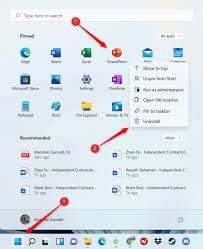
If you’re using a Windows PC, follow these steps to uninstall apps:
- Locate The App: Find the app you want to uninstall in your device’s Start menu or desktop.
- Right-click on The App Icon: Right-click on the app icon and select “Uninstall” from the context menu.
Alternatively, you can also uninstall apps by:
- Going to Control Panel: Open your device’s Control Panel and select “Programs and Features.”
- Selecting The App: Choose the app you want to uninstall from the list.
- Tapping The “Uninstall” Button: Tap the “Uninstall” button to confirm deletion.
Uninstalling Apps on Mac
If you’re using a Mac, follow these steps to uninstall apps:
- Locate The App: Find the app you want to uninstall in your device’s Launchpad or Applications folder.
- Right-click on The App Icon: Right-click on the app icon and select “Move to Trash” from the context menu.
Alternatively, you can also uninstall apps by:
- Going to Finder: Open your device’s Finder and select the app you want to uninstall.
- Selecting The App: Choose the app you want to uninstall from the list.
- Tapping The “Delete” Button: Tap the “Delete” button to confirm deletion.
Uninstalling Apps on Ubuntu
If you’re using an Ubuntu device, follow these steps to uninstall apps:
- Locate The App: Find the app you want to uninstall in your device’s Ubuntu Software store.
- Selecting The App: Choose the app you want to uninstall from the list.
- Tapping The “Uninstall” Button: Tap the “Uninstall” button to confirm deletion.
Alternatively, you can also uninstall apps by:
- Going to Terminal: Open your device’s Terminal and enter the command
sudo apt-get remove <app_name>to delete the app. - Selecting The App: Choose the app you want to uninstall from the list.
- Tapping The “Uninstall” Button: Tap the “Uninstall” button to confirm deletion.
Conclusion
In this comprehensive guide, we’ve walked you through the simple steps to uninstall apps on your Android, iPhone, PC, Mac, Windows, Microsoft Store, and Ubuntu device. By following these easy-to-follow instructions, you’ll be able to free up storage space, improve your device’s performance, and reduce the risk of security breaches.
Frequently Asked Questions
Q: How do I know which apps to uninstall?
A: You can uninstall any app that you no longer use or need.
Q: Will uninstalling apps affect my device’s performance?
A: Uninstalling unnecessary apps will improve your device’s performance by freeing up storage space and reducing the risk of security breaches.
Q: Can I reinstall an uninstalled app?
A: Yes, you can always reinstall an app that you previously uninstalled.
Q: How do I know if an app is safe to uninstall?
A: You can check the app’s reviews and ratings on your device’s app store or online review platforms.


