
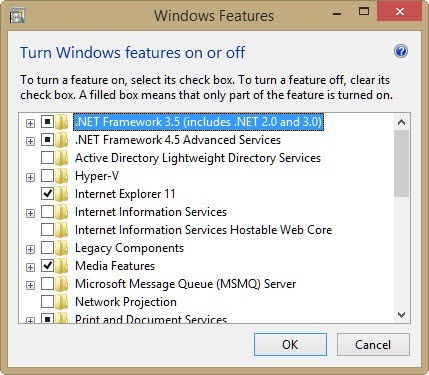
How to Remove Internet Explorer 11 From Windows PC
Are you tired of using the outdated Internet Explorer 11 browser? Look no further! In this article, we will guide you on how to remove Internet Explorer 11 from your Windows PC.
Why Remove Internet Explorer 11?
Internet Explorer 11 is considered one of the least loved browsers among internet users. It’s slow, unreliable, and not compatible with many standard web pages. Removing it can improve your browsing experience and make room for more efficient browser options like Google Chrome or Mozilla Firefox.
Removing Internet Explorer 11 From Windows 10
If you’re using Windows 10, follow these steps to remove Internet Explorer 11:
- Access The Settings Menu: Click on the Start button (icon of a flag) located in the bottom left corner of your monitor.
- Select System Settings: Click on the icon of the gearwheel situated on the left side of the menu that appears on your screen.
- Choose Apps & Features: Select the option “Apps & features” from the window that opens.
- Find Internet Explorer 11: Search for Internet Explorer 11 in the list of installed apps and select it.
- Click Uninstall: Click the “Uninstall” button to start the removal process.
Removing Internet Explorer 11 From Windows 8.X
If you’re using Windows 8 or Windows 8.1, Follow these steps to remove Internet Explorer 11:
- Access The Control Panel: Click on the yellow folder icon located in the bar of applications.
- Select “This Pc”: Select “This PC” from the left sidebar and click on the option “Computer” at the top.
- Open The Control Panel: Double-click on the “Control Panel” icon that appears.
- Add or Remove Programs: Select “Add or remove programs” from the new window.
- Find Internet Explorer 11: Search for Internet Explorer 11 in the list of installed apps and select it.
- Click Uninstall: Click the “Uninstall” button to start the removal process.
Removing Internet Explorer 11 From Windows 7
If you’re using Windows 7, follow these steps to remove Internet Explorer 11:
- Access The Start Menu: Click on the Start button (icon of a flag) located in the bottom left corner of your monitor.
- Search For “Control Panel”: Type “Control Panel” in the search bar and select it from the results.
- Open The Control Panel: Double-click on the “Control Panel” icon that appears.
- Select “Programs And Features”: Select “Programs and features” from the new window.
- Find Internet Explorer 11: Search for Internet Explorer 11 in the list of installed apps and select it.
- Click Uninstall: Click the “Uninstall” button to start the removal process.
How to Remove Bing From Internet Explorer 11
If you only want to remove Bing from your Internet Explorer 11 browser, follow these steps:
- Open Internet Explorer 11: Open the Internet Explorer 11 browser.
- Click on The Gear Icon: Click on the gear icon located in the top right corner of the browser window.
- Select “Internet Options”: Select “Internet options” from the menu that appears.
- Change Home Page And Search Engine: Change the home page to a different URL or remove Bing as your search engine.
- Click OK: Click OK to save the changes.
How to Set Internet Explorer 11 as The Default Browser
If you don’t want to remove Internet Explorer 11 completely, but rather use it as the default browser, follow these steps:
- Access The Settings Menu: Click on the Start button (icon of a flag) located in the bottom left corner of your monitor.
- Select System Settings: Click on the icon of the gearwheel situated on the left side of the menu that appears on your screen.
- Choose Apps & Features: Select the option “Apps & features” from the window that opens.
- Find Internet Explorer 11: Search for Internet Explorer 11 in the list of installed apps and select it.
- Click Uninstall And Reinstall as Default Browser: Click the “Uninstall” button to remove the browser, then reinstall it by selecting it as the default browser.
Frequently Asked Questions
Q: Why should I remove Internet Explorer 11 from my Windows PC?
A: Removing Internet Explorer 11 can improve your browsing experience by making room for more efficient browser options and removing a slow and unreliable browser.
Q: How do I remove Bing from Internet Explorer 11?
A: To remove Bing from Internet Explorer 11, open the browser, click on the gear icon, select “Internet options”, change the home page to a different URL or remove Bing as your search engine.
Q: Can I still use Internet Explorer 11 after removing it from my Windows PC?
A: No, you will no longer be able to use Internet Explorer 11 after removing it from your Windows PC. However, you can reinstall it by selecting it as the default browser.
Q: How do I set Internet Explorer 11 as the default browser?
A: To set Internet Explorer 11 as the default browser, access the Settings menu, select System settings, choose Apps & features, find Internet Explorer 11 in the list of installed apps, and click “Uninstall and reinstall as default browser”.
Conclusion
Removing Internet Explorer 11 from your Windows PC can improve your browsing experience by making room for more efficient browser options. Follow the steps outlined above to remove Internet Explorer 11 from your Windows 10, Windows 8.X, or Windows 7 PC.


