
Uninstalling Kaspersky: A Step-by-step Guide
Are you tired of dealing with Kaspersky’s persistent presence on your device? Look no further! In this article, we’ll guide you through the process of uninstalling Kaspersky from your Windows, Mac, Android, or iOS device.
Understanding Kaspersky
Before we dive into the uninstallation process, let’s take a moment to understand what Kaspersky is and why it’s still present on your device after trying to delete it. Kaspersky is a popular antivirus software that offers protection against malware, viruses, and other online threats. However, when you try to uninstall it, it can be stubborn and remain on your device.
Why Can’t I Uninstall Kaspersky?
There are several reasons why Kaspersky might not be uninstalling properly:
- System Files Still Present: Even after uninstallation, some system files may still be present on your device.
- Background Processes Running: Kaspersky might have background processes running that prevent it from being fully uninstalled.
- Registry Entries Remaining: Registry entries related to Kaspersky might not be deleted during the uninstallation process.
Uninstalling Kaspersky: A Step-by-step Guide
Now, let’s move on to the step-by-step guide for uninstalling Kaspersky on different devices:
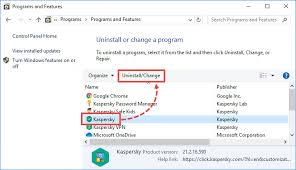
Uninstalling Kaspersky From Windows
- Open The Start Menu: Click on the Start button and select “Settings” or press the Windows key + I.
- Select Apps: In the Settings window, click on “Apps.”
- Find Kaspersky: Scroll through the list of installed apps and find Kaspersky.
- Click on Uninstall: Once you’ve found Kaspersky, click on it and select “Uninstall.”
- Confirm Uninstallation: A confirmation dialog box will appear; click “Yes” to confirm.
Uninstalling Kaspersky From Mac
- Open The Launchpad: Click on the Launchpad icon in the dock or use Spotlight to search for it.
- Find Kaspersky: Scroll through the list of installed apps and find Kaspersky.
- Click on Uninstall: Once you’ve found Kaspersky, click on it and select “Uninstall.”
- Enter Administrator Password: A prompt will appear asking for your administrator password; enter it to confirm.
Uninstalling Kaspersky From Android
- Open The Settings App: Go to the Settings app on your device.
- Select Apps & Notifications: Scroll down and select “Apps & notifications.”
- Find Kaspersky: Look through the list of installed apps and find Kaspersky.
- Click on Uninstall: Once you’ve found Kaspersky, click on it and select “Uninstall.”
Uninstalling Kaspersky From Ios
- Open The Settings App: Go to the Settings app on your device.
- Select General: Scroll down and select “General.”
- Find Kaspersky: Look through the list of installed apps and find Kaspersky.
- Click on Delete App: Once you’ve found Kaspersky, click on it and select “Delete App.”
Additional Tips
- Check For Leftover Files: After uninstalling Kaspersky, check your device for any remaining files or folders related to the software.
- Run a Disk Cleanup: Run a disk cleanup to ensure that all system files are removed.
Conclusion
Uninstalling Kaspersky can be a bit tricky, but by following these step-by-step guides, you should be able to successfully remove it from your device. Remember to also check for leftover files and run a disk cleanup to ensure that everything is properly removed.
Frequently Asked Questions (FAQs)
- Q: Why Won’t Kaspersky Uninstall?
A: There are several reasons why Kaspersky might not be uninstalling properly, including system files still present, background processes running, or registry entries remaining. - Q: How do I Remove Leftover Files From Kaspersky?
A: After uninstalling Kaspersky, check your device for any remaining files or folders related to the software. Run a disk cleanup to ensure that all system files are removed. - Q: Can I Reinstall Kaspersky After Uninstalling It?
A: Yes, you can reinstall Kaspersky if needed. However, make sure to properly uninstall it first and remove any leftover files.
We hope this article has been helpful in guiding you through the process of uninstalling Kaspersky from your device. If you have any further questions or concerns, please don’t hesitate to reach out!


