
How to Uninstall Microsoft Office: A Step-by-step Guide
Are you tired of using Microsoft Office on your computer, smartphone, or tablet? Do you want to free up space on your device by uninstalling the application? Look no further! In this article, we will guide you through the process of uninstalling Microsoft Office on various devices, including Windows, macOS, Android, and iOS/iPadOS.
Uninstalling Microsoft Office on Windows
If you’re using a Windows computer, uninstalling Microsoft Office is a straightforward process. Here’s how to do it:
Using The Classic “Procedure”
- Click on the Start button (the icon in the lower left corner of the screen) and select Settings.
- Go to the Apps section and click on App and features.
- Find Microsoft Office in the list of installed apps and click on it.
- Click on the three dots next to Microsoft Office and select Uninstall.
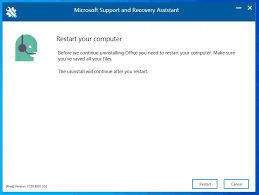
Using The Microsoft Removal Tool
- Download the Microsoft Removal tool from the official Microsoft website.
- Run the tool and follow the instructions to uninstall Microsoft Office.
- If you encounter any issues, restart your computer and try again.
Uninstalling Microsoft Office on Macos
If you’re using a Mac, uninstalling Microsoft Office is also relatively easy. Here’s how to do it:
Using The Finder App
- Open the Finder app and click on Applications.
- Find Microsoft Office in the list of installed apps and drag it to the Trash.
- Right-click (or Control-click) on Microsoft Office and select Show Package Contents.
- Navigate to the Contents folder and delete the office application files.
Using The Terminal App
- Open the Terminal app and type “sudo rm -rf /Applications/Microsoft\ Office*” followed by Enter.
- If you encounter any issues, restart your Mac and try again.
Uninstalling Microsoft Office on Android And Ios/ipados
If you’re using a smartphone or tablet with an Android or iOS operating system, uninstalling Microsoft Office is even easier:
On Android
- Go to the drawer (the menu on the left side of the screen) and find Microsoft Office.
- Tap and hold on Microsoft Office until it starts shaking.
- Tap the X icon in the top right corner to delete Microsoft Office.
On Ios/ipados
- Find Microsoft Office on your home screen or in the App Library.
- Touch and hold on Microsoft Office until it starts shaking.
- Tap the X icon in the top right corner to delete Microsoft Office.
How to Uninstall Microsoft 365 (Office 365)
If you’re using Microsoft 365, also known as Office 365, the process is similar:
On Windows
- Go to the Microsoft website and sign in with your account.
- Click on the Manage subscription button.
- Scroll down and click on the Cancel subscription button.
- Confirm that you want to cancel your subscription.
On Macos
- Go to the Microsoft website and sign in with your account.
- Click on the Profile picture icon in the top right corner and select Account settings.
- Scroll down and click on the Cancel subscription button.
- Confirm that you want to cancel your subscription.
Conclusion
Uninstalling Microsoft Office is a straightforward process, whether you’re using Windows, macOS, Android, or iOS/iPadOS. By following these steps, you can easily remove the application from your device and free up space for other programs.
Frequently Asked Questions (FAQs)
- Q: What Happens if I Uninstall Microsoft Office?
A: If you uninstall Microsoft Office, all the applications within the suite will be removed from your device. - Q: Will I Still be Able to Use my Microsoft Account?
A: Yes, your Microsoft account will remain active even after uninstalling Microsoft Office. - Q: Can I Reinstall Microsoft Office Later?
A: Yes, you can reinstall Microsoft Office at any time by downloading the application from the official Microsoft website. - Q: Will Uninstalling Microsoft Office Affect my Other Microsoft Applications?
A: No, uninstalling Microsoft Office will not affect your other Microsoft applications, such as OneDrive or Skype. - Q: How do I Cancel my Microsoft 365 Subscription?
A: To cancel your Microsoft 365 subscription, go to the Microsoft website and follow the instructions to cancel your subscription. - Q: What Happens if I Have Problems Uninstalling Microsoft Office?
A: If you encounter any issues while uninstalling Microsoft Office, restart your device and try again. - Q: Can I Use a Different Office Suite After Uninstalling Microsoft Office?
A: Yes, you can install and use other office suites, such as Google Workspace or LibreOffice.
References
- Microsoft Support: Uninstall Microsoft Office
- Apple Support: Remove Apps from your iPhone or iPad
- Android Authority: How to delete apps on Android


