
How to Uninstall Riot Client From Your Computer: A Step-by-step Guide
Are you tired of having the Riot client on your computer, taking up space and potentially causing issues? Look no further! In this article, we will guide you through a step-by-step process to uninstall Riot client from your Windows PC or Mac.
What is Riot Client?
Riot client is an official client developed by Riot Games that allows users to access various titles such as VALORANT, League of Legends, and TFT. It’s designed to provide a seamless experience for players to download and play these games. However, if you’re no longer interested in playing these games or have encountered issues with the client, it’s time to uninstall it.
Why Uninstall Riot Client?
There are several reasons why you might want to uninstall Riot client from your computer:
- Space-saving: The client takes up storage space on your computer, which can be a concern if you’re running low on disk space.
- Performance Issues: In some cases, the client may cause performance issues or conflicts with other programs on your system.
- Security Concerns: If you’ve encountered any security issues or malware related to the client, it’s essential to uninstall it to prevent further problems.
How to Uninstall Riot Client From Windows PC
To uninstall Riot client from your Windows PC, follow these steps:
Step 1: Close The Riot Client
Before proceeding with the uninstallation process, close the Riot client by clicking on the X button in the top-right corner or pressing the combination of keys Cmd + Q.
Step 2: Access The Control Panel
Click on the Start menu and type “Control Panel” in the search bar. Select the result to open it.
Step 3: Go to Programs And Features (Windows 10) or Uninstall a Program (Windows 11)
In Windows 10, click on “Programs and Features.” In Windows 11, click on “Uninstall a program.”
Step 4: Find The Riot Client
Scroll through the list of installed programs until you find the Riot client. Click on it to select it.
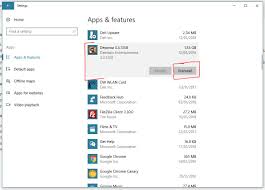
Step 5: Uninstall The Riot Client
Click on the “Uninstall” button and confirm your decision by clicking “Yes” in the prompt that appears.
Step 6: Remove Remaining Files
After uninstalling the client, navigate to the following folders:
C:\Users\[YourUsername]\AppData\Local\Riot GamesC:\ProgramData\Riot Games
Delete any remaining files and folders within these directories.
How to Uninstall Riot Client From Mac
To uninstall Riot client from your Mac, follow these steps:
Step 1: Close The Riot Client
Before proceeding with the uninstallation process, close the Riot client by clicking on the red button in the top-left corner or pressing Cmd + Q.
Step 2: Access The Finder
Click on the Finder icon in the Dock to open it.
Step 3: Go to Applications
In the sidebar, click on “Applications.”
Step 4: Find The Riot Client
Scroll through the list of installed applications until you find the Riot client. Drag it to the Trash icon located in the dock.
Step 5: Empty The Trash
Right-click (or Control-click) on the Trash icon and select “Empty Trash.” Confirm your decision by clicking “OK” in the prompt that appears.
What About Riot Vanguard?
Riot Vanguard is an anti-cheat software developed by Riot Games to ensure competitive integrity in certain games. While it’s not necessary to uninstall it separately, you can remove it during the process of uninstalling the client. If you encounter any issues or conflicts with other programs, consider removing it as well.
Conclusion
Uninstalling Riot client from your computer is a straightforward process that requires attention to detail. By following these steps and taking care to remove remaining files, you’ll be able to free up space on your device and potentially resolve performance issues or security concerns related to the client.
Frequently Asked Questions (FAQs)
Q: Will Uninstalling Riot Client Affect my Ability to Play Other Games?
A: Yes, uninstalling the client will prevent you from playing games that require it. However, you can reinstall it at a later time if needed.
Q: Can I Uninstall Riot Vanguard Separately From The Client?
A: Yes, you can remove Riot Vanguard separately, but this is not necessary unless you encounter specific issues with it.
Q: What Should I do if I’m Experiencing Performance Issues or Conflicts After Uninstalling The Client?
A: If you notice any problems after uninstalling the client, consider reinstalling it to see if the issue resolves itself.


