
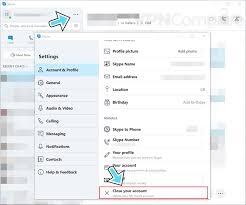
How to Uninstall Skype: A Step-by-step Guide
Are you tired of using Skype on your computer or mobile device? Do you want to uninstall it completely, but don’t know where to start? Look no further! In this article, we’ll guide you through the process of uninstalling Skype from Windows and macOS computers, as well as from Android and iOS devices.
Important Information Before You Begin
Before we dive into the step-by-step instructions, there’s an important thing you need to know. Even after uninstalling Skype, it will remain active in your Microsoft account. This is because Skype is integrated with other Microsoft services, such as Outlook. If you use Outlook.Com, you’ll still receive notifications from Skype without being able to turn them off completely.
To avoid this issue, you can deactivate the notifications on Outlook.Com by following these steps:
- Log in to your Outlook.Com account.
- Click on the gear icon in the top right corner and select “Settings.”
- In the settings page, click on “General” and then “Notifications.”
- Uncheck the boxes next to “When a new message arrives” and “When someone calls you.”
By following these steps, you’ll no longer receive notifications from Skype even after uninstalling it.
Uninstalling Skype on Windows Computers
To uninstall Skype on Windows computers, follow these steps:
Method 1: Uninstalling Skype For Desktop
- Open the Start menu and search for “Skype” in the search bar.
- Click on the Skype icon to open the app.
- Right-click on the Skype icon and select “Uninstall.”
- Confirm the uninstallation by clicking on the “Uninstall” button.
Method 2: Uninstalling Skype From The Control Panel
- Open the Control Panel by searching for it in the Start menu or by typing “Control Panel” in the address bar.
- Click on “Programs and Features.”
- Find Skype in the list of installed programs and click on it.
- Click on the “Uninstall” button to confirm.
Uninstalling Skype on Macos Computers
To uninstall Skype on macOS computers, follow these steps:
- Open the Finder app.
- Navigate to the Applications folder.
- Find Skype in the list of installed apps and right-click (or control-click) on it.
- Select “Move to Trash” from the contextual menu.
Uninstalling Skype on Android Devices
To uninstall Skype on Android devices, follow these steps:
- Long-press on the Skype icon on your home screen or in the app drawer.
- A window will pop up asking if you want to uninstall the app. Tap “Uninstall.”
- Confirm the uninstallation by tapping “OK.”
Alternatively, you can also uninstall Skype from the Google Play Store:
- Open the Google Play Store app.
- Search for “Skype” in the search bar.
- Find Skype in the list of apps and tap on it.
- Tap the three dots at the top right corner of the screen and select “Uninstall.”
Uninstalling Skype on Ios Devices
To uninstall Skype on iOS devices, follow these steps:
- Long-press on the Skype icon on your home screen until it starts to jiggle.
- A red minus sign will appear next to the app. Tap the minus sign.
- Confirm the uninstallation by tapping “Delete App.”
Alternatively, you can also uninstall Skype from the Settings app:
- Open the Settings app.
- Scroll down and select “General.”
- Select “iPhone Storage” or “iPad Storage,” depending on your device.
- Find Skype in the list of apps and tap on it.
- Tap “Delete App.”
Conclusion
Uninstalling Skype is a straightforward process that can be completed in just a few steps, regardless of whether you’re using a Windows computer, macOS computer, Android device, or iOS device. Remember to deactivate notifications from Skype on Outlook.Com if you use this service.
Frequently Asked Questions (FAQs)
- Will Uninstalling Skype Affect my Microsoft Account?
Uninstalling Skype will not directly affect your Microsoft account. However, as mentioned earlier, it may still receive notifications from Skype even after uninstallation.
- Can I Reinstall Skype Later?
Yes, you can reinstall Skype at any time by searching for the app in the Google Play Store or Apple App Store.
- Will Uninstalling Skype Delete my Skype Data?
No, uninstalling Skype will not delete your Skype data. You can still access your data and conversations from within your Microsoft account.
- How do I Deactivate Notifications From Skype on Outlook.Com?
To deactivate notifications from Skype on Outlook.Com, follow the steps outlined in the “Important Information Before You Begin” section.
- Can I Uninstall Skype if I’m Not Logged in to my Microsoft Account?
Yes, you can uninstall Skype even if you’re not logged in to your Microsoft account. The process remains the same as described above.


