
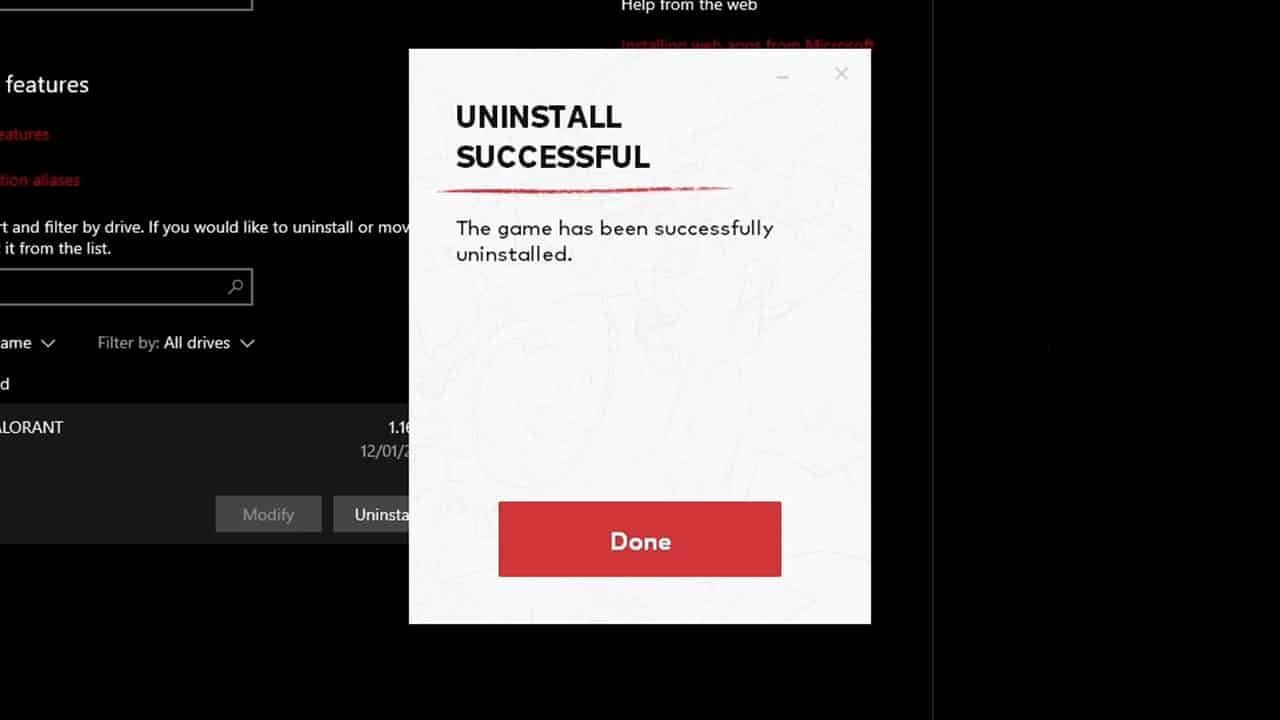
How to Uninstall Valorant From Windows: A Step-by-step Guide
Are you tired of playing Valorant and want to uninstall it from your Windows computer? Look no further! This guide will walk you through the process of uninstalling Valorant, including the standard procedure and an alternative method using the terminal.
Why Uninstall Valorant?
Before we dive into the uninstallation process, let’s talk about why you might want to uninstall Valorant in the first place. Perhaps you’ve found a new game that you’re more interested in, or maybe you’re experiencing technical issues with Valorant and need to reinstall it from scratch.
Whatever your reason, this guide will help you remove Valorant and any related software from your Windows computer.
Standard Uninstallation Procedure
To uninstall Valorant using the standard procedure, follow these steps:
Step 1: Close The Game And Client
Close the Valorant game and client by pressing the ESC key on your keyboard. Then, click on the gear icon in the top-right corner of the screen to access the settings menu.
Step 2: Exit Vanguard And Riot Client
Click on the “Exit Vanguard” option and confirm that you want to exit the game. Next, close the Riot client by clicking on the [X] button in the top-right corner of the window.
Step 3: Access The Settings Menu
Press the Windows key + I to access the settings menu. Then, click on the “Apps” tab and select “Riot Vanguard” from the list of installed apps.
Step 4: Uninstall Riot Vanguard
Click on the “Uninstall” button next to the Riot Vanguard app. Confirm that you want to uninstall the app by clicking on the “Yes” button.
Step 5: Uninstall Valorant And Other Related Software
Repeat the process above for Valorant and any other related software, such as the Valorant client or Riot’s anti-cheat software.
Alternative Method Using The Terminal
If the standard procedure doesn’t work for you, don’t worry! You can try uninstalling Valorant using the terminal. Here’s how:
Step 1: Open The Command Prompt as Administrator
Press the Windows key + R to open the Run dialog box. Type “cmd” and press Enter to open the Command Prompt.
Step 2: Run The Uninstallation Commands
Type the following commands into the Command Prompt window, pressing Enter after each one:
Bash

Sc delete vgc

Sc delete vgk
Step 3: Restart Your Computer
Restart your computer to complete the uninstallation process.
Troubleshooting Tips
If you encounter any issues during the uninstallation process, here are a few troubleshooting tips to keep in mind:
- Make sure that you have closed all Valorant-related software before attempting to uninstall it.
- If you’re using Windows 11, try opening the “Apps” tab in the settings menu and selecting “App installed” instead of searching for Riot Vanguard.
- If you’re still experiencing issues, try reinstalling Valorant from scratch.
Conclusion
Uninstalling Valorant from your Windows computer is a relatively straightforward process. Whether you use the standard procedure or the alternative method using the terminal, following these steps will help you remove Valorant and any related software from your system.
If you have any questions or need further assistance, feel free to ask!
Frequently Asked Questions (FAQs)
- What Happens if I Uninstall Valorant?
Uninstalling Valorant will remove the game, client, and related software from your Windows computer. You’ll no longer be able to play Valorant or access its features.
- Will I Lose Any Progress or Data?
Yes, uninstalling Valorant will delete all progress and data associated with the game.
- Can I Reinstall Valorant After Uninstalling It?
Yes, you can reinstall Valorant at a later time by downloading and installing the game from the official Riot website.
- What if I’m Experiencing Technical Issues With Valorant?
If you’re experiencing technical issues with Valorant, try restarting your computer or reinstalling the game from scratch. If the problem persists, contact the support team for assistance.
- How do I Uninstall Valorant Using The Terminal on a Mac?
Uninstalling Valorant using the terminal on a Mac is not supported at this time. Please use the standard procedure above to uninstall the game.


