
How to Uninstall Updates on Windows 10: A Step-by-step Guide
Are you experiencing issues with your Windows 10 computer due to a problematic update? Don’t worry, we’ve got you covered! In this article, we’ll walk you through the process of uninstalling updates on Windows 10, ensuring that your system runs smoothly and efficiently.
Understanding Updates on Windows 10
Before we dive into the uninstallation process, it’s essential to understand how updates work on Windows 10. Updates are patches released by Microsoft to fix bugs, improve performance, and add new features to the operating system. These updates can be installed automatically or manually, depending on your preference.
Why Uninstall Updates on Windows 10?
There are several reasons why you might want to uninstall an update on Windows 10:
- System Instability: If an update causes instability in your system, it may be necessary to remove it to prevent further issues.
- Compatibility Issues: Sometimes, updates can cause compatibility problems with certain software or hardware. Uninstalling the update can resolve these issues.
- Space Optimization: Large updates can take up valuable space on your computer’s hard drive. Removing them can free up storage and improve performance.
Precautions Before Uninstalling Updates
Before uninstalling an update, it’s crucial to:
- Backup Your Data: Ensure that you have backed up all important files and documents before proceeding.
- Understand The Risks: Be aware that removing an update can cause system instability or compatibility issues. Proceed with caution.
Step-by-step Guide to Uninstalling Updates on Windows 10
Now that we’ve covered the basics, let’s move on to the step-by-step guide:
Disabling Automatic Updates
If you want to disable automatic updates on Windows 10, follow these steps:
- Click on the Start button and select Settings.
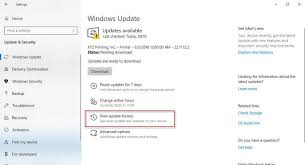
- Click on the “Update & Security” option.
- In the Update & Security window, click on the “Windows Update” tab.
- Toggle the switch under “Active hours” to disable automatic updates.
Warning: Disabling automatic updates can leave your system vulnerable to security threats. Only do this if you’re aware of the risks and have taken necessary precautions.
Uninstalling Updates Using The Control Panel
To uninstall an update using the Control Panel:
- Click on the Start button and select Settings.
- Click on the “Control Panel” option.
- In the Control Panel window, click on the “Programs and Features” option.
- Look for the update you want to uninstall in the list of installed programs.
- Select the update and click the “Uninstall” button.
Using The Command Prompt
If you’re comfortable using the Command Prompt, you can also use it to uninstall updates:
- Press the Windows key + R to open the Run dialog box.
- Type
cmdin the search bar and press Enter to open the Command Prompt. - Type the command
wusa /uninstall /kb:Xxxxxxx, replacingxxxxxxxwith the actual update code. - Press Enter to execute the command.
Provisional Modality
If the above methods don’t work, you can try the provisional modality:
- Go to Settings > Update and Safety > Resolution of problems > Restart (under advanced start).
- Alternatively, press Windows key + R, type
shutdown /r /o, and press Enter. - Click on the icon Resolution of problems, then advanced Options, and finally on the buttons Settings of start and restart.
Conclusion
Uninstalling updates on Windows 10 can be a bit tricky, but with this guide, you should be able to do it safely and efficiently. Remember to backup your data, understand the risks, and take necessary precautions before proceeding. If you’re still unsure or encounter issues, don’t hesitate to seek help from Microsoft support or a qualified technician.
Frequently Asked Questions (FAQs)
Q: Can I Uninstall an Update if It’s Causing System Instability?
A: Yes, but exercise caution and ensure that you have backed up your data before proceeding.
Q: Will Uninstalling an Update Affect my Computer’s Performance?
A: Uninstalling an update can free up space on your hard drive, potentially improving performance. However, removing an update can also cause system instability or compatibility issues.
Q: Can I Disable Automatic Updates on Windows 10?
A: Yes, but be aware that disabling automatic updates can leave your system vulnerable to security threats.
Q: How do I Uninstall an Update Using The Command Prompt?
A: Use the command wusa /uninstall /kb:Xxxxxxx, replacing xxxxxxx with the actual update code.
Q: What is The Provisional Modality on Windows 10?
A: The provisional modality is a special start mode indicated for diagnostic purposes, where Windows charges only the necessary components to operate.
Q: Can I Uninstall an Update if It’s Causing Compatibility Issues?
A: Yes, but ensure that you have backed up your data and understand the risks involved before proceeding.


