
How to Uninstall Windows 10: A Step-by-step Guide
Are you tired of using Windows 10 and want to switch to a different operating system? Or perhaps you’re experiencing issues with the current version and need to uninstall it? Look no further! In this article, we’ll guide you through the process of uninstalling Windows 10, step by step.
Before You Begin
Before you start the uninstallation process, make sure you have a valid product key or digital license for Windows 10. This will come in handy when you’re ready to install a new operating system. Additionally, take some time to back up your important personal data and files to an external hard drive or cloud storage.
Why Uninstall Windows 10?
There are several reasons why you might want to uninstall Windows 10:
- You’re experiencing issues with the current version and want to switch to a previous edition.
- You’re looking for a change of pace and want to try a different operating system, such as Linux or macOS.
- Your computer is old or outdated, and you need to upgrade to a newer version.
Step 1: Create a Backup
Before uninstalling Windows 10, make sure you have a backup of your important files and data. This will ensure that you don’t lose any essential information during the process.
Step 2: Check Your Hardware Compatibility
Before installing a new operating system, check if your hardware is compatible with it. Make sure you have the necessary drivers for your computer’s components.
Step 3: Download The New Operating System
If you’re planning to install a different operating system, download the installation files from the manufacturer’s website.
Step 4: Update Your Drivers
Update your drivers to ensure they are compatible with the new operating system. This will prevent any issues during the installation process.
How to Uninstall Windows 10: A Step-by-step Guide
Now that you’ve completed the preliminary steps, let’s move on to the uninstallation process:
Uninstalling Windows 10 Using Settings
- Open the Start menu and click on the Settings icon.
- Click on Update & Security.
- Click on Recovery.
- Click on Get started under the “Go back to a previous version of Windows” section.
- Follow the prompts to complete the uninstallation process.
Uninstalling Windows 10 Using Command Prompt
- Open the Command Prompt as an administrator.
- Type the following command:
Shutdown /r /o "\Windows RE" - Press Enter to initiate the shutdown process.
- Once your computer has restarted, follow the on-screen instructions to complete the uninstallation process.
Uninstalling Windows 10 From Bios/uefi
- Insert a USB drive with the new operating system installation files.
- Restart your computer and press the key to access the BIOS or UEFI settings (usually F2, F12, or Del).
- Set the boot order to prioritize the USB drive.
- Save the changes and exit the BIOS or UEFI settings.
- Your computer will now boot from the USB drive and initiate the installation process.
Disabling Windows Defender
If you’re experiencing issues with Windows Defender or want to disable it temporarily, follow these steps:
- Open the Start menu and click on the Settings icon.
- Click on Update & Security.
- Click on Virus & threat protection.
- Click on Manage settings.
- Toggle off the toggle switch under “Cloud-delivered protection.”
Disabling Windows Updates
If you’re experiencing issues with Windows updates or want to disable them temporarily, follow these steps:
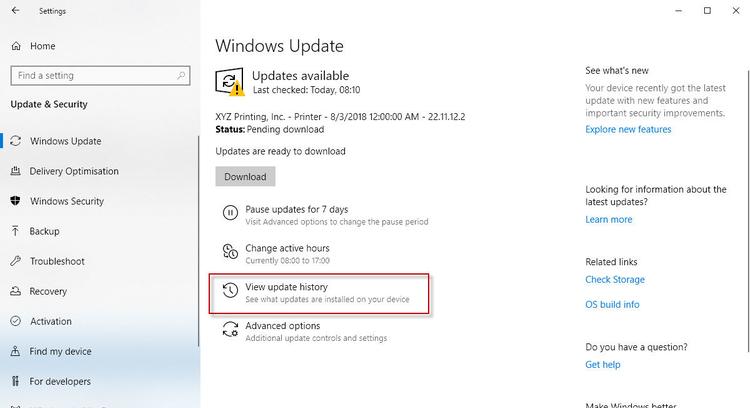
- Open the Settings app.
- Click on Update & Security.
- Click on Windows Update.
- Click on Advanced options.
- Toggle off the toggle switch under “Pause updates for 7 days.”
Conclusion
Uninstalling Windows 10 can be a bit of a process, but with these steps, you should be able to complete it successfully. Remember to back up your important files and data before uninstalling the operating system. If you’re experiencing issues or need further assistance, feel free to ask.
Frequently Asked Questions
- Q: Can I Uninstall Windows 10 Without Losing my Data?
A: Yes, as long as you have a backup of your important files and data. - Q: How do I Disable Windows Defender?
A: To disable Windows Defender, follow the steps outlined in the “Disabling Windows Defender” section. - Q: Can I Uninstall Windows 10 Using Command Prompt?
A: Yes, follow the steps outlined in the “Uninstalling Windows 10 Using Command Prompt” section. - Q: How do I Enable or Disable Windows Updates?
A: To enable or disable Windows updates, follow the steps outlined in the “Disabling Windows Updates” section. - Q: Can I Uninstall Windows 10 From Bios/uefi?
A: Yes, follow the steps outlined in the “Uninstalling Windows 10 from BIOS/UEFI” section. - Q: How do I Back up my Data Before Uninstalling Windows 10?
A: To back up your data, use an external hard drive or cloud storage service. - Q: Can I Reinstall Windows 10 After Uninstalling It?
A: Yes, follow the steps outlined in the “Reinstalling Windows 10” section (available separately). - Q: How do I Check my Hardware Compatibility Before Uninstalling Windows 10?
A: To check your hardware compatibility, visit the manufacturer’s website for specifications and drivers.


