
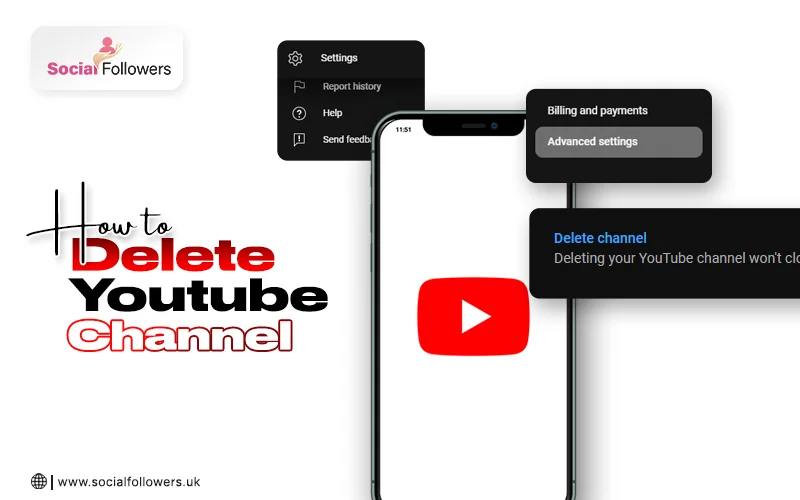
How to Uninstall Youtube: A Comprehensive Guide
Are you tired of spending too much time on YouTube? Do you want to “force yourself” (use a idiomatic expression, which translates to force oneself) to reduce your screen time on this platform? If so, uninstalling the official app from all your mobile devices might seem like an extreme remedy. However, if you’re looking for a straightforward guide on how to do it, you’ve come to the right place!
Understanding The Basics
Before we dive into the nitty-gritty of uninstalling YouTube, let’s first understand what we’re dealing with. The official YouTube app is preinstalled on most Android devices, and it’s also available for download from the App Store on iOS devices. In some cases, you might have installed additional apps like YouTube Kids or YouTube Music, which can be uninstalled separately.
Uninstalling Youtube on Android Devices
If you’re using an Android device, uninstalling YouTube is relatively straightforward:
- Access Your Settings: Go to the Settings app and scroll down to Apps.
- Find The Youtube App: Look for the YouTube icon and select it.
- Disable or Remove: You’ll see two options – Disable and Remove. Select either one, depending on your preference.
Note: If you’ve disabled the app, it will still appear in your app drawer, but it won’t function as expected. To reactivate YouTube, simply follow these steps again and select the option to enable or reinstall the app.
Uninstalling Youtube on Ios Devices
If you’re using an iPhone or iPad, uninstalling YouTube is also relatively easy:
- Access Your Home Screen: Go to your home screen and find the YouTube icon.
- Tap And Hold: Tap and hold the YouTube icon until it starts to jiggle.
- Delete App: Select the “Delete” option from the pop-up menu.
Uninstalling Youtube on Smart Tvs
Uninstalling YouTube on smart TVs can be a bit more complicated, as different models have varying operating systems. However, here are some general steps you can follow:
- Access Your Tv’s Settings: Go to your TV’s settings and look for the “Apps” or “Applications” section.
- Find The Youtube App: Search for the YouTube app icon and select it.
- Uninstall App: Follow the on-screen instructions to uninstall the YouTube app.
Uninstalling Youtube on Pcs
If you’re using a PC, uninstalling YouTube is relatively straightforward:
- Access Your Taskbar: Go to your taskbar and look for the YouTube icon.
- Right-click: Right-click on the YouTube icon and select “Uninstall”.
- Confirm Uninstallation: Confirm that you want to uninstall YouTube by selecting the “Uninstall” option.
Uninstalling Youtube Kids or Music
If you’ve installed additional apps like YouTube Kids or YouTube Music, uninstalling them is relatively easy:
- Access Your Settings: Go to your settings and look for the Apps section.
- Find The App: Search for the app icon (YouTube Kids or YouTube Music) and select it.
- Disable or Remove: You’ll see two options – Disable and Remove. Select either one, depending on your preference.
Conclusion
Uninstalling YouTube can be a straightforward process if you follow these simple steps. Whether you’re using an Android device, iOS device, smart TV, or PC, the process is relatively similar. Remember to always back up your data before uninstalling any apps, and don’t hesitate to reach out if you have any questions or concerns.
Frequently Asked Questions
- Q: Can I reinstall YouTube after uninstalling it?
A: Yes, you can reinstall YouTube by downloading the app from the App Store (iOS) or Google Play Store (Android). - Q: Will uninstalling YouTube affect my account or videos?
A: No, uninstalling YouTube will not affect your account or videos. However, keep in mind that some features might be affected. - Q: Can I uninstall other apps like YouTube Kids or Music?
A: Yes, you can uninstall these apps separately by following the same steps outlined above.


