
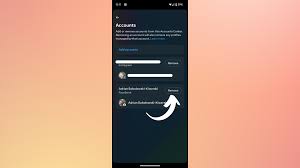
How to Deactivate Your Instagram Account: A Step-by-step Guide
Are you tired of using Instagram but don’t know how to deactivate your account? Look no further! In this article, we will guide you through the process of deactivating your Instagram account on both Android and iOS devices, as well as on a computer.
Why Deactivate Your Instagram Account?
Before we dive into the steps, let’s consider why you might want to deactivate your Instagram account. Perhaps you’re concerned about online safety, or maybe you’ve simply lost interest in using the platform. Whatever your reason, deactivating your account is a straightforward process that can be completed in just a few minutes.
Deactivating Your Instagram Account on Android And Ios Devices
If you use Instagram on your smartphone, here’s how to deactivate your account:
- Open The Instagram App: Launch the Instagram app on your device.
- Tap on Your Profile Picture: Tap on the profile picture in the top-right corner of the screen.
- Go to Settings And Privacy: Tap on the three horizontal lines (☰) in the top-right corner, then select “Settings and privacy” from the menu.
- Select “Account”: Choose “Account” from the menu.
- Scroll Down And Select “Log Out”: Scroll down and tap on “Log out”.
- Confirm Your Decision: Tap on “Log out” again to confirm your decision.
Deactivating Your Instagram Account on a Computer
If you use Instagram on a computer, here’s how to deactivate your account:
- Open Instagram in Your Browser: Go to the Instagram website and log in to your account.
- Click on Your Profile Picture: Click on your profile picture in the top-right corner of the screen.
- Go to Settings And Privacy: Select “Settings and privacy” from the menu.
- Select “Account”: Choose “Account” from the menu.
- Scroll Down And Click on “Log Out”: Scroll down and click on “Log out”.
- Confirm Your Decision: Click on “Log out” again to confirm your decision.
Deactivating an Instagram Account Linked to Facebook
If you’ve linked your Instagram account to a Facebook account, deactivating your Instagram account will also deactivate it from Facebook. To do this:
- Open Instagram in Your Browser: Go to the Instagram website and log in to your account.
- Click on Your Profile Picture: Click on your profile picture in the top-right corner of the screen.
- Go to Settings And Privacy: Select “Settings and privacy” from the menu.
- Select “Account”: Choose “Account” from the menu.
- Scroll Down And Click on “Remove Facebook Account”: Scroll down and click on “Remove Facebook account”.
- Confirm Your Decision: Click on “Remove” again to confirm your decision.
Deactivating an Instagram Business Account
If you have an Instagram business account, deactivating it will also remove it from the Meta Business Manager. To do this:
- Open The Meta Business Manager Website: Go to the Meta Business Manager website and log in to your account.
- Select “Account”: Choose “Account” from the menu.
- Scroll Down And Click on “Disconnect Instagram Account”: Scroll down and click on “Disconnect Instagram account”.
- Confirm Your Decision: Click on “Disconnect” again to confirm your decision.
Frequently Asked Questions
Here are some frequently asked questions about deactivating an Instagram account:
- Q: How do I Know if my Instagram Account is Deactivated?
A: Once you’ve successfully deactivated your account, you’ll see a message confirming that your account has been logged out. - Q: Will I Lose Any Data or Photos When I Deactivate my Account?
A: No, deactivating your account will not delete any of your data or photos. They will remain on the platform until they are deleted by Instagram’s algorithm. - Q: Can I Reactivate my Instagram Account if I Change my Mind?
A: Yes, you can reactivate your account at any time within 30 days of deactivation.
Conclusion
Deactivating an Instagram account is a simple process that can be completed in just a few minutes. Whether you’re concerned about online safety or simply want to take a break from the platform, we hope this guide has helped you understand how to deactivate your account on both Android and iOS devices, as well as on a computer.


