
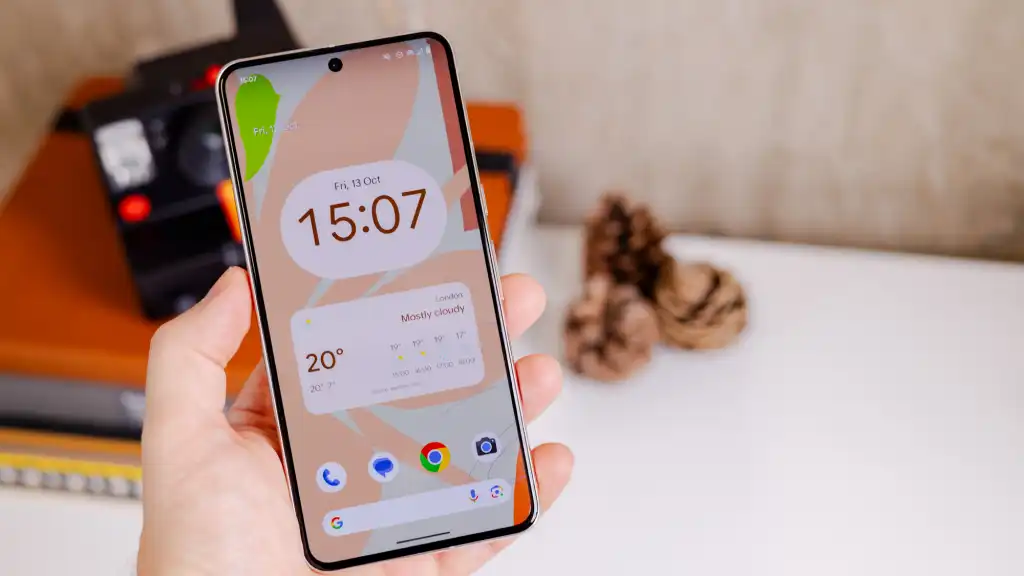
How to Unlock Android Device: A Step-by-step Guide
Are you tired of dealing with a locked Android device? Look no further! In this comprehensive guide, we’ll walk you through the steps to unlock your Android device, whether it’s due to forgotten passwords, cracked screens, or other issues.
Why is My Android Device Locked?
Before we dive into the solution, let’s briefly discuss why your Android device might be locked. There are several reasons for this:
- Forgotten password or PIN
- Cracked or broken screen
- Software glitches or bugs
- Hardware malfunctions
Don’t worry; we’ve got you covered!
Step 1: Try a Forced Reboot
If your Android device is simply not responding, try a forced reboot. This is often the simplest solution to get your device back up and running.
- Hold down the power button for around 10 seconds.
- Release the power button, then press it again to turn on your device.
- If this doesn’t work, proceed to the next step.
Step 2: Perform a Factory Reset
If the forced reboot didn’t work, it’s time to perform a factory reset. This will erase all data on your device, so make sure you have backed up any important information before proceeding!
- Go to Settings > System > Advanced > Reset options.
- Select “Reset factory settings.”
- Confirm that you want to proceed with the reset.
Step 3: Use The Recovery Mode
If a factory reset didn’t work, it’s time to use the recovery mode. This will allow you to access your device’s system menu and perform various tasks.
- Press and hold the power button for around 10 seconds.
- Release the power button, then press it again to turn on your device.
- Immediately hold down the Volume Down button while keeping the power button pressed.
- Release the power button when you see the recovery mode menu appear.
Step 4: Unroot Your Device (Optional)
If you’ve rooted your Android device and are experiencing issues, you may need to unroot it before proceeding with a factory reset or other steps.
- Download an unrooting tool from the Google Play Store.
- Follow the instructions provided by the app to unroot your device.
Step 5: Contact Your Device Manufacturer (If Necessary)
If none of the above steps have worked, and you’re still experiencing issues with your Android device, it may be time to contact the manufacturer for assistance.
- Check if there are any software updates available that might resolve the issue.
- Visit a local authorized service center or contact their customer support for further guidance.
Additional Tips And Resources
- Always ensure you have backed up all important data before performing any factory resets or other steps that may erase data on your device.
- Keep in mind that some devices, like those with rooted operating systems, might require additional steps or software to unlock.
- If you’re experiencing issues after attempting to unlock your Android device, consider consulting the manufacturer’s documentation or seeking assistance from a professional repair service.
Common Issues And Solutions
Here are some common issues and solutions related to unlocking Android devices:
- Forgot Password: Use the recovery mode to reset your password (Step 3).
- Cracked Screen: If the screen is cracked but still functional, try using a temporary fix or replacement (Step 5).
- Software Glitches: Perform a factory reset if you suspect software issues (Step 2).
Conclusion
Unlocking an Android device can seem daunting, but with this comprehensive guide, you should be able to troubleshoot and resolve most common issues. Remember to always follow proper procedures for unlocking your device to avoid further complications.
Frequently Asked Questions
- What Are The Steps to Unlock my Android Device?
A: Follow Steps 1-5 outlined in this article. - I Forgot my Password; What Can I Do?
A: Try using the recovery mode (Step 3) or resetting your password through Settings > System > Advanced > Reset options. - My Screen is Cracked, But The Device Still Works. What’s The Next Step?
A: Consider seeking assistance from a professional repair service or purchasing a new screen replacement (Step 5). - Can I Unlock my Android Device if It’s Rooted?
A: Yes, but you may need to take additional steps or use specific software to unroot your device first. - What Should I do if None of The Above Steps Work?
A: Contact your device manufacturer for further assistance and guidance (Step 5). - Will Unlocking my Android Device Erase All Data on It?
A: Yes, performing a factory reset or using recovery mode may result in data loss; ensure you have backed up important information before proceeding. - Can I Get Help From a Professional Repair Service?
A: Absolutely! Contact local authorized service centers or seek assistance online for further guidance and repairs.
We hope this guide has been helpful in resolving your Android device unlocking issues.


