
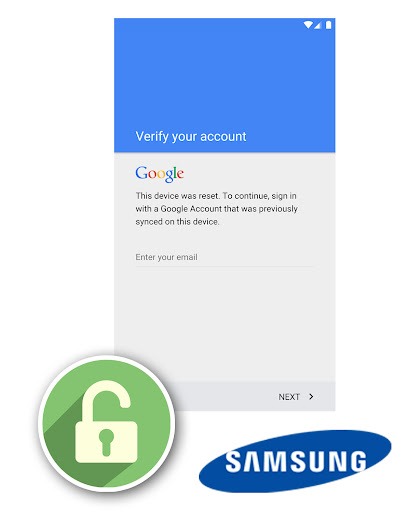
Unlocking Your Google Account on Android: A Step-by-step Guide
Are you struggling to access your Google account on your Android device? Don’t worry, you’re not alone! In this article, we’ll walk you through the various procedures to unblock your Google account on Android.
Understanding The Check in Two Passages
Before diving into the solution, it’s essential to understand what “Check in Two Passages” (also known as 2FA or two-factor authentication) is. This feature is designed to protect your Google account by adding an extra layer of security. When enabled, you’ll need to provide a verification code sent to your phone or generated by an authenticator app to access your account.
Why You Might Need to Unblock Your Account
You might need to unblock your Google account on Android due to various reasons:
- Attempting to access your account from a new device without proper configuration
- Dealing with issues related to the login process or security checks
- Using a device that’s not compatible with Google services
Procedure 1: Accessing Your Account
To unblock your Google account on Android, follow these steps:
- Open the official Google website using your Android device.
- Tap on the “Access” button located at the top right corner of the screen.
- Enter your associated email address and password, then tap on the “Next” button.
- If you’ve previously set up a two-factor authentication (2FA) method, you’ll be prompted to provide the verification code.
Procedure 2: Resolving Login Issues
If you encounter problems accessing your account, try the following:
- Tap on the “Other options/Proof another form” button.
- Select an alternative authentication method, such as a message or authenticator app.
Troubleshooting For Huawei Devices
If you’re using a HUAWEI device and experiencing issues with accessing your Google account, follow these specific steps:
- Install the Play Store on your HUAWEI device.
- Download and install essential apps like Gmail and YouTube directly from the AppGallery.
Precautions For Using Alternative Solutions
While installing alternative solutions can help you access Google services, be aware that this method may not provide the same level of security as official Google apps. Take necessary precautions to protect your data privacy and consider creating a secondary account specifically for accessing the Play Store.
By following these procedures and taking necessary precautions, you’ll be able to unblock your Google account on Android and continue using essential services like Gmail, YouTube, and more.
Conclusion
Unlocking your Google account on Android can seem daunting, but with this guide, you’ll find it easy to resolve issues related to accessing your account. Remember to understand the importance of two-factor authentication (2FA) and take necessary precautions when exploring alternative solutions for HUAWEI devices.
Frequently Asked Questions (FAQs)
- What is the Check in Two Passages, and why do I need it?
The Check in Two Passages (or 2FA) adds an extra layer of security by requiring a verification code to access your account. - How can I resolve issues related to accessing my Google account on Android?
Follow the procedures outlined in this article for troubleshooting login problems. - Can I use alternative solutions to access Google services on HUAWEI devices?
Yes, but be aware that these methods might not provide the same level of security as official Google apps.
Additional Resources
- Unlocking Your Google Account: A General Guide: Check out our comprehensive guide for detailed instructions on unblocking your account.
- Google’s Official Guide to 2FA: Consult Google’s official documentation for more information on two-factor authentication and resolving login issues.
Feel free to reach out if you have any further questions or concerns!


