
How to Unblock Your Ipad: A Step-by-step Guide
Are you tired of dealing with a slow or blocked iPad? Do you want to unblock your device and get back to enjoying your favorite apps and features? Look no further! In this guide, we’ll walk you through the steps to unblock your iPad, whether it’s due to a software issue, hardware problem, or just a simple glitch.
Why Does My Ipad Keep Blocking Me?
Before we dive into the solutions, let’s first understand why your iPad might be blocking you. Here are some common reasons:
- Software Issues: A corrupted app or software update can cause your iPad to become unresponsive.
- Hardware Problems: A faulty battery, charging port, or other hardware components can prevent your iPad from functioning properly.
- Overloaded Ram: If your iPad’s RAM is overloaded with too many apps and data, it can slow down or freeze.
Step 1: Force Restart Your Ipad
If your iPad is completely unresponsive, try force restarting it. This can resolve software issues that are causing the blockage. To do this:
- Press And Hold The Sleep/wake Button: If your iPad has a Home button, press and hold the Sleep/Wake button on top of the device until you see the Apple logo appear.
- Wait For 30 Seconds: Allow the iPad to complete its shutdown process.
Step 2: Discharge Your Ipad’s Memory
If your iPad is slow or unresponsive due to an overloaded RAM, try discharging its memory. Here are a few methods:
- Force Restart With Assistivetouch: If your iPad has no Home button, you can use the AssistiveTouch feature to force restart it.
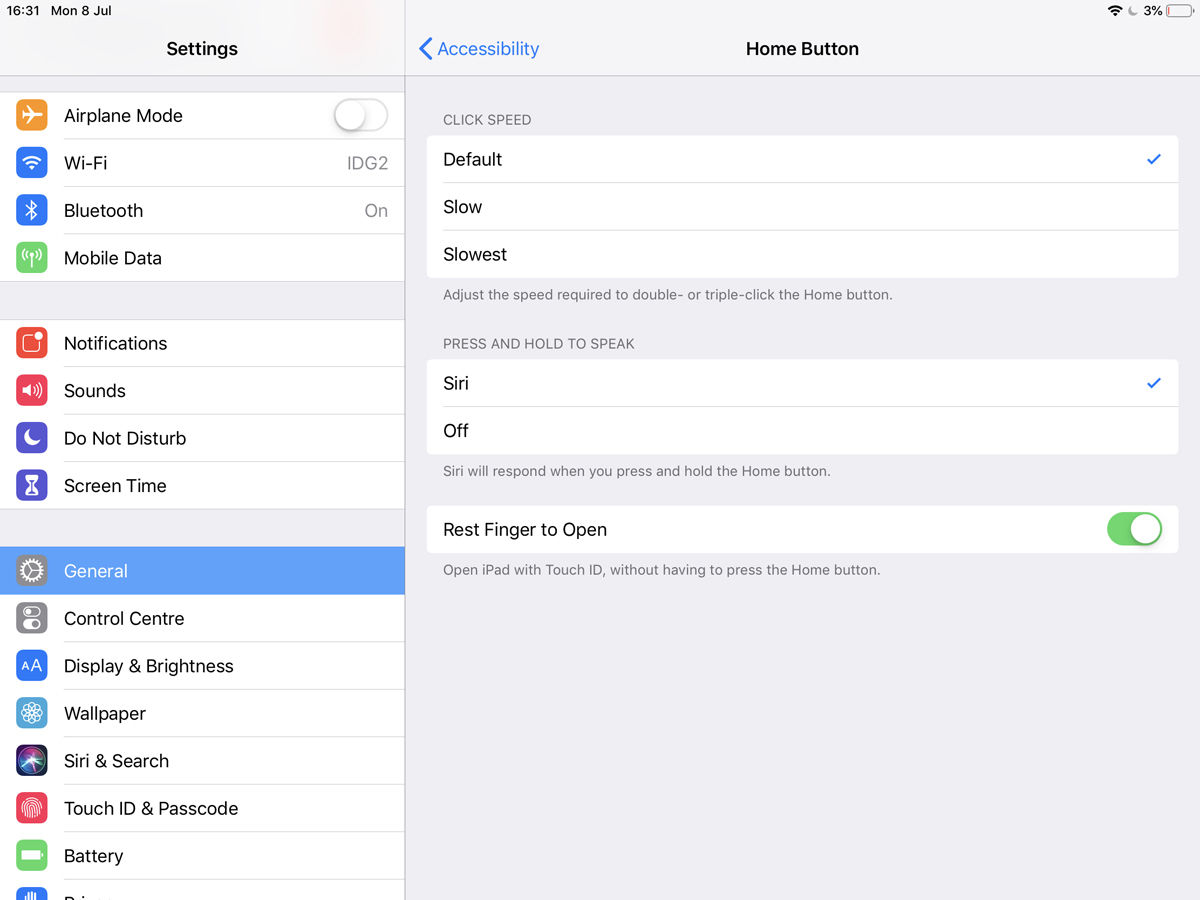
- Use The Assistivetouch Ring: Open Settings > Accessibility > Touch > Tap Back/Home twice to turn off and on. This will help discharge the RAM.
Step 3: Update or Restore Your Ipad Using Itunes
If your iPad is still unresponsive, try updating or restoring it using iTunes. Here’s how:
- Connect Your Ipad to a Computer: Use a USB cable to connect your iPad to a computer with iTunes installed.
- Open Itunes: Launch iTunes and select your iPad from the top menu bar.
- Update or Restore Your Ipad: Click on “Update” or “Restore” depending on what you need to do.
Step 4: Recover Your Ipad Using Finder (macOS Catalina or Later)
If you’re using a Mac with macOS Catalina or later, you can use the Finder app to recover your iPad. Here’s how:
- Connect Your Ipad to a Mac: Use a USB cable to connect your iPad to a Mac.
- Open The Finder App: Select your iPad from the top menu bar.
- Choose “Restore”: Click on “Restore” and follow the instructions.
Step 5: Reset Your Ipad’s Passcode
If you’ve forgotten your passcode or it’s been disabled, try resetting it. Here’s how:
- Go to Settings > Touch ID & Passcode (if Available).
- Tap ‘Forgot Passcode’: If prompted, enter the old passcode to confirm.
- Enter a New Passcode: Create and enter a new passcode.
Conclusion
Unblocking your iPad can be a simple process if you follow these steps. Remember that force restarting, discharging memory, updating or restoring using iTunes, recovering using Finder (macOS Catalina or later), or resetting the passcode can resolve software issues, hardware problems, or overloaded RAM. If none of these solutions work, consider contacting Apple for further assistance.
Frequently Asked Questions
Q: Why does my iPad keep blocking me?
A: It could be due to a software issue, hardware problem, or overloaded RAM.
Q: How do I force restart my iPad?
A: Press and hold the Sleep/Wake button until you see the Apple logo appear.
Q: What is AssistiveTouch?
A: AssistiveTouch is a feature that helps discharge the RAM by using a virtual ring on the screen.
Q: Can I recover my iPad using iTunes or Finder (macOS Catalina or later)?
A: Yes, try updating or restoring your iPad using iTunes, or recovering it using Finder on a Mac.
Q: How do I reset my passcode?
A: Go to Settings > Touch ID & Passcode (if available), tap ‘Forgot Passcode’, and enter the old passcode to confirm. Then, create and enter a new passcode.
Q: What if none of these solutions work?
A: Contact Apple for further assistance.


