
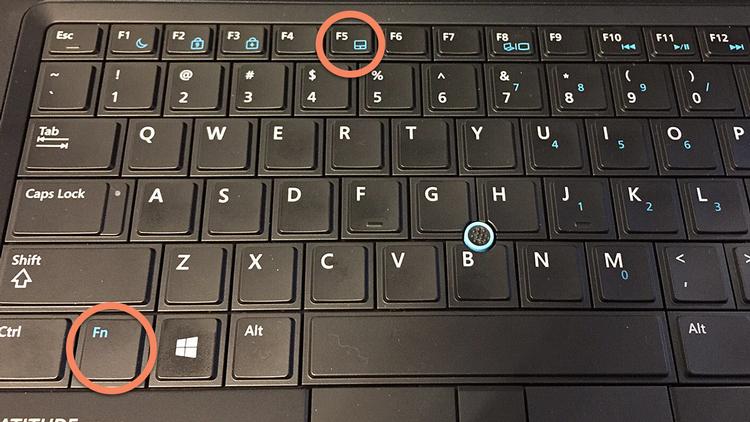
How to Unblock The Arrow on Your Portable Pc: A Step-by-step Guide
Are you tired of dealing with a stubborn arrow that refuses to budge on your portable computer? Look no further! In this article, we will guide you through the simple steps to unblock the arrow and get back to work in no time.
Understanding The Problem
The issue of a blocked arrow on a portable PC is more common than you think. It can be caused by various factors such as accidental deactivation of the touchpad or incorrect settings. In this article, we will explore the possible reasons behind this problem and provide practical solutions to get your arrow unblocked.
Symptoms of a Blocked Arrow
Before we dive into the solutions, let’s first identify the symptoms of a blocked arrow. Here are some common signs:
- The cursor on your screen is not moving
- You’re unable to click or interact with any elements on the screen
- Your touchpad is not responding
Solutions For Unblocking The Arrow
Now that we’ve identified the symptoms, let’s move on to the solutions.
Solution 1: Use an External Mouse
One of the simplest ways to unblock the arrow is by using an external mouse. Here’s how:
- Connect an external mouse to your portable PC
- Click right on the Start button and select Settings
- Go to Bluetooth and devices > Touchpad (on Windows 11) or Devices > Touchpad (on Windows 10)
- Find the toggle switch for Touchpad and turn it back on
Solution 2: Use The Settings App
If you don’t have an external mouse, don’t worry! You can still unblock the arrow using the Settings app.
- Press the Win+R keys to open the Run dialog box
- Type ms-settings:Devices-touchpad and press Enter
- Find the toggle switch for Touchpad and turn it back on
Solution 3: Check The Driver
Sometimes, the issue lies with the driver. Here’s how you can check:
- Press the Win+R keys to open the Run dialog box
- Type devmgmt.Msc and press Enter
- Expand the Mouse and other devices section
- Find the Touchpad device and ensure it’s enabled
Solution 4: Reinstall The Driver
If checking the driver doesn’t resolve the issue, try reinstalling it.
- Press the Win+R keys to open the Run dialog box
- Type ms-settings:Devices-touchpad and press Enter
- Click on the Download button to download the latest Touchpad drivers
Solution 5: Reset The Smc (For Mac Users)
If you’re using a Mac, try resetting the System Management Controller (SMC).
- Restart your Mac while holding down the power button
- Release the power button when the startup chime sounds for the second time
Conclusion
Unblocking the arrow on your portable PC is easier than you think. Try these simple solutions to get back to work in no time.
Faqs
- What Causes a Blocked Arrow on my Portable Pc?
A blocked arrow can be caused by accidental deactivation of the touchpad or incorrect settings. - How do I Unblock The Arrow Using an External Mouse?
Connect an external mouse, click right on the Start button, and select Settings to turn off the Touchpad toggle switch. - Can I Use The Settings App to Unblock The Arrow?
Yes, you can use the Settings app by typing ms-settings:Devices-touchpad in the Run dialog box. - How do I Check if The Touchpad Driver is Enabled?
Press Win+R, type devmgmt.Msc, and expand the Mouse and other devices section to find the Touchpad device. - What Should I do if Reinstalling The Driver Doesn’t Resolve The Issue?
Try resetting the SMC (for Mac users) or consult a professional for further assistance.
Remember, prevention is better than cure! Regularly check your settings and drivers to avoid any future issues with your portable PC’s arrow.


