
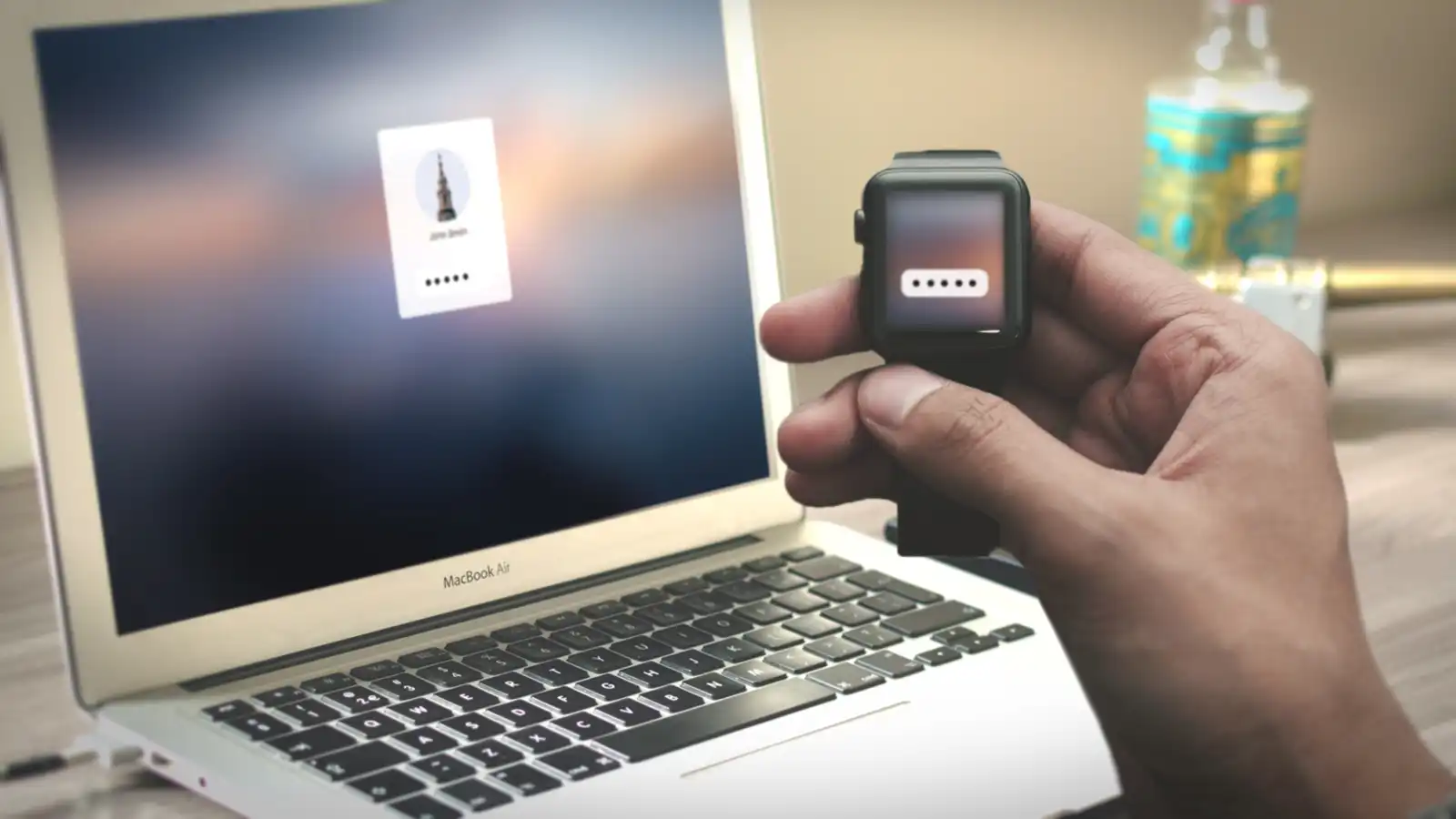
Unlocking Your Macbook With Apple Watch: A Comprehensive Guide
As a Mac user, have you ever found yourself in a situation where you’re stuck trying to unlock your MacBook? Perhaps you’ve forgotten your password or are having trouble accessing your device. Worry no more! In this article, we’ll explore an innovative solution that will revolutionize the way you interact with your MacBook – using your Apple Watch.
Understanding The Functionality
Before we dive into the nitty-gritty of unlocking your MacBook with Apple Watch, it’s essential to understand the underlying functionality. The process involves utilizing a feature called “Unblock Automatic” on your Mac, which allows you to unlock your device using your Apple Watch. This feature is available on Macs produced from 2013 onwards, running macOS High Sierra (10.13) Or later.
Requirements For Unlocking Your Macbook With Apple Watch
To unlock your MacBook with Apple Watch, you’ll need:
- A MacBook produced from 2013 onwards
- MacOS High Sierra (10.13) Or later installed on your Mac
- An Apple Watch updated to watchOS 3 or later
- The same ID Apple account used on both your MacBook and Apple Watch
Setting Up Your Apple Watch
To unlock your MacBook with Apple Watch, you’ll need to set up the necessary connections between devices.
- Ensure your Apple Watch is paired with your iPhone.
- On your Mac, open System Preferences > Safety & General > Privacies.
- Select the “Use Apple Watch to unblock the app and Mac” option (if using watchOS 6 or later) or “Consent to Apple Watch to unblock the Mac” option (if using watchOS 3, 4, or 5).
- Enter your Apple ID password in the designated field.
- Select the “Unblock” button.
Unlocking Your Macbook With Apple Watch
Once you’ve set up your Apple Watch and followed the above steps, unlocking your MacBook becomes a breeze:
- Wear your Apple Watch and ensure it’s unlocked.
- Place your Apple Watch near your MacBook.
- On your Mac, press any key on the keyboard or open the monitor to reactivate your device.
Additional Functionality
In addition to unlocking your MacBook with Apple Watch, this feature also allows you to approve other password requests for administrator access using your Apple Watch.
Troubleshooting Tips
If you encounter issues unlocking your MacBook with Apple Watch, try:
- Restarting both devices.
- Checking the Apple Support website for troubleshooting guides.
- Contacting Apple support via phone, chat, or in-person at an Apple Store.
Conclusion
Unlocking your MacBook with Apple Watch is a game-changer for any Mac user. By following this comprehensive guide, you’ll be able to enjoy seamless interactions between devices and take advantage of the innovative features offered by Apple.
Frequently Asked Questions (FAQs)
- Q: Can I Use my Apple Watch to Unlock my Macbook Even if It’s Not Connected to Wi-fi?
A: Yes, but ensure your Apple Watch is paired with your iPhone. - Q: Do I Need to Have my Apple Watch And Macbook in The Same Room For Unlocking to Work?
A: No, as long as your Apple Watch is nearby, you can unlock your MacBook from a distance. - Q: Can I Use This Feature on Older Macs or Different Operating Systems?
A: This feature requires macOS High Sierra (10.13) Or later and an Apple Watch updated to watchOS 3 or later. - Q: What if I Forget my Password For Unlocking my Macbook With Apple Watch?
A: Don’t worry! Simply restart your devices, and the process should work seamlessly once more. - Q: Can This Feature be Used For Other Mac-related Tasks Beyond Unlocking?
A: Yes, you can use your Apple Watch to approve administrator password requests, among other features. - Q: Are There Any Specific Requirements For my Apple Watch or Macbook to Use This Feature?
A: Ensure your devices meet the minimum requirements outlined above.
Unlock Your Potential With Apple Watch And Mac!


