
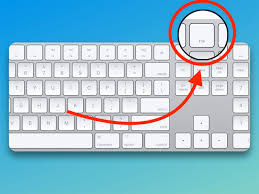
Unlocking The Power of Your Asus Pc: A Step-by-step Guide
Are you tired of dealing with a malfunctioning keyboard on your ASUS PC? Do you want to unlock its full potential and enjoy seamless typing experiences? Look no further! In this comprehensive guide, we’ll walk you through the steps to troubleshoot and resolve common issues related to keyboard functionality.
Understanding Keyboard Issues
Before we dive into the solutions, it’s essential to understand why your keyboard might be malfunctioning. Here are some possible reasons:
- Block Keys: Sometimes, specific keys may become stuck or blocked, preventing them from functioning correctly.
- Accessibility Settings: Incorrect accessibility settings can cause keyboard malfunctions.
- Malware or Viruses: Malicious software can attack and disable your keyboard.
- Driver Issues: Outdated or corrupted drivers can lead to keyboard problems.
Step 1: Check The Block Keys
The first step in resolving keyboard issues is to ensure that none of the keys are blocked. To do this:
- Click on the Start button and select Settings.
- Go to Accessibility and then Keyboard.
- Make sure that the Use Sticky Keys and Filter keys options are not enabled.
Step 2: Verify Accessibility Settings
Incorrect accessibility settings can also cause keyboard malfunctions. To verify these settings:
- On Windows 10, click on the Start button and select Settings.
- Go to Ease of Access and then Keyboard.
- Ensure that the toggle switch for Sticky Keys is turned off.
- If you’re using a previous version of Windows, follow the same steps as above.
Step 3: Scan For Malware
Malware or viruses can attack your keyboard and prevent it from functioning correctly. To scan for malware:
- Run a full virus scan using an anti-virus software.
- Make sure that your operating system is up-to-date.
- If you find any malicious software, remove it immediately.
Step 4: Reinstall The Keyboard Driver
Outdated or corrupted drivers can cause keyboard problems. To reinstall the keyboard driver:
- Go to Device Manager (on Windows 10, click on the Start button and select Settings).
- Expand the section for Keyboards.
- Right-click on your keyboard device and select Uninstall device.
- Restart your computer and let it reinstall the driver.
Step 5: Clean The Keyboard
Dirt, dust, or spills can accumulate on your keyboard and cause malfunctions. To clean the keyboard:
- Use compressed air to blow away any debris.
- Dampen a cloth with water and gently wipe down the keyboard.
- Avoid using harsh chemicals or excessive force.
Other Forms of Unblocking The Keyboard
If none of the above steps resolve your issue, you may need to consider other forms of unblocking your keyboard. These include:
- Using The Windows Key + F: This combination can help you identify and troubleshoot keyboard issues.
- Running a System File Checker: This tool can scan for corrupted system files and replace them with fresh copies.
Conclusion
Resolving keyboard issues on your ASUS PC doesn’t have to be a daunting task. By following these steps, you’ll be able to unlock the full potential of your device and enjoy seamless typing experiences. Remember to always run regular virus scans, keep your drivers up-to-date, and clean your keyboard regularly.
Frequently Asked Questions
Q: Why is my keyboard not working?
A: There could be several reasons why your keyboard is not working, including block keys, accessibility settings, malware or viruses, and driver issues.
Q: How do I check if my keyboard is blocked?
A: To check for block keys, go to Settings > Accessibility > Keyboard and ensure that the Use Sticky Keys and Filter keys options are not enabled.
Q: Can malware or viruses affect my keyboard?
A: Yes, malicious software can attack your keyboard and prevent it from functioning correctly. Run a full virus scan using an anti-virus software to identify and remove any threats.
Q: How do I reinstall the keyboard driver?
A: To reinstall the keyboard driver, go to Device Manager > Keyboards, right-click on your keyboard device, and select Uninstall device. Restart your computer and let it reinstall the driver.
Q: Can cleaning my keyboard resolve issues?
A: Yes, dirt, dust, or spills can accumulate on your keyboard and cause malfunctions. Use compressed air to blow away any debris and dampen a cloth with water to gently wipe down the keyboard.
Q: What other forms of unblocking the keyboard are available?
A: Other forms of unblocking the keyboard include using the Windows Key + F combination, running a System File Checker, or using third-party software to troubleshoot and resolve issues.


