
How to Erase Your Amazon Account: A Step-by-step Guide
Are you thinking of deleting your Amazon account? Maybe you’re no longer interested in shopping online or need to cancel a subscription service. Whatever the reason, it’s essential to know how to erase your Amazon account correctly.
In this article, we’ll guide you through the process of deleting your Amazon account, including the steps to close an Amazon Shopping account, an Amazon Business account, and an Amazon Seller account. We’ll also cover how to cancel a Prime subscription, discontinue Amazon Video, Music, and Audible services.
Why Erase Your Amazon Account?
Before we dive into the step-by-step guide, it’s essential to understand why you might want to erase your Amazon account. Perhaps you’re:
- No longer interested in shopping online
- Need to cancel a subscription service (e.G., Prime, Video, Music, or Audible)
- Have concerns about data privacy and security
- Want to simplify your digital life
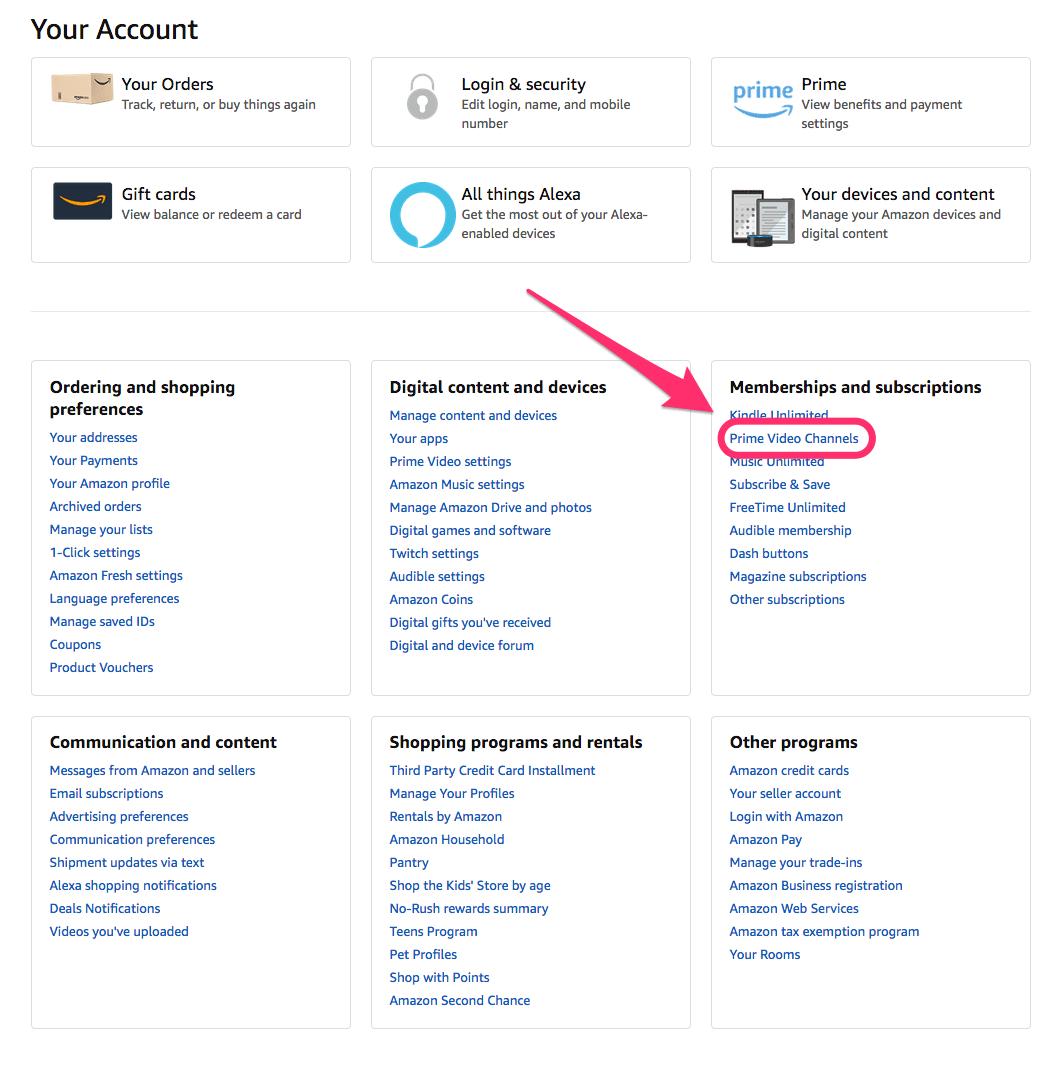
How to Erase an Amazon Shopping Account
To erase an Amazon Shopping account, follow these steps:
- Log in: Access the Amazon website and sign in with your credentials.
- Go to Settings: Click on “Account & Lists” at the top right corner of the page.
- Choose a Reason: Select a reason for closing your account (e.G., I have another account, or I’m no longer interested in shopping).
- Confirm Deletion: Click on the “Close my account” button to confirm your decision.
How to Erase an Amazon Business Account
To erase an Amazon Business account:
- Log in: Access the Amazon Business website and sign in with your credentials.
- Go to Settings: Click on “Account for [Your Business]” at the top right corner of the page.
- Choose a Reason: Select a reason for closing your business account (e.G., I’m no longer interested in selling on Amazon).
- Confirm Deletion: Click on the “Close my business account” button to confirm your decision.
How to Erase an Amazon Seller Account
To erase an Amazon Seller account:
- Log in: Access the Amazon Seller Central website and sign in with your credentials.
- Go to Settings: Click on “Account Information” at the top right corner of the page.
- Choose a Reason: Select a reason for closing your seller account (e.G., I’m no longer interested in selling on Amazon).
- Confirm Deletion: Click on the “Close my seller account” button to confirm your decision.
How to Cancel a Prime Subscription
To cancel an Amazon Prime subscription:
- Log in: Access the Amazon website and sign in with your credentials.
- Go to Settings: Click on “Account & Lists” at the top right corner of the page.
- Choose a Reason: Select a reason for cancelling your Prime subscription (e.G., I’m no longer interested in using Prime services).
- Confirm Cancellation: Click on the “End my Prime membership” button to confirm your decision.
How to Discontinue Amazon Video, Music, And Audible Services
To discontinue Amazon Video, Music, or Audible services:
- Log in: Access the respective service website (e.G., Prime Video, Music, or Audible) and sign in with your credentials.
- Go to Settings: Click on “Account & Lists” at the top right corner of the page.
- Choose a Reason: Select a reason for discontinuing the service (e.G., I’m no longer interested in using this service).
- Confirm Cancellation: Click on the “Cancel subscription” button to confirm your decision.
Frequently Asked Questions
- Q: Will Erasing my Amazon Account Delete All my Data?
A: Yes, erasing your Amazon account will delete all associated data, including shopping history and ratings. - Q: Can I Still Access Amazon Services After Closing my Account?
A: No, once you close your Amazon account, you’ll no longer have access to Amazon services. - Q: How Long Does it Take For The Deletion Process to Complete?
A: The deletion process typically takes a few hours to complete. - Q: Can I Reactivate my Amazon Account After Closing It?
A: No, once you close your Amazon account, it’s permanent and cannot be reactivated. - Q: Will Erasing my Amazon Account Affect Any Other Services Associated With my Amazon Account (e.G., Prime, Video, Music, or Audible)?
A: Yes, erasing your Amazon account will also cancel any associated services (e.G., Prime, Video, Music, or Audible). - Q: Can I Still Access Amazon Services if I’ve Only Cancelled a Specific Service (e.G., Prime, Video, Music, or Audible)?
A: No, cancelling a specific service (e.G., Prime, Video, Music, or Audible) will also cancel all associated services. - Q: How do I Contact Amazon Support to Report Issues With The Deletion Process?
A: You can contact Amazon support through their website or by calling their customer support number.
Conclusion
Erasing your Amazon account is a straightforward process that involves following the steps outlined in this article. Before proceeding, ensure you understand the implications of closing your account and consider whether it’s necessary to cancel any associated services (e.G., Prime, Video, Music, or Audible). If you have any further questions or concerns, don’t hesitate to reach out to Amazon support for assistance.
Frequently Asked Questions
- Q: How do I Know if my Amazon Account is Eligible For Closure?
A: Check the Amazon website or contact customer support to determine eligibility. - Q: Will Erasing my Amazon Account Affect Any Other Services Associated With my Amazon Account (e.G., Prime, Video, Music, or Audible)?
A: Yes, erasing your Amazon account will also cancel any associated services (e.G., Prime, Video, Music, or Audible). - Q: Can I Still Access Amazon Services if I’ve Only Cancelled a Specific Service (e.G., Prime, Video, Music, or Audible)?
A: No, cancelling a specific service (e.G., Prime, Video, Music, or Audible) will also cancel all associated services.
Additional Resources
- Amazon’s official website for closing an account: Https://Www.Amazon.Com/help/close-account
- Amazon Business support website: Https://Sellercentral.Amazon.Com/hz/support
- Prime Video customer support website: Https://Www.Primevideo.Com/customer-support


