
How to Delete Your Facebook Account Permanently: A Step-by-step Guide
Are you tired of Facebook’s constant updates, changes in algorithm, or concerned about your online privacy? If so, you’re not alone. Many users have considered deleting their Facebook account, but may be unsure about the process. In this article, we’ll guide you through the steps to delete your Facebook account permanently.
Why Delete Your Facebook Account?
Before we dive into the deletion process, let’s explore some reasons why you might want to consider deleting your Facebook account:
- Concerns about online privacy and data protection
- Feeling overwhelmed by the constant stream of updates and changes on the platform
- Wanting to take a break from social media or focus on other activities
- Needing to delete your account due to hacking or security issues
Preliminary Operations: Backing Up Your Data
Before deleting your Facebook account, it’s essential to back up your data. This includes:
- Downloading a copy of your personal data (photos, posts, comments, etc.)
- Modifying or eliminating your profile on the social network
- Saving any important information or memories shared on Facebook
Backing Up Your Data on Computer
To back up your data on computer, follow these steps:
- Log in to your Facebook account and go to the Settings page.
- Click on the Your Information tab and select Download Your Information.
- Choose the type of data you want to download (e.G., Posts, photos, comments) and select the format and quality options.
- Click Create File and wait for the backup process to complete.
Backing Up Your Data on Smartphone or Tablet
To back up your data on smartphone or tablet:
- Open the Facebook app and go to the Settings page.
- Tap on Account Settings and select Download Your Information.
- Choose the type of data you want to download (e.G., Posts, photos, comments) and select the format and quality options.
- Tap Create File and wait for the backup process to complete.
Eliminating Personal Data
To eliminate personal data on Facebook:
- Go to your profile page and click on the Information tab.
- Select the type of information you want to delete (e.G., Work experience, education, interests).
- Click on the pencil icon or the three dots next to each item to edit or delete it.
Deleting Your Facebook Account Permanently
To delete your Facebook account permanently:
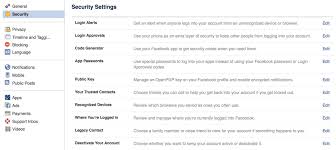
- Log in to your Facebook account and go to the Settings page.
- Click on the Your Information tab and select Deactivate And Deletion.
- Choose the option to Delete My Account and click Continue.
- Enter your password and confirm that you want to delete your account.
Alternative to Deleting Facebook Permanently
If you’re unsure about deleting your Facebook account permanently, consider disabling it temporarily:
- Go to your profile page and click on the three dots next to each item.
- Select Edit or Delete to modify or remove individual items.
- Follow the prompts to disable your account temporarily.
In Case of Doubts or Problems
If you encounter any issues while deleting your Facebook account, consider contacting their customer support team:
- Go to the Help Center page on Facebook.
- Search for the issue you’re experiencing and follow the instructions provided.
- If necessary, contact the customer support team directly.
Conclusion
Deleting your Facebook account permanently may seem daunting, but with this step-by-step guide, you’ll be able to navigate the process confidently. Remember to back up your data, eliminate personal information, and delete your account following the correct procedure.


