
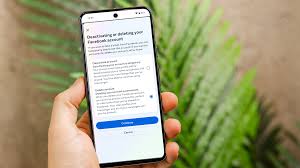
How to Delete Your Facebook Account: A Step-by-step Guide
Are you tired of the social media scene? Do you want to take a break from the online world? Deleting your Facebook account might be the solution. In this article, we’ll guide you through the process of deleting your Facebook account, both temporarily and permanently.
Before You Start
Before you delete your Facebook account, there are a few things you should do:
- Backup Your Data: Facebook has a lot of information about you, including photos, posts, and comments. Backing up this data will ensure that you don’t lose anything important.
- Download Your Information: Facebook allows you to download a copy of your data, including photos, posts, and comments.
How to Backup Your Data
To backup your data, follow these steps:
- Open Facebook on the web or in the app.
- Click on the three dots at the top right corner of the screen.
- Select “Settings and Privacy” from the dropdown menu.
- Click on “Your Information” from the left-hand menu.
- Scroll down to the bottom of the page and click on “Download Your Information.”
- Choose what data you want to download, such as posts, photos, and comments.
- Select a date range for the data you want to download.
- Choose the format in which you want to download your data (HTML or JSON).
- Click on “Create File” to initiate the download process.
How to Delete Your Facebook Account Temporarily
If you’re not ready to delete your account permanently, deleting it temporarily might be a good option:
- Open Facebook on the web or in the app.
- Click on the three dots at the top right corner of the screen.
- Select “Settings and Privacy” from the dropdown menu.
- Click on “Your Information” from the left-hand menu.
- Scroll down to the bottom of the page and click on “Deactivation and Elimination.”
- Select “Deactivate Account” from the dropdown menu.
- Enter your password and click on “Continue.”
- Choose why you’re deactivating your account (optional).
- Click on “Deactivate” to deactivate your account.
How to Delete Your Facebook Account Permanently
If you’re sure that you want to delete your Facebook account permanently, follow these steps:
- Open Facebook on the web or in the app.
- Click on the three dots at the top right corner of the screen.
- Select “Settings and Privacy” from the dropdown menu.
- Click on “Your Information” from the left-hand menu.
- Scroll down to the bottom of the page and click on “Deactivation and Elimination.”
- Select “Delete Account” from the dropdown menu.
- Enter your password and click on “Continue.”
- Click on “Delete” to delete your account.
After You Delete Your Account
Once you’ve deleted your Facebook account, it will be gone forever (or at least for 30 days). During this time, if you change your mind, you can reactivate your account by logging in and following the same steps as above.
Deleting a Facebook account is a big decision, but sometimes it’s necessary. By following these steps, you’ll be able to delete your account temporarily or permanently and start fresh.
Frequently Asked Questions
Here are some frequently asked questions about deleting a Facebook account:
- Q: How do I Delete my Facebook Account?
A: To delete your Facebook account, follow the steps outlined above. - Q: What Happens to my Data After I Delete my Account?
A: Your data will be deleted from Facebook’s servers, but it may still be available through other means (e.G., Third-party apps). - Q: Can I Reactivate my Account After Deleting It?
A: Yes, you can reactivate your account within 30 days of deleting it by logging in and following the same steps as above. - Q: Will Deleting my Facebook Account Affect my Other Online Accounts?
A: Deleting your Facebook account will not directly affect your other online accounts, but some may be linked to each other (e.G., Through login credentials).


