
The Ultimate Guide to Deleting Your Twitter Account on Android
Are you tired of Twitter’s noise and chaos? Do you want to take a break from the social media platform or delete your account altogether? If so, this guide is for you! In this article, we’ll walk you through the step-by-step process of deleting your Twitter account on Android.
Why Delete Your Twitter Account?
Before we dive into the tutorial, let’s talk about why you might want to delete your Twitter account in the first place. Here are a few reasons:
- You’re feeling overwhelmed by the constant stream of tweets and notifications.
- You’re concerned about online harassment or cyberbullying.
- You want to take a break from social media and focus on other aspects of your life.
Whatever your reason, deleting your Twitter account can be a liberating experience. So, let’s get started!
Step 1: Back Up Your Data
Before you delete your Twitter account, it’s essential to back up your data. This will ensure that you don’t lose any important information or memories.
To back up your data, follow these steps:
- Open the Twitter app on your Android device.
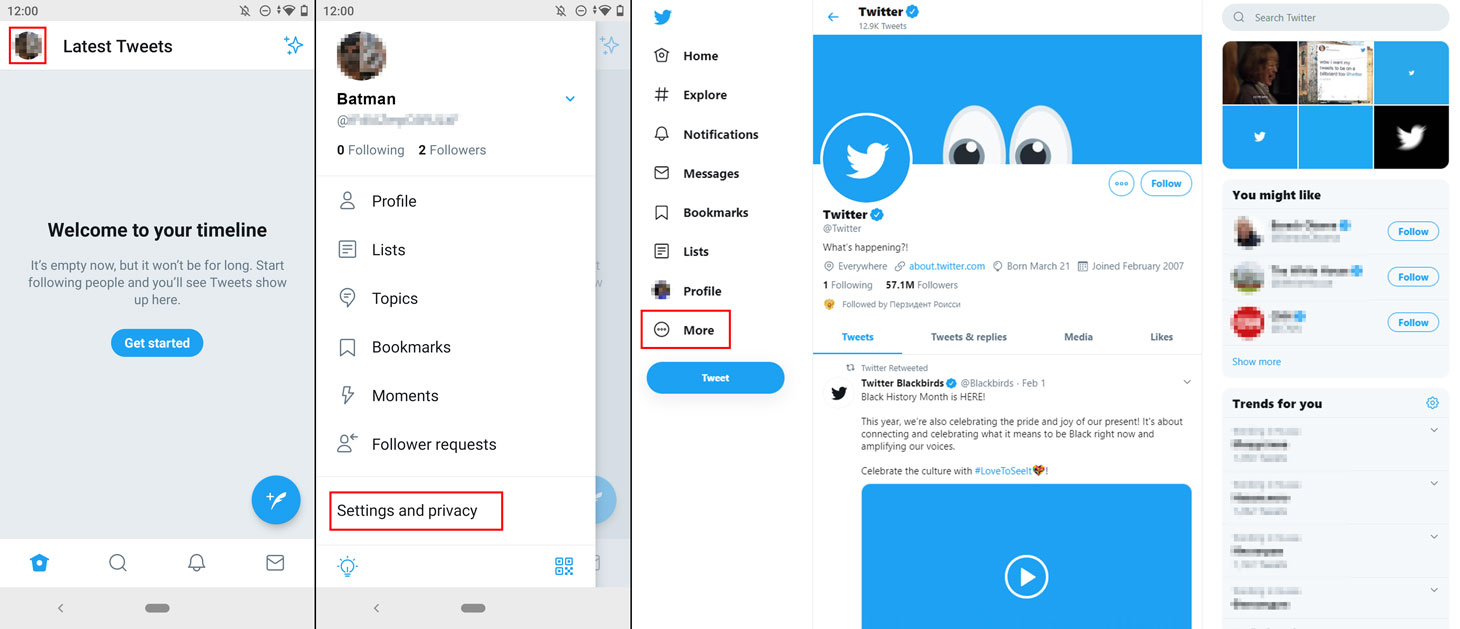
- Tap on the menu icon (three horizontal lines) and select “Settings and assistance.”
- Scroll down to the “Your account” section and tap on it.
- Tap on “Download a file of your data” and follow the prompts to download a copy of your Twitter data.
This may take a few minutes, depending on the size of your data. Once the process is complete, you’ll receive an email with a link to download your backed-up data.
Step 2: Deactivate Your Account
Now that you’ve backed up your data, it’s time to deactivate your Twitter account. This will temporarily suspend your account, and you can reactivate it within 30 days if you change your mind.
To deactivate your account, follow these steps:
- Open the Twitter app on your Android device.
- Tap on the menu icon (three horizontal lines) and select “Settings and assistance.”
- Scroll down to the “Your account” section and tap on it.
- Tap on “Deactivate your account” and follow the prompts to confirm your decision.
Step 3: Delete The Twitter App
If you’ve decided to delete your Twitter account, you might also want to delete the Twitter app from your Android device. This will remove any remaining traces of your account and prevent future logins.
To delete the Twitter app, follow these steps:
- Long press on the Twitter icon in your home screen or app drawer.
- Tap on the “Delete” button that appears.
- Confirm your decision to delete the app by tapping on “OK.”
What Happens Next?
After you’ve deleted your Twitter account, here’s what happens next:
- Your account will be permanently deleted after 30 days of inactivity.
- You’ll no longer receive notifications or updates from Twitter.
- Any remaining data or memories associated with your Twitter account will be erased.
Conclusion
Deleting your Twitter account can be a liberating experience. It’s essential to back up your data and deactivate your account before deleting the app, ensuring that you don’t lose any important information or memories.
If you have any questions or concerns about deleting your Twitter account, please feel free to ask. We’re here to help!
References
For more information on deleting your Twitter account or Android device management, please refer to these resources:
- Twitter Help Center: Deactivating your account
- Twitter Help Center: Deleting the app
- Google Support: Deleting apps on Android devices


