
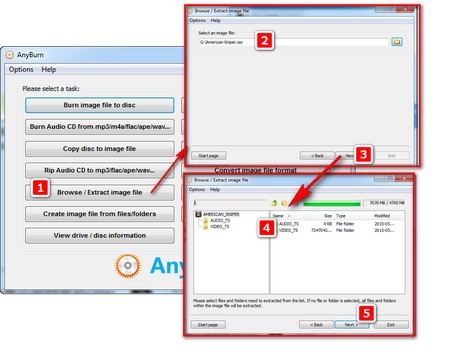
Extracting Files From an Iso File: A Step-by-step Guide
If you need to access the contents of an ISO file, this guide will help you through the process.
What is Extracting an Iso File?
Extracting an ISO file involves extracting its contents onto your computer. This can be useful for accessing files on a CD or DVD without having to burn them onto a physical medium.
Software Options For Extracting Iso Files
There are several software options available for extracting ISO files, depending on your operating system and preferences:
7-Zip (Windows)
If you’re using Windows, 7-Zip is an excellent choice for extracting ISO files. It’s free, lightweight, and easy to use.
- Download and install 7-Zip from the official website.
- Launch 7-Zip and navigate to the ISO file you want to extract.
- Right-click on the ISO file and select “Open with” > “7-Zip”.
- In the extraction window, select the destination folder where you want to save the extracted files.
Isobuster (Windows)
IsoBuster is another popular option for extracting ISO files on Windows. It’s a bit more advanced than 7-Zip but offers more features and customization options.
- Download and install IsoBuster from the official website.
- Launch IsoBuster and navigate to the ISO file you want to extract.
- Right-click on the ISO file and select “Open with” > “IsoBuster”.
- In the extraction window, select the destination folder where you want to save the extracted files.
The Unarchiver (macOS)
If you’re using a Mac, The Unarchiver is an excellent choice for extracting ISO files. It’s free and easy to use.
- Download and install The Unarchiver from the Mac App Store.
- Launch The Unarchiver and navigate to the ISO file you want to extract.
- Right-click on the ISO file and select “Open with” > “The Unarchiver”.
- In the extraction window, select the destination folder where you want to save the extracted files.
Keka (macOS)
Keka is another popular option for extracting ISO files on macOS. It’s free and open-source, making it a great choice for those who want to try out a new tool.
- Download and install Keka from the official website.
- Launch Keka and navigate to the ISO file you want to extract.
- Drag and drop the ISO file into the extraction window.
- Select the destination folder where you want to save the extracted files.
Mounting an Iso File
In addition to extracting ISO files, you can also mount them as virtual drives on your computer. This allows you to access the content without having to extract it.
- On Windows, use the built-in “Gestore di immagini ISO predefinito” or download and install WinCDEmu.
- On macOS, use the built-in “Utility Disc” or download and install Keka.
Conclusion
Extracting an ISO file is a straightforward process that can be accomplished using various software options. Whether you’re on Windows or macOS, there’s a tool out there that can help you extract the content from an ISO file with ease. Just remember to always follow the instructions carefully and choose the right tool for your needs.
Faqs
Here are some frequently asked questions about extracting ISO files:
Q: What is the difference between extracting and mounting an ISO file?
A: Extracting an ISO file means copying its contents onto your computer, while mounting it creates a virtual drive that allows you to access the files without extracting them.
Q: Can I use any software to extract an ISO file?
A: No, some software options may not support ISO extraction. Make sure to choose a tool specifically designed for this purpose.
Q: How long does it take to extract an ISO file?
A: The time it takes to extract an ISO file depends on the size of the file and your computer’s processing power.
Q: Can I use any operating system to mount an ISO file?
A: Yes, most modern operating systems support mounting ISO files as virtual drives. However, some older systems may require additional software or drivers.
Q: What is the best software option for extracting an ISO file on Windows?
A: 7-Zip and IsoBuster are both excellent choices for extracting ISO files on Windows.
Q: What is the best software option for extracting an ISO file on macOS?
A: The Unarchiver and Keka are both great options for extracting ISO files on macOS.


