
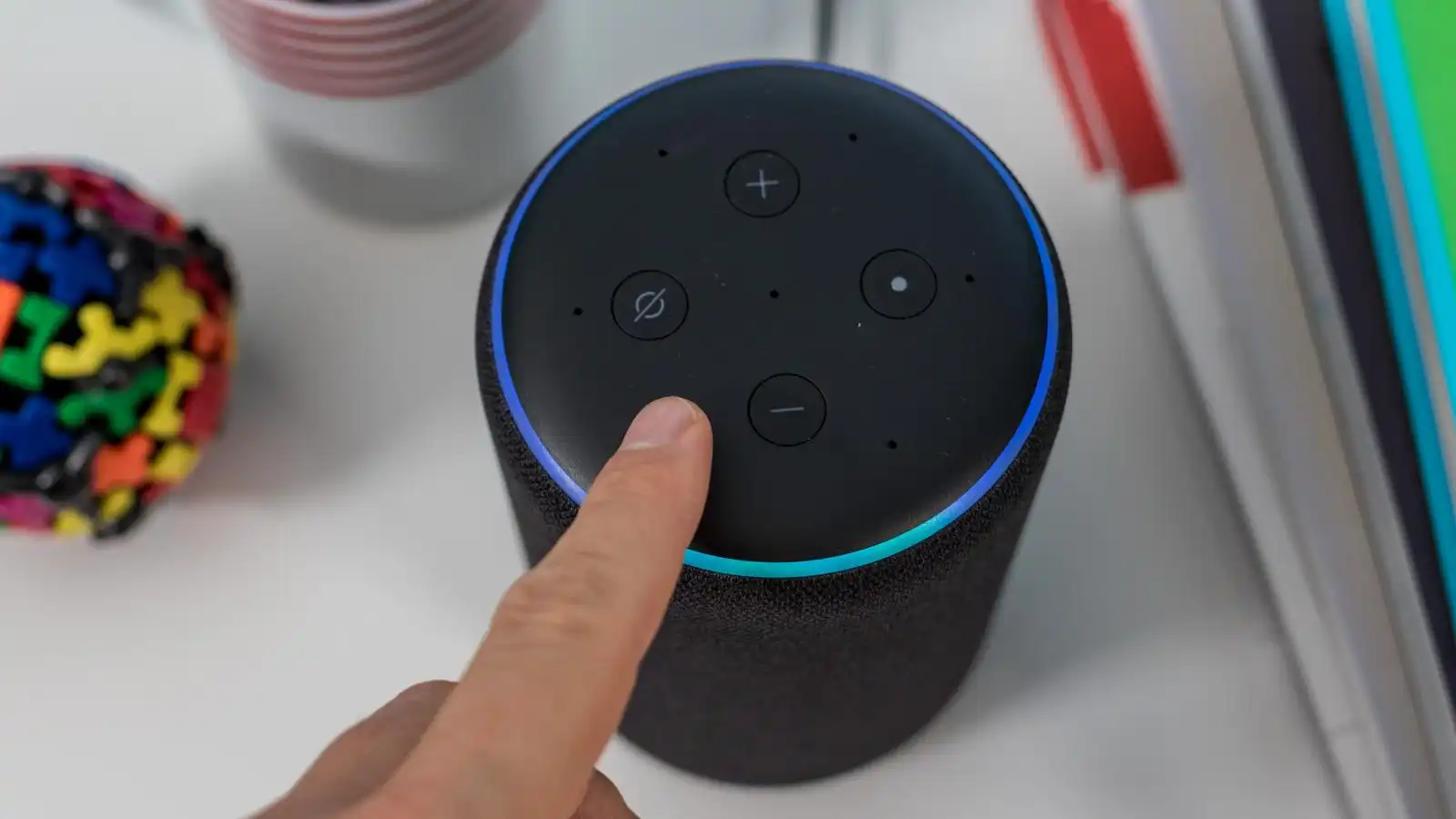
Updating Alexa: A Step-by-step Guide
Are you experiencing issues with your Amazon Echo device? Have you noticed that some recent functionalities are not available on your device? Don’t worry, it’s likely due to an outdated system update. In this article, we’ll guide you through the process of updating your Alexa device.
Understanding System Updates
Your Amazon Echo device is set up to automatically check for and install system updates. However, sometimes these updates may be missed or not installed correctly. This can lead to issues with your device’s functionality.
Checking For System Updates
To check if there are any available system updates on your Alexa device:
- Open the Alexa app on your smartphone or tablet.
- Tap on the three horizontal lines in the top left corner of the screen.
- Select “Settings” from the menu.
- Tap on “Device Settings.”
- Scroll down to the “Informazioni” section.
- Check if there are any available system updates.
Updating Your Alexa Device
If you find that there is an available update, follow these steps:
- Open the Alexa app on your smartphone or tablet.
- Tap on the three horizontal lines in the top left corner of the screen.
- Select “Settings” from the menu.
- Tap on “Device Settings.”
- Scroll down to the “Informazioni” section.
- Tap on the available update.
Updating Your Alexa Device With Display
If you have an Amazon Echo device with a display, such as the Echo Spot or Show, follow these steps:
- Open the menu on your device by swiping from top to bottom.
- Select “Settings.”
- Tap on “Options.”
- Scroll down to the “Check availability of updates software” option.
- Wait for your device to check for available updates.
Updating Your Alexa Device in Italian
If you want to update your Alexa device’s language settings, follow these steps:
- Open the Alexa app on your smartphone or tablet.
- Tap on the three horizontal lines in the top left corner of the screen.
- Select “Settings” from the menu.
- Tap on “Device Settings.”
- Scroll down to the “Tongue” section.
- Choose Italian as your preferred language.
Updating Time
If you need to update the time settings on your Alexa device, follow these steps:
- Open the Alexa app on your smartphone or tablet.
- Tap on the three horizontal lines in the top left corner of the screen.
- Select “Settings” from the menu.
- Tap on “Device Settings.”
- Scroll down to the “Melted time” section.
- Choose your preferred melted schedule.
Updating The Alexa App
If you need to update the Alexa app on your device, follow these steps:
- Open the app store on your smartphone or tablet (e.G., Google Play Store or Apple App Store).
- Tap on the “Updates” tab.
- Look for the Alexa app in the list of available updates.
- Tap on the “Update” button to update the app.
Troubleshooting Common Issues
If you’re experiencing issues with your Alexa device, try these troubleshooting steps:
- Restart your device: This may resolve some common issues.
- Check your internet connection: Ensure that your device is connected to a stable internet network.
- Update your device’s software: Follow the steps outlined above to update your device’s system software.
Conclusion
Updating your Alexa device is a straightforward process. By following these steps, you can ensure that your device is running with the latest software and functionality. If you have any further questions or concerns, feel free to ask in the comments section below.
Frequently Asked Questions (FAQs)
- Q: How do I Update my Alexa Device?
A: To update your Alexa device, follow the steps outlined above. - Q: Why is my Alexa Device Not Working Properly?
A: Common issues with Alexa devices can be resolved by restarting the device or updating its system software. - Q: Can I Change The Language Settings on my Alexa Device?
A: Yes, you can update your Alexa device’s language settings by following the steps outlined above. - Q: How do I Update The Time Settings on my Alexa Device?
A: To update the time settings on your Alexa device, follow the steps outlined above. - Q: Can I Update The Alexa App on my Device?
A: Yes, you can update the Alexa app by following the steps outlined above. - Q: What if I’m Experiencing Issues With my Alexa Device?
A: Try troubleshooting common issues by restarting your device or checking your internet connection.
We hope this article has been helpful in updating your Alexa device and resolving any common issues. If you have any further questions or concerns, please don’t hesitate to ask.


