
Updating Apps on Your Huawei Smartphone: A Step-by-step Guide
Are you a proud owner of a HUAWEI smartphone, but struggling to update your apps? Don’t worry, we’ve got you covered! In this article, we’ll guide you through the process of updating your apps on both AppGallery and Play Store.
Understanding Your Options
Before we dive into the step-by-step guide, it’s essential to understand your options when it comes to updating your apps. You can update your apps manually or automatically, depending on your preference.
- Manual Update: This method involves updating each app individually, allowing you to choose which apps to update and when.
- Automatic Update: This method enables your device to update apps automatically, ensuring that your apps are always up-to-date without requiring manual intervention.
Updating Apps Manually
To update an individual app manually:
- Open AppGallery or Play Store on your HUAWEI smartphone.
- Tap the search icon and type the name of the app you want to update.
- Select the app from the search results, then tap the “Update” button.
If you’re using AppGallery, follow these steps:
- Open AppGallery and navigate to the app’s page.
- Tap the “Update” button, and wait for the installation process to complete.
If you’re using Play Store, follow these steps:
- Open Play Store and tap the menu icon (three horizontal lines).
- Select “My apps & games,” then scroll down to find the app you want to update.
- Tap the “Update” button next to the app’s name.
Enabling Automatic Updates
To enable automatic updates on AppGallery:
- Open AppGallery and navigate to the settings icon (three horizontal lines).
- Select “Settings,” then scroll down to find the “Automatic Update” option.
- Toggle the switch to enable automatic updates for all apps.
If you’re using Play Store, follow these steps:
- Open Play Store and tap the menu icon (three horizontal lines).
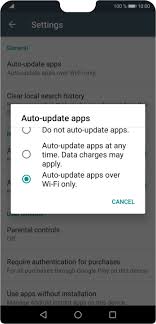
- Select “Settings,” then scroll down to find the “Auto-update apps” option.
- Enable auto-update for all apps or select specific apps to update automatically.
Alternative Solutions
While AppGallery and Play Store are the primary app stores on HUAWEI smartphones, there are alternative solutions available. For example:
- Amazon Appstore: This app store offers a similar experience to AppGallery and Play Store.
- Apk Files: You can download APK files directly from websites or other sources, but be cautious when installing apps from untrusted sources.
Conclusion
Updating your apps on HUAWEI smartphones is a straightforward process. Whether you prefer manual updates or automatic updates, we’ve covered both options in this article. Remember to always exercise caution when updating apps, and consider enabling automatic updates for a hassle-free experience.
Frequently Asked Questions
Here are some additional questions and answers related to updating apps on HUAWEI smartphones:
Q: How do I update individual apps on AppGallery?
A: To update an individual app on AppGallery, open the app store, navigate to the app’s page, and tap the “Update” button.
Q: Can I enable automatic updates for all apps on Play Store?
A: Yes, you can enable auto-update for all apps on Play Store by navigating to the settings icon (three horizontal lines), selecting “Settings,” then finding the “Auto-update apps” option.
Q: What are alternative solutions for updating apps on HUAWEI smartphones?
A: Alternative solutions include Amazon Appstore and APK files. Be cautious when installing apps from untrusted sources.
Q: How do I update apps on my HUAWEI smartphone without a stable internet connection?
A: You can update apps manually by downloading updates over Wi-Fi or mobile data, then installing them offline. However, this method may not be suitable for automatic updates.
Q: Can I use both AppGallery and Play Store on my HUAWEI smartphone?
A: Yes, you can install and use both app stores on your device.


