
Updating Bios Asus: A Step-by-step Guide
Are you experiencing issues with your computer’s stability? Have a friend suggested updating the BIOS to resolve the problem? If so, this guide is for you! Updating the BIOS can be a daunting task, but don’t worry; we’ve got you covered. In this article, we’ll walk you through the process of updating the BIOS on an ASUS device.
What is Bios And Why Update It?
Before we dive into the nitty-gritty, let’s talk about what BIOS is and why it needs to be updated. The BIOS (Basic Input/Output System) is a set of instructions stored in a non-volatile memory chip on your computer’s motherboard. It acts as an interface between the operating system and the hardware components. Over time, BIOS can become outdated, leading to compatibility issues and system crashes.
Is Updating Bios Safe?
Updating BIOS can be a safe process if done correctly. However, it’s essential to follow proper procedures to avoid any potential risks. We’ll guide you through each step, so you can ensure a smooth and trouble-free update experience.
Method 1: Using Myasus Application
The first method involves using the ASUS-developed application called MyASUS. This tool provides an easy and convenient way to update your BIOS. Here’s how:
- Download Myasus: Download the MyASUS application from the Microsoft Store or access it directly through the ASUS website.
- Launch Myasus: Run the application, and it will automatically detect any available updates for your device.
- Select Update Options: Choose the update option that suits your needs, either by using the Web-based update feature or selecting a specific BIOS version from the database.
- Confirm Update: Review the update details and confirm your selection. The update process will begin, and you’ll be guided through each step.
Method 2: Using Asus Website
If you don’t have the MyASUS application installed on your device, you can still update your BIOS using the ASUS website. Here’s how:
- Visit Asus Website: Go to the ASUS website and navigate to the support section.
- Enter Device Details: Enter your device’s details, including the product type, series, and model number.
- Select Update Options: Choose the update option that suits your needs, either by using the Web-based update feature or selecting a specific BIOS version from the database.
- Confirm Update: Review the update details and confirm your selection. The update process will begin, and you’ll be guided through each step.
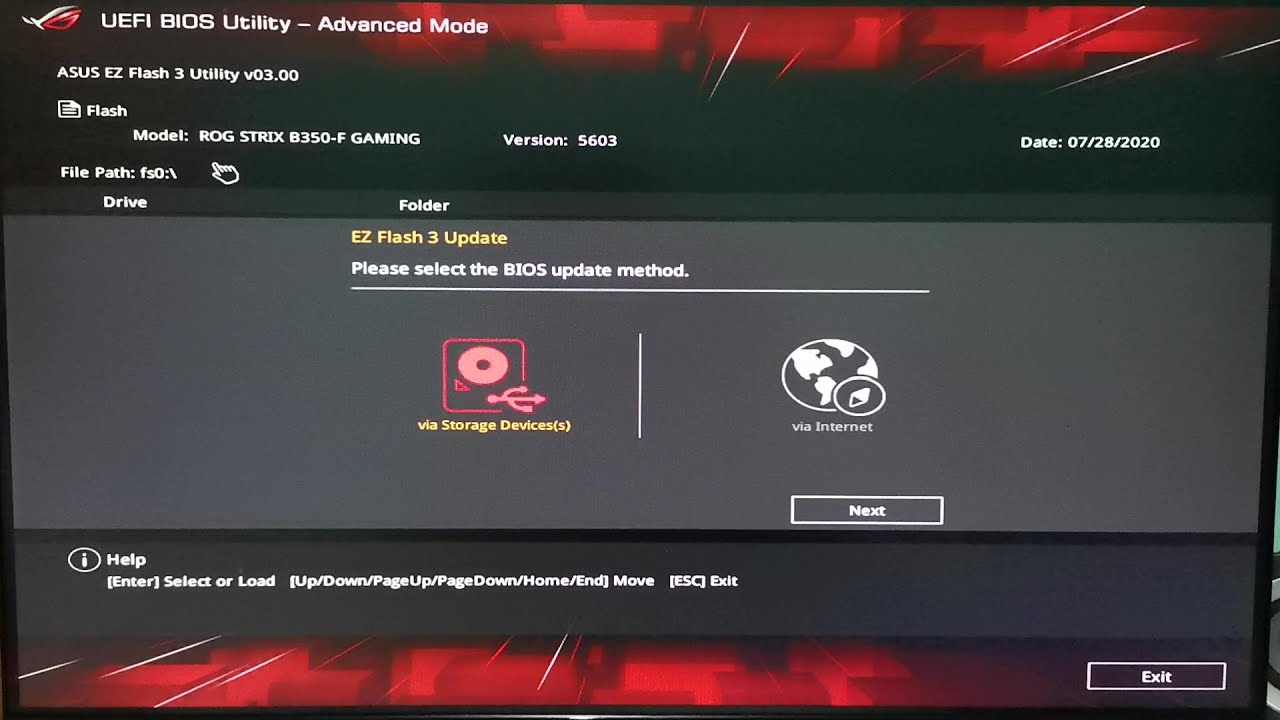
Method 3: Using EZ Flash Utility
The EZ Flash utility is another way to update your BIOS on ASUS devices. Here’s how:
- Download EZ Flash Utility: Download the EZ Flash utility from the ASUS website.
- Launch EZ Flash Utility: Run the utility, and it will guide you through each step of the update process.
- Select Update Options: Choose the update option that suits your needs, either by using the Web-based update feature or selecting a specific BIOS version from the database.
- Confirm Update: Review the update details and confirm your selection. The update process will begin, and you’ll be guided through each step.
Tips And Precautions
Before updating your BIOS, make sure to:
- Backup Your Data: Backup all important data on your device before proceeding with the update.
- Disconnect External Devices: Disconnect any external devices from your device to prevent any potential conflicts during the update process.
- Connect Device Properly: Ensure that your device is properly connected to a stable power source and grounded.
Conclusion
Updating BIOS can be a straightforward process if you follow these steps. Remember to backup your data, disconnect external devices, and connect your device properly before proceeding with the update. By following this guide, you’ll ensure a smooth and trouble-free update experience for your ASUS device.
Frequently Asked Questions (FAQs)
-
Q: What is Bios, And Why Does it Need to be Updated?
A: The BIOS (Basic Input/Output System) is a set of instructions stored in a non-volatile memory chip on your computer’s motherboard. It acts as an interface between the operating system and the hardware components. Over time, BIOS can become outdated, leading to compatibility issues and system crashes.
-
Q: Is Updating Bios Safe?
A: Updating BIOS can be a safe process if done correctly. However, it’s essential to follow proper procedures to avoid any potential risks.
-
Q: Can I Update my Bios Using Myasus Application?
A: Yes, you can use the ASUS-developed application called MyASUS to update your BIOS. This tool provides an easy and convenient way to update your device.
-
Q: What if I Don’t Have The Myasus Application Installed on my Device?
A: If you don’t have the MyASUS application installed on your device, you can still update your BIOS using the ASUS website or the EZ Flash utility.
-
Q: How do I Know Which Method to Use?
A: The choice of method depends on your personal preference and the specific requirements of your device. You may want to consult the user manual for your device to determine the best approach.
-
Q: What Are Some Tips And Precautions to Keep in Mind Before Updating my Bios?
A: Before updating your BIOS, make sure to backup all important data on your device, disconnect any external devices from your device, and ensure that your device is properly connected to a stable power source and grounded.
-
Q: Can I Update my Bios Using EZ Flash Utility?
A: Yes, you can use the EZ Flash utility to update your BIOS on ASUS devices.
-
Q: How do I Know if my Bios Needs to be Updated?
A: You can check for available updates by visiting the ASUS website or using the MyASUS application. If an update is available, it will be indicated in the support section of the website or within the application itself.


