
Updating Your Bios: A Step-by-step Guide
Are you tired of dealing with computer problems and wondering if updating your BIOS is the solution? Look no further! In this comprehensive guide, we will walk you through the process of updating your BIOS, including the necessary precautions and potential risks.
What is a Bios Update?
Before we dive into the nitty-gritty, let’s quickly define what a BIOS update is. The BIOS (Basic Input/Output System) is a set of instructions that controls the fundamental interactions between your computer’s hardware and software components. Over time, newer versions of the BIOS may become available to improve system performance, fix bugs, or add new features.
Why Update Your Bios?
Updating your BIOS can bring several benefits, including:
- Improved system stability and performance
- Enhanced security features
- Support for newer hardware components
However, it’s essential to note that updating your BIOS also carries some risks, which we’ll discuss later.
How to Check if You Need a Bios Update
Before proceeding with the update process, it’s crucial to determine whether you actually need one. Here are some steps to follow:
- Check Your Computer’s Manufacturer Website: Visit your computer manufacturer’s website and look for BIOS updates specifically designed for your model.
- Use Online Tools: Utilize online tools like CPU-Z or GPU-Z to check for any firmware updates.
- Consult With a Technician: If you’re unsure about the update process or have concerns, consult with an IT professional.
Preparing Your Computer For a Bios Update
Before attempting a BIOS update, ensure your computer is prepared by:
- Disconnecting All External Devices: Disconnect all peripherals, including USB drives, monitors, and printers.
- Closing All Running Applications: Close any running applications or programs to avoid conflicts during the update process.
- Backing Up Important Data: Back up critical data to an external drive or cloud storage in case something goes wrong.
Updating Your Bios: The Three Methods
There are three primary methods for updating your BIOS:
- Using The Official Software Provided by The Manufacturer
- Downloading The Necessary Files Directly From The Operating System’s Uefi Firmware
- Flashing a New Bios File Onto a Usb Drive And Updating Via The Uefi Firmware
We’ll explore each method in more detail below.
Method 1: Using The Official Software Provided by The Manufacturer
This is the most straightforward method:
- Download The Official Update Tool: Visit your computer manufacturer’s website and download their official BIOS update tool.
- Run The Tool: Run the downloaded tool and follow the on-screen instructions to initiate the BIOS update process.
Method 2: Downloading The Necessary Files Directly From The Operating System’s Uefi Firmware
If your operating system is running a UEFI firmware, you can try this method:
- Access The Uefi Firmware Settings: Restart your computer and press the key combination (usually F2, F12, or Del) to access the UEFI firmware settings.
- Navigate to The Update Option: Navigate to the update option within the UEFI firmware settings.
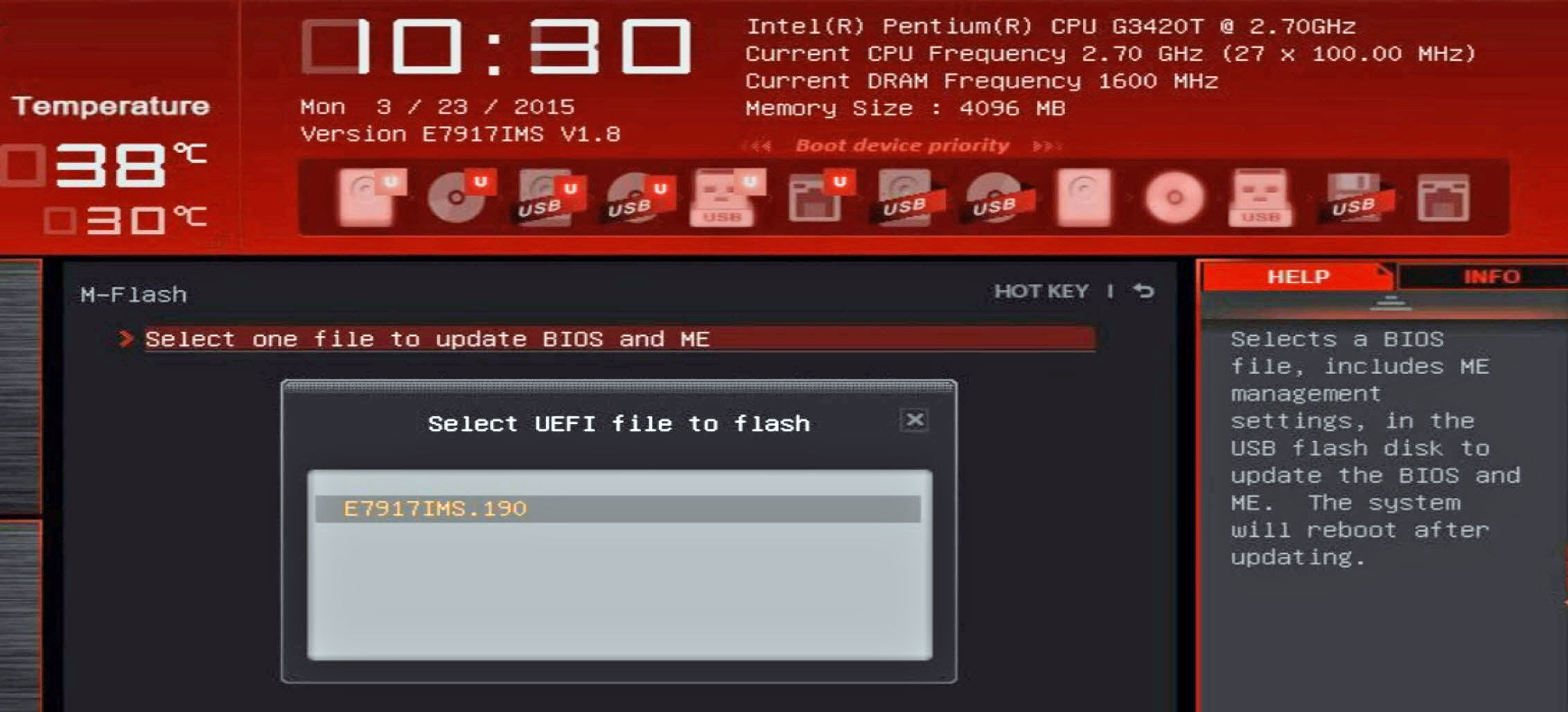
- Select The Desired Update File: Select the desired BIOS update file from the list of available updates.
Method 3: Flashing a New Bios File Onto a Usb Drive And Updating Via The Uefi Firmware
This method requires more technical expertise:
- Prepare a Usb Drive With The Updated Bios File: Prepare a USB drive by formatting it to FAT32, creating a folder, and placing the updated BIOS file inside.
- Access The Uefi Firmware Settings: Restart your computer and press the key combination (usually F2, F12, or Del) to access the UEFI firmware settings.
- Select The Usb Drive as The Update Source: Select the USB drive containing the updated BIOS file.
Potential Risks And Precautions
When updating your BIOS, there are potential risks to be aware of:
- Data Loss: There is a risk of data loss or corruption during the update process.
- System Failure: The update process may cause system failure or instability.
- Hardware Damage: In rare cases, a faulty BIOS update can damage your computer’s hardware.
To mitigate these risks, take necessary precautions:
- Back Up Important Data: Back up critical data to an external drive or cloud storage before attempting the update.
- Disconnect All External Devices: Disconnect all peripherals and close running applications to avoid conflicts during the update process.
- Consult With a Technician: If you’re unsure about the update process or have concerns, consult with an IT professional.
Bios Update For Specific Manufacturers
Here are some manufacturer-specific instructions:
- Asus Bios Update: Visit ASUS’s official website and download their official BIOS update tool to initiate the update process.
- Acer Bios Update: Visit Acer’s official website and download their official BIOS update tool, then follow the on-screen instructions.
- Lenovo Bios Update: Visit Lenovo’s official website and download their official BIOS update tool, then follow the on-screen instructions.
- HP Bios Update: Visit HP’s official website and download their official BIOS update tool, then follow the on-screen instructions.
Legacy Bios Updates
For computers running legacy BIOS (Windows 8.1 Or earlier), updating your BIOS may require more technical expertise:
- Download The Official Update Tool: Visit your computer manufacturer’s website and download their official BIOS update tool.
- Run The Tool: Run the downloaded tool and follow the on-screen instructions to initiate the BIOS update process.
Conclusion
Updating your BIOS can be a daunting task, but with proper preparation and precautions, it’s a relatively safe procedure. Always check for updates specifically designed for your computer model, take necessary backups, and consult with a technician if you’re unsure about the process.
By following this comprehensive guide, you’ll be well-equipped to update your BIOS like a pro!
Frequently Asked Questions (FAQs)
- Q: What is a Bios Update?
A: A BIOS update is the process of updating the Basic Input/Output System instructions that control interactions between hardware and software components. - Q: Why Update my Bios?
A: Updating your BIOS can improve system stability, performance, security features, or support for newer hardware components. - Q: How do I Check if I Need a Bios Update?
A: Check your computer manufacturer’s website, use online tools, or consult with an IT professional to determine whether you need a BIOS update. - Q: What Are The Potential Risks of Updating my Bios?
A: Risks include data loss, system failure, or hardware damage during the update process. - Q: How do I Mitigate These Risks?
A: Back up important data, disconnect all external devices, close running applications, and consult with an IT professional to minimize risks. - Q: Can I Update my Bios Myself?
A: Yes, but exercise caution and follow proper procedures to avoid errors or potential damage.
Conclusion
Updating your BIOS can be a straightforward process if done correctly. Always check for updates specifically designed for your computer model, take necessary backups, and consult with a technician if you’re unsure about the process.
By following this comprehensive guide, you’ll be well-equipped to update your BIOS like a pro!
[TOC]
- Introduction
- What is a Bios Update?
- Why Update My Bios?
- How to Check if I Need a Bios Update
- Preparing Your Computer For a Bios Update
- Updating Your Bios: The Three Methods
- Method 1: Using The Official Software Provided by The Manufacturer
- Method 2: Downloading The Necessary Files Directly From The Operating System’s Uefi Firmware
- Method 3: Flashing a New Bios File Onto a Usb Drive And Updating Via The Uefi Firmware
- Potential Risks And Precautions
- Bios Update For Specific Manufacturers
- Legacy Bios Updates
- Conclusion
- Frequently Asked Questions (FAQs)


