
How to Update Your Browser: A Step-by-step Guide
Are you tired of using an outdated browser? Do you want to access the latest features and functionality? Updating your browser is a simple process that can be completed in just a few minutes. In this article, we will guide you through the steps to update your browser on PC, smartphone, tablet, and Smart TV.
Why Update Your Browser?
Updating your browser is essential for several reasons:
- Access Latest Features: By updating your browser, you’ll gain access to the latest features and functionality that can enhance your browsing experience.
- Improved Security: Outdated browsers can be vulnerable to security threats. Updating your browser ensures that you have the latest security patches and protections.
- Better Compatibility: An updated browser is more likely to work seamlessly with modern websites, apps, and services.
Updating Your Browser on PC
To update your browser on a PC, follow these steps:
- Open The Browser: Open your preferred browser (e.G., Chrome, Firefox).
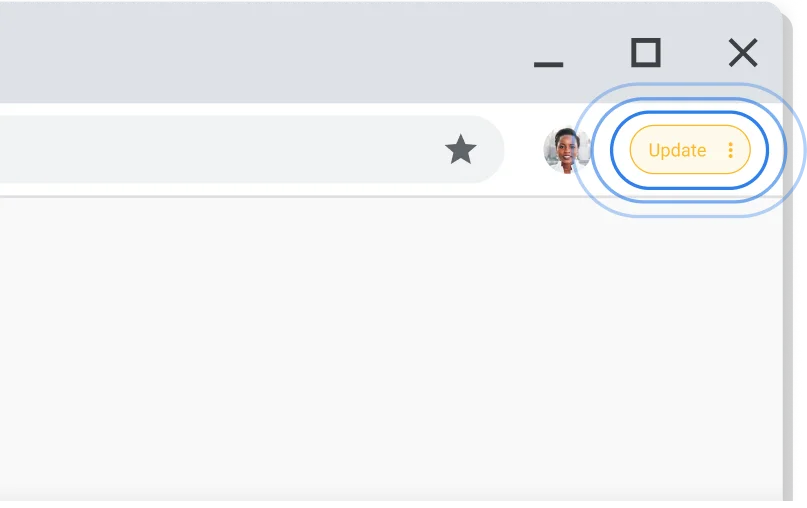
- Click on The Three Dots: Click on the three dots in the top right corner of the browser window.
- Select Help: Select “Help” from the drop-down menu.
- Check For Updates: In the help section, click on “About [Browser Name]” to check for updates.
- Download And Install Updates: If updates are available, download and install them.
Updating Your Browser on Smartphone And Tablet
To update your browser on a smartphone or tablet:
- Open The App Store: Open the app store (e.G., Google Play Store, Apple App Store).
- Search For The Browser: Search for the browser you want to update.
- Check For Updates: If updates are available, tap “Update” to download and install them.
Updating Your Browser on Smart TV
To update your browser on a Smart TV:
- Go to The Settings Menu: Go to the Settings menu on your Smart TV.
- Select System Update: Select “System Update” from the menu.
- Check For Updates: If updates are available, select “Update Now” to download and install them.
Common Browser Updates
Here’s a list of common browser updates:
- Chrome: Check for Chrome updates by opening the browser, clicking on the three dots in the top right corner, selecting “Help,” and then clicking on “About Google Chrome.”
- Firefox: Check for Firefox updates by opening the browser, clicking on the three dots in the top right corner, selecting “Help,” and then clicking on “About Mozilla Firefox.”
- Safari: Check for Safari updates by going to the Settings menu on your Mac, selecting “Software Update,” and then following the prompts.
- Internet Explorer: Internet Explorer is no longer supported on Windows 11. However, you can check for updates by opening the browser, clicking on the three dots in the top right corner, selecting “Help,” and then clicking on “About Internet Explorer.”
- Microsoft Edge: Check for Microsoft Edge updates by opening the browser, clicking on the three dots in the top right corner, selecting “Help,” and then clicking on “About Microsoft Edge.”
Conclusion
Updating your browser is a simple process that can be completed in just a few minutes. By following the steps outlined above, you’ll gain access to the latest features and functionality, improve security, and ensure better compatibility with modern websites, apps, and services.
Faqs
Here are some frequently asked questions about updating your browser:
- Q: Why Update my Browser?
A: Updating your browser ensures that you have the latest features, improved security, and better compatibility with modern websites, apps, and services. - Q: How do I Update my Browser on a Pc?
A: To update your browser on a PC, open the browser, click on the three dots in the top right corner, select “Help,” and then check for updates. - Q: How do I Update my Browser on a Smartphone or Tablet?
A: To update your browser on a smartphone or tablet, open the app store, search for the browser, and then check for updates. - Q: How do I Update my Browser on a Smart Tv?
A: To update your browser on a Smart TV, go to the Settings menu, select “System Update,” and then check for updates.
Additional Resources
For more information on updating your browser, consult the following resources:
Final Thoughts
Updating your browser is an essential step in ensuring a safe and secure browsing experience. By following the steps outlined above, you’ll be able to access the latest features and functionality, improve security, and ensure better compatibility with modern websites, apps, and services.
I hope that you have found this article informative.


