
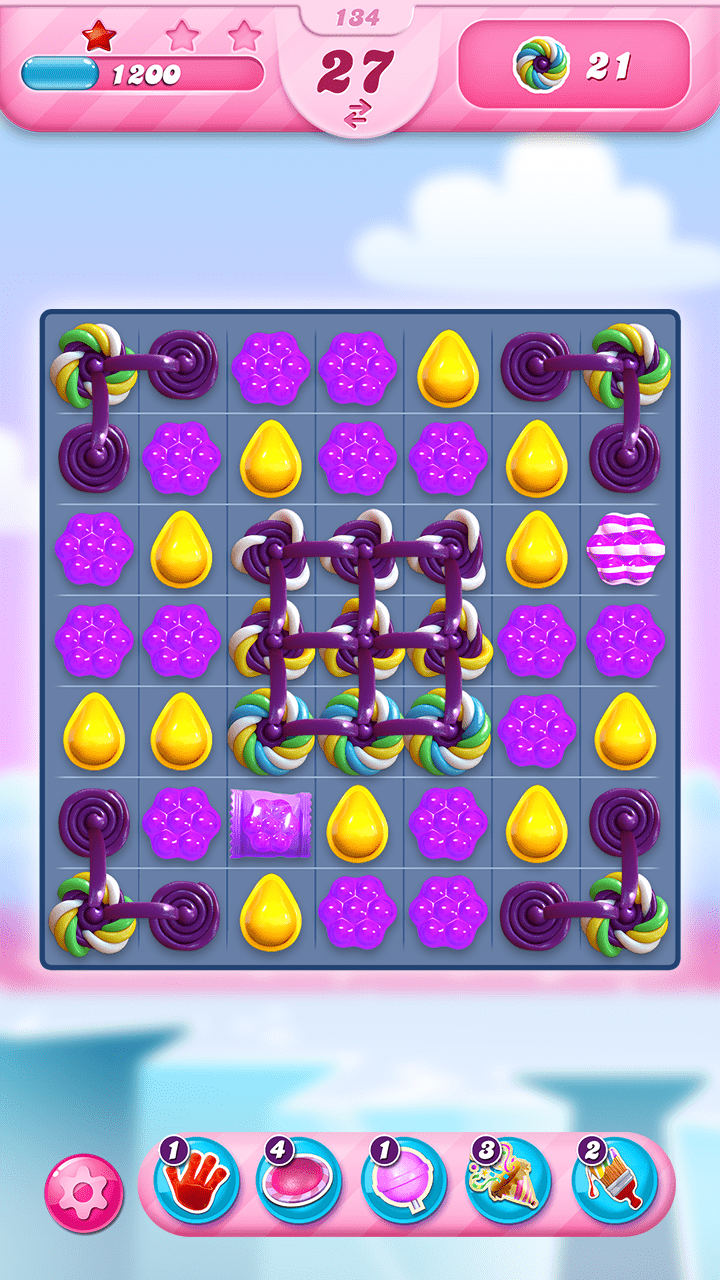
How to Update Candy Crush Saga: A Step-by-step Guide
Are you tired of playing an outdated version of Candy Crush Saga on your smartphone? Do you want to know how to update this popular puzzle game to the latest version? Look no further! In this article, we will guide you through the process of updating Candy Crush Saga on various platforms, including Android, iPhone, iPad, and PC.
Why Update Candy Crush Saga?
Updating Candy Crush Saga ensures that you have access to the latest features, levels, and gameplay improvements. With millions of users worldwide, it’s no surprise that this game is a favorite among puzzle enthusiasts. By updating the app, you can enjoy new challenges, enhanced graphics, and improved performance.
How to Update Candy Crush Saga on Android
To update Candy Crush Saga on your Android device:
- Open the Google Play Store app on your phone or tablet.
- Tap on the menu icon (three horizontal lines) and select “My apps & games.”
- Find Candy Crush Saga in the list of installed apps.
- If an update is available, tap on the “Update” button to download and install the latest version.
Using Alternative Store Options (APK)
If you don’t have access to the Google Play Store or prefer not to use it, you can update Candy Crush Saga using alternative store options like Amazon Appstore or APKMirror. These stores offer a similar experience to the Google Play Store, with a wide selection of apps, including Candy Crush Saga.
How to Update Candy Crush Saga on Iphone And Ipad
To update Candy Crush Saga on your iOS device:
- Open the App Store app.
- Tap on the “Today” tab at the bottom of the screen.
- Find Candy Crush Saga in the list of installed apps.
- If an update is available, tap on the “Update” button to download and install the latest version.
How to Update Candy Crush Saga on PC
To update Candy Crush Saga on your Windows PC:
- Open the Microsoft Store app.
- Search for Candy Crush Saga in the store.
- If an update is available, click on the “Update” button to download and install the latest version.
Troubleshooting Common Issues
If you’re experiencing issues while updating Candy Crush Saga, try the following troubleshooting steps:
- Check if your device has enough storage space to accommodate the updated app.
- Ensure that your internet connection is stable and strong.
- Restart your device or app to resolve any glitches.
- If the issue persists, try uninstalling and reinstalling the app.
Conclusion
Updating Candy Crush Saga on various platforms is a straightforward process. By following these step-by-step guides, you can ensure that you have access to the latest features, levels, and gameplay improvements. Remember to always check for updates regularly to stay up-to-date with the game’s progress.
Frequently Asked Questions (FAQs)
- What Happens if I Don’t Update Candy Crush Saga?
If you don’t update Candy Crush Saga, you may miss out on new features, levels, and gameplay improvements. Additionally, an outdated app can be more prone to bugs and glitches.
- Can I Update Candy Crush Saga on Multiple Devices at Once?
No, each device requires a separate update process. However, if you have a family plan or use the same Google account on multiple devices, updates may be synced across all devices.
- How Often Are Candy Crush Saga Updates Released?
Updates for Candy Crush Saga are typically released as needed to fix bugs, add new features, or improve gameplay. The frequency of updates varies depending on the game’s development schedule.
- Can I Update Candy Crush Saga Manually Without Using a Store App?
No, updating Candy Crush Saga requires access to a store app like Google Play Store or App Store. However, you can download APK files from alternative stores for manual installation.
- What if I Encounter Issues During The Update Process?
If you experience any issues during the update process, try troubleshooting by checking your internet connection, device storage space, or restarting your device/app. If the issue persists, consider uninstalling and reinstalling the app.


