
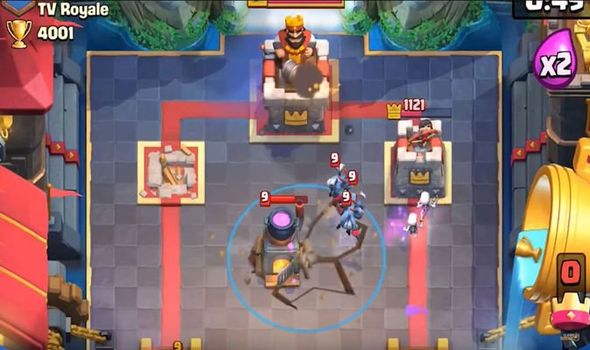
How to Update Clash Royale on Android And Ios Devices
As a gaming enthusiast, you’re likely no stranger to the thrill of competing in tournaments and matches within popular mobile games like Clash Royale. Developed by Supercell, this game has captured the hearts of many gamers worldwide, offering an engaging experience that keeps players hooked for hours on end.
However, like any other app or game, Clash Royale requires periodic updates to maintain its performance, fix bugs, and introduce new features. If you’re unsure about how to update Clash Royale on your Android or iOS device, this guide is here to help.
Understanding The Need For Updates
Updates are essential for ensuring that your gaming experience remains smooth and enjoyable. Developers continually work behind the scenes to refine gameplay mechanics, squash bugs, and add new content. By updating Clash Royale regularly, you can:
- Ensure compatibility with newer operating system versions
- Fix bugs and glitches that may have affected gameplay
- Access new features and tournaments
- Stay competitive in online multiplayer matches
Updating Clash Royale on Android Devices
If your device is running on the latest version of Android (or a compatible version), updating Clash Royale should be relatively straightforward.
- Check For Available Updates: Open the Google Play Store app, navigate to the “My Apps” section, and look for Clash Royale.
- Update The App: If an update is available, tap on the “Update” button to begin the download process. Wait for the installation to complete before launching the game.
Alternative Methods:
If you’re experiencing issues with the Google Play Store or are using a device without access to this service (e.G., Some Huawei devices), there’s another way to update Clash Royale:
- Visit Apkpure: This third-party website allows users to download and install APK files for various apps, including Clash Royale.
- Download And Install The Updated Apk File: Follow the on-screen instructions to download the updated APK file, then tap on it to initiate the installation process.
Please note that downloading and installing APK files from unofficial sources can pose security risks. Make sure to exercise caution when accessing these websites, as they may contain malicious content or outdated versions of the app.
Updating Clash Royale on Ios Devices
If you’re using an iPhone or iPad, updating Clash Royale is relatively straightforward:
- Open The App Store: Tap on the App Store icon, then navigate to the “Updates” tab.
- Look For Clash Royale Updates: Scroll through the list of available updates and look for Clash Royale. If an update is available, tap on it to begin the download process.
Enabling Automatic Updates
To ensure that your app stays updated without manual intervention:
- Open Settings: Tap on the “Settings” icon.
- Scroll Down And Locate App Store Settings: Select “App Store.”
- Enable Automatic Updates: Toggle the switch next to “Updates” to turn it on.
By following these steps, you can enable automatic updates for Clash Royale and other apps on your iOS device.
Troubleshooting Common Issues
If you encounter problems while updating Clash Royale or experience issues with the game itself:
- Restart Your Device: Sometimes, a simple reboot can resolve connectivity issues.
- Check System Requirements: Ensure that your device meets the minimum system requirements for Clash Royale.
- Reach Out to Supercell Support: If none of these solutions work, contact the developers directly for assistance.
Conclusion
Updating Clash Royale on Android or iOS devices is a straightforward process that can be completed in just a few steps. By following this guide, you’ll be able to:
- Ensure compatibility with newer operating system versions
- Fix bugs and glitches that may have affected gameplay
- Access new features and tournaments
- Stay competitive in online multiplayer matches
Don’t let outdated software hold you back from enjoying the full gaming experience. By updating Clash Royale regularly, you’ll be able to fully immerse yourself in the world of Supercell’s popular mobile game.
Frequently Asked Questions (FAQs)
- Q: How Often Should I Update Clash Royale?
A: It’s essential to keep your app up-to-date with the latest version available. This ensures compatibility with newer operating system versions and access to new features. - Q: Can I Still Play Clash Royale if It’s Not Updated?
A: While you can still launch the game, outdated software may cause bugs, glitches, or connectivity issues that affect your gaming experience. - Q: Will Updating Clash Royale Delete my Progress?
A: No, updates should not affect your game progress. However, be sure to save any ongoing matches before updating the app. - Q: How do I Enable Automatic Updates For Clash Royale on Android or Ios Devices?
A: On Android, navigate to Settings > Google Play Store > Enable Automatic Updates. On iOS, go to Settings > App Store > Toggle the switch next to “Updates” to turn it on.
If you have any further questions or concerns about updating Clash Royale on your Android or iOS device, please don’t hesitate to reach out.


