
How to Update Directx: A Step-by-step Guide
Are you having trouble updating DirectX on your PC? Do you want to know how to update this essential component of Windows to ensure smooth gaming performance? Look no further! In this article, we’ll guide you through the process of updating DirectX on Windows 11 and Windows 10.
Why Update Directx?
DirectX is a set of libraries that enables game developers to create high-performance games for Windows. It’s an essential component of Windows that ensures smooth gaming performance. Updating DirectX ensures that your PC can run the latest games without any issues.
Checking Your Current Directx Version
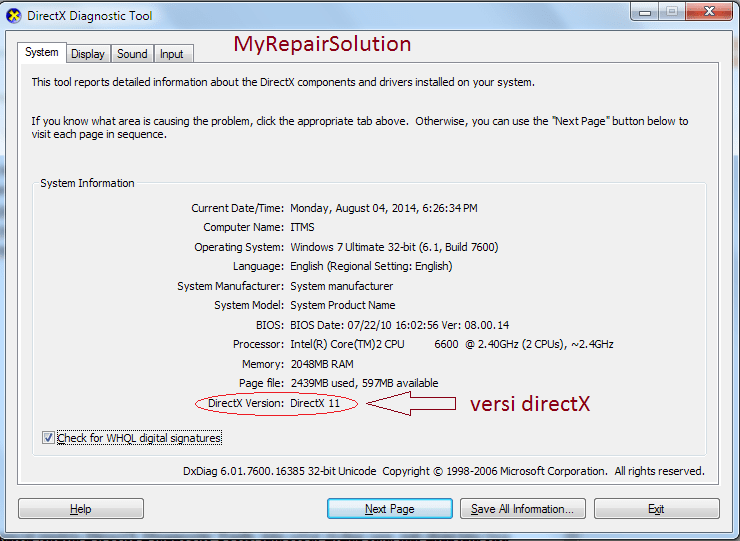
Before we proceed, let’s check which version of DirectX you currently have installed on your PC.
- Press the Windows key + R to open the Run dialog box.
- Type
dxdiag.Exeand press Enter. - In the DirectX Diagnostic Tool window, click on the “DirectX” tab.
- Look for the “Version” field, which should display the current version of DirectX installed on your PC.
Updating Directx on Windows 11
If you’re running Windows 11, updating DirectX is a straightforward process.
- Click on the Start button and type “Windows Update” in the search bar.
- Open the Windows Update app and click on the “Check for updates” button.
- If any updates are available, click on the “Download and install” button to begin the update process.
- Once the update is complete, restart your PC to apply the changes.
Updating Directx on Windows 10
If you’re running Windows 10, updating DirectX is also a simple process.
- Click on the Start button and type “Windows Update” in the search bar.
- Open the Windows Update app and click on the “Check for updates” button.
- If any updates are available, click on the “Download and install” button to begin the update process.
- Once the update is complete, restart your PC to apply the changes.
Updating Directx Manually
If you’re unable to update DirectX using the built-in Windows Update feature, you can do it manually by downloading the latest version of DirectX from Microsoft’s official website.
- Go to the Microsoft website and download the Web Installer for DirectX.
- Run the installer and follow the prompts to install the latest version of DirectX.
- Once the installation is complete, restart your PC to apply the changes.
Troubleshooting Issues
If you encounter any issues during the update process, don’t worry! We’ve got some troubleshooting tips to help you resolve them.
- If you’re unable to update DirectX using Windows Update, try running the System File Checker tool (SFC) to scan for corrupted system files.
- If you encounter errors while installing DirectX manually, try running the installer in administrator mode.
- If none of these solutions work, feel free to contact us or Microsoft support for further assistance.
Conclusion
Updating DirectX is a crucial step in ensuring smooth gaming performance on your PC. By following the steps outlined in this guide, you should be able to update DirectX successfully on Windows 11 and Windows 10. Remember to always follow proper installation procedures and troubleshoot any issues that may arise during the process.
Frequently Asked Questions
- Q: Why do I Need to Update Directx?
A: Updating DirectX ensures that your PC can run the latest games without any issues. - Q: How Often Should I Update Directx?
A: You should update DirectX whenever a new version is released by Microsoft. - Q: Can I Update Directx Manually?
A: Yes, you can update DirectX manually by downloading the latest version from Microsoft’s official website. - Q: What if I Encounter Issues During The Update Process?
A: Try running the System File Checker tool (SFC) to scan for corrupted system files or run the installer in administrator mode. - Q: Can I Contact Microsoft Support For Assistance?
A: Yes, you can contact Microsoft support for further assistance.
Additional Resources
If you’re interested in learning more about DirectX and how it works, be sure to check out our additional resources:
- The official DirectX website
- Microsoft’s DirectX documentation
- Our guide on troubleshooting common DirectX issues


