
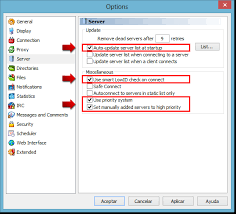
Updating Emule Servers: A Comprehensive Guide
Are you tired of using outdated software? Do you want to stay connected to the online community without compromising on security? Look no further than updating your eMule servers!
What Are Emule Servers?
EMule servers are a crucial part of the eMule peer-to-peer (P2P) file-sharing network. They act as intermediaries between users, allowing them to share files with each other. By updating your eMule servers, you can ensure that you have access to the latest and most efficient connections.
Why Update Your Emule Servers?
Updating your eMule servers is essential for several reasons:
- Improved Connection Speed: With updated servers, you can enjoy faster connection speeds, making it easier to download files.
- Enhanced Security: Updated servers come with improved security features, protecting you from potential threats and vulnerabilities.
- Access to New Files: By updating your eMule servers, you’ll gain access to new files that have been uploaded by other users.
How to Update Your Emule Servers
Updating your eMule servers is a straightforward process:
Step 1: Delete Existing Servers
Before updating your eMule servers, delete the existing ones. To do this:
- Select the “Server” tab in the eMule window.
- Right-click on the server list and select “Delete All.”
- Confirm the deletion by clicking “Yes.”
Step 2: Choose a New Server List
Select a new server list to update your eMule servers. You can choose from various lists available online:
- Go to the eMule website or other reliable sources for updated server lists.
- Copy the address of the chosen server list.
Step 3: Update Your Emule Servers
Now, it’s time to update your eMule servers using the new list:
- Go back to the eMule window and select the “Server” tab.
- Click on the “Update Server” button.
- Paste the address of the chosen server list into the URL field.
Step 4: Add Individual Servers
You can also add individual servers to your eMule client:
- Select the “Server” tab in the eMule window.
- Click on the “Add Server Manually” button.
- Enter the IP address, port number, and server name.
Troubleshooting Connection Issues
If you encounter connection issues after updating your eMule servers, try these troubleshooting steps:
- Check your router settings to ensure that the required ports are open.
- Verify that your internet connection is stable.
- Close and reopen the eMule client.
Additional Tips For a Smooth Experience
To get the most out of your updated eMule servers:
- Regularly update your eMule software to stay current with security patches and new features.
- Use a reliable antivirus program to protect yourself from potential threats.
- Explore other P2P file-sharing networks to expand your options.
Conclusion
Updating your eMule servers is an essential step in ensuring a smooth and secure experience. By following these steps, you can enjoy improved connection speeds, enhanced security, and access to new files. Don’t hesitate to reach out if you have any further questions or concerns!


