
Updating Your Fire Stick: A Step-by-step Guide
Are you tired of using an outdated Fire TV Stick? Do you want to take advantage of the latest features and improvements that Amazon has to offer? Updating your Fire Stick is a straightforward process that can be completed in just a few minutes. In this article, we will guide you through the step-by-step process of updating your Fire Stick, as well as provide tips on how to troubleshoot any issues that may arise.
Why Update Your Fire Stick?
Updating your Fire Stick is essential for several reasons:
- Improved Performance: Updating your Fire Stick ensures that you have the latest software and performance enhancements, which can significantly improve your viewing experience.
- New Features: Updates often bring new features and improvements to the user interface, making it easier to navigate and find what you’re looking for.
- Security Patching: Regular updates also ensure that any security vulnerabilities are patched, keeping your device and personal data safe.
How to Update Your Fire Stick
Updating your Fire Stick is a relatively simple process that can be completed in just a few minutes. Here’s how:
Step 1: Check For Updates
To check if there are any available updates, follow these steps:
- Go to the Home screen of your Fire TV and select Settings.
- Select My Fire TV from the settings menu.
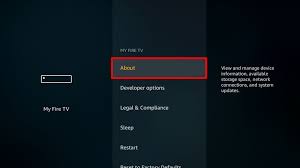
- Scroll down to About and select it.
If an update is available, you will see a notification on the screen. If not, proceed to Step 2.
Step 2: Install Updates
To install any available updates, follow these steps:
- Select Check For Updates from the About page.
- Wait for the Fire TV to check for updates and download them.
- Once the update is downloaded, select Install Update to begin the installation process.
The Fire TV will automatically restart after the update is installed. This may take a few minutes.
Step 3: Verify The Update
To verify that the update was successful, follow these steps:
- Go back to the Home screen of your Fire TV and select Settings.
- Select My Fire TV from the settings menu.
- Scroll down to About and select it.
If the update was successful, you will see a notification on the screen indicating that your Fire TV is running the latest software version.
Troubleshooting Issues
If you encounter any issues during the update process, don’t worry! We have some tips to help you troubleshoot:
- Connection Issues: Make sure your Fire TV is connected to Wi-Fi and that the internet connection is stable.
- Insufficient Storage: Check if there’s enough storage space on your device. If not, delete any unnecessary content or apps to free up space.
- Restarting The Device: Try restarting your Fire TV to see if it resolves the issue.
Updating Your Fire Stick Using a PC
Unfortunately, updating your Fire Stick using a PC is not possible at this time. The process of updating your Fire Stick can only be done directly on the device itself.
Conclusion
Updating your Fire Stick is an essential step in ensuring that you have the latest software and performance enhancements. By following these simple steps, you can keep your device up-to-date and take advantage of new features and improvements. Remember to always check for updates regularly and troubleshoot any issues that may arise. Happy streaming!
Frequently Asked Questions (FAQs)
Here are some frequently asked questions and answers:
Q: Why should I update my Fire Stick?
A: Updating your Fire Stick ensures that you have the latest software and performance enhancements, new features, and security patching.
Q: How often should I update my Fire Stick?
A: We recommend checking for updates regularly to ensure that you have the latest software and performance enhancements.
Q: What if I encounter issues during the update process?
A: Don’t worry! If you experience any issues, try troubleshooting by restarting your device or checking your internet connection.


