
How to Update Google Chrome
Are you wondering how to update Google Chrome on your device? Look no further! This guide will walk you through the process of updating Google Chrome on various platforms, including Windows, Mac, Ubuntu, Android, and iPhone/iPad.
Why Update Google Chrome?
Before we dive into the nitty-gritty, let’s talk about why it’s essential to keep Google Chrome updated. Updates often bring new features, security patches, and performance improvements. By keeping your browser up-to-date, you’ll be able to enjoy a safer, faster, and more secure browsing experience.
Updating Google Chrome on Windows
If you’re using Google Chrome on Windows 10 or later versions, the updates are usually handled automatically in the background. However, if you want to force an update, follow these steps:
- Launch Google Chrome.
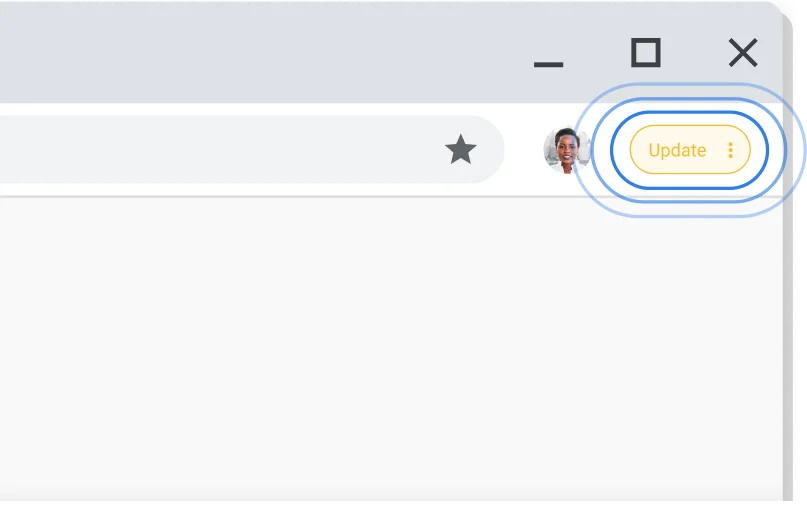
- Click on the three dots (⋮) in the top-right corner of the browser window.
- Select “Help” from the menu.
- Choose “About Google Chrome.”
- If an update is available, click on the “Update” button.
Updating Google Chrome on Windows 7
Unfortunately, if you’re using Google Chrome on Windows 7, it’s not possible to update the browser anymore. Microsoft has ended support for Windows 7, and Google Chrome will no longer receive updates.
However, we recommend upgrading your operating system to a more recent version, such as Windows 11.
Updating Google Chrome on Mac
The process of updating Google Chrome on Mac is similar to that on Windows:
- Launch Google Chrome.
- Click on the three dots (⋮) in the top-right corner of the browser window.
- Select “Help” from the menu.
- Choose “About Google Chrome.”
- If an update is available, click on the “Update” button.
Updating Google Chrome on Ubuntu
On Ubuntu, updates are usually handled automatically as well. However, if you want to force an update:
- Launch Google Chrome.
- Click on the three dots (⋮) in the top-right corner of the browser window.
- Select “Help” from the menu.
- Choose “About Google Chrome.”
- If an update is available, click on the “Update” button.
Updating Google Chrome on Android
To update Google Chrome on your Android device:
- Open the Google Play Store app.
- Go to the section for Google Chrome.
- Tap on the “Update” button.
Updating Google Chrome on Iphone And Ipad
If you’re using an iPhone or iPad, follow these steps to update Google Chrome:
- Open the App Store app.
- Tap on your profile picture in the top-right corner.
- Select “Settings.”
- Choose “Updates.”
- Find Google Chrome and tap on the “Update” button.
Troubleshooting Common Issues
If you encounter any issues while updating Google Chrome, don’t panic! Try the following troubleshooting steps:
- Restart your device or browser.
- Check for updates manually (as described above).
- Reinstall Google Chrome (if necessary).
By following this guide, you should now be able to update Google Chrome on various platforms. Remember to keep your browser up-to-date for a safer and more secure browsing experience!
Frequently Asked Questions
Here are some additional questions and answers:
Q: Why is it Essential to Update Google Chrome?
A: Updates often bring new features, security patches, and performance improvements.
Q: How do I Know if Google Chrome Needs Updating?
A: Check the three dots (⋮) in the top-right corner of the browser window for a notification about updates.
Q: Can I Update Google Chrome Manually?
A: Yes, you can force an update by following the steps outlined above.
Q: Why is it Not Possible to Update Google Chrome on Windows 7?
A: Microsoft has ended support for Windows 7, and Google Chrome will no longer receive updates.
Q: How do I Troubleshoot Common Issues With Updating Google Chrome?
A: Restart your device or browser, check for updates manually, or reinstall Google Chrome (if necessary).
Q: Can I Update Google Chrome on my Iphone or Ipad?
A: Yes, follow the steps outlined above to update Google Chrome on your iOS/iPadOS device.
Q: Why is it Essential to Keep my Browser Up-to-date?
A: An outdated browser can leave you vulnerable to security risks and miss out on new features and improvements.


