
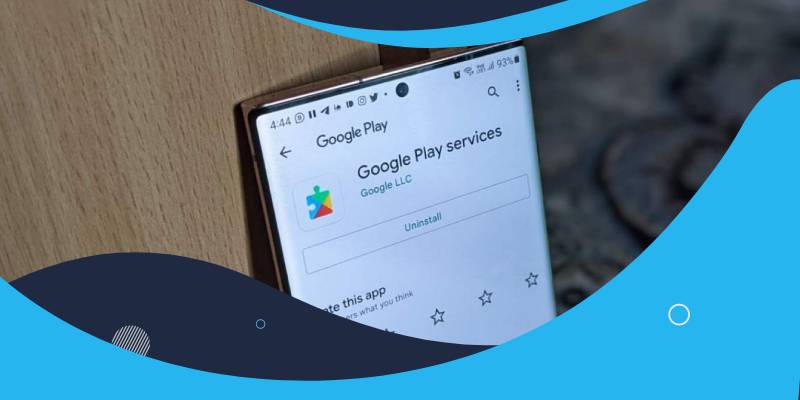
How to Update Google Play Services on Android
Are you tired of experiencing problems with Google apps on your Android device? Do you keep seeing annoying messages about closing forced applications or installation issues with Google Play Services? Don’t worry, we’ve got the solution for you! In this article, we’ll show you how to update Google Play Services in a simple and straightforward way.
What Are Google Play Services?
Google Play Services is a crucial component of Android that enables various Google apps and services on your device. It’s responsible for keeping your apps up-to-date, providing security updates, and allowing access to Google’s services such as Google Maps, Google Photos, and more.
Why Update Google Play Services?
Updating Google Play Services ensures that you have the latest version of the service, which can resolve issues with app crashes, slow performance, or connectivity problems. Moreover, updating Google Play Services will also enable new features and improvements in Google’s services.
How to Update Google Play Services Automatically
To update Google Play Services automatically, follow these steps:
- Open the Google Play Store on your Android device.
- Tap on the resident icon in the Home screen or drawer.
- Select the voice Settings from the menu that appears.
- Choose the option “Automatic updates” and select whether you want to download updates only via Wi-Fi or on either network.
How to Update Google Play Services Manually
If you prefer to update Google Play Services manually, follow these steps:
- Open the Google Chrome browser on your Android device.
- Search for “Google Play Services” and tap on the first result that appears.
- On the Google Play Services page, tap on the “Update” button.
Alternative Ways to Update Google Play Services
If you’re experiencing issues with updating Google Play Services automatically or manually, don’t worry! There are other ways to update it:
- Reset Google Play Services: If you’re experiencing problems with updating Google Play Services, try resetting it by deleting all data and cache.
- Update Android System: Make sure your Android system is updated to the latest version, as this can resolve issues with Google Play Services.
Troubleshooting Common Issues
If you’re still experiencing problems after trying these steps, don’t worry! Here are some common issues and solutions:
- Google Play Services Not Updating Automatically: Check if you have enabled automatic updates in your device’s settings.
- Google Play Services Not Installing Manually: Try resetting Google Play Services or updating Android system.
Conclusion
Updating Google Play Services is a simple process that can resolve various issues with Google apps on your Android device. By following the steps outlined above, you should be able to update Google Play Services automatically or manually. If you’re experiencing persistent problems, don’t hesitate to try alternative methods like resetting Google Play Services or updating Android system.
Frequently Asked Questions (FAQs)
- What Are Google Play Services?
Google Play Services is a crucial component of Android that enables various Google apps and services on your device. - Why Update Google Play Services?
Updating Google Play Services ensures that you have the latest version of the service, which can resolve issues with app crashes, slow performance, or connectivity problems. - How do I Update Google Play Services Automatically?
To update Google Play Services automatically, follow these steps: Open the Google Play Store, tap on Settings, choose Automatic updates, and select whether you want to download updates only via Wi-Fi or on either network. - How do I Update Google Play Services Manually?
To update Google Play Services manually, open the Google Chrome browser, search for “Google Play Services,” and tap on the first result that appears. - What if I’m Experiencing Problems Updating Google Play Services?
If you’re experiencing issues with updating Google Play Services automatically or manually, try resetting Google Play Services, updating Android system, or seeking further assistance from a technical expert. - Can I Update Google Play Services Without Internet Access?
While it’s possible to update some apps without an internet connection, updating Google Play Services requires an active internet connection. - Will Updating Google Play Services Affect my Device’s Performance?
Updating Google Play Services should not significantly impact your device’s performance; however, if you’re experiencing persistent problems, consult a technical expert for assistance.
I hope this article has provided you with the necessary guidance to update Google Play Services on your Android device. If you have any further questions or concerns, don’t hesitate to ask!


