
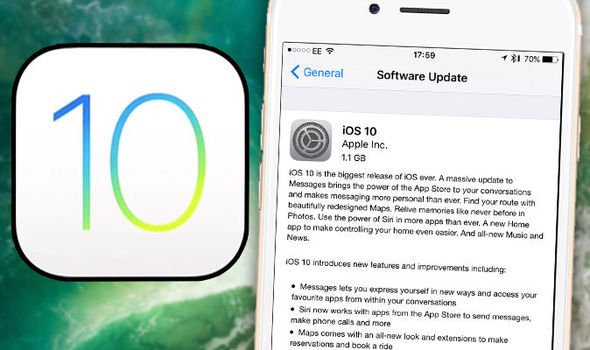
How to Update Ios 10: A Step-by-step Guide
Are you tired of using an outdated version of iOS on your iPhone or iPad? Do you want to experience the latest features and improvements that Apple has to offer? Look no further! In this article, we will guide you through the process of updating iOS 10 on your device.
What You Need to Know Before Updating
Before we dive into the steps, there are a few things you need to know:
- Compatible Devices: To update to iOS 10, you’ll need an iPhone or iPad that is compatible with this version. These devices include:
- IPhone 5
- IPhone 5C
- IPhone 6 and later
- IPhone SE
- IPad 4th generation and later
- IPad Air and iPad Mini 2nd generation and later
- IPod touch (6th generation)
- Internet Connection: You’ll need a stable internet connection to download the update. A fast ADSL or fiber connection is recommended.
- Free Space: Make sure you have at least 2GB of free space on your device to install the update.
Step-by-step Guide
Here’s how to update iOS 10:
Step 1: Backup Your Device
Before updating, it’s essential to backup your device. This will ensure that all your data and settings are safe in case something goes wrong during the update process.
To backup your device using iTunes:
- Connect your iPhone or iPad to your computer using a USB cable.
- Open iTunes on your computer.
- Select your device from the top left corner of the screen.
- Click on “Summary” and then click on “Backup Now.”
Step 2: Update Ios 10
Now that you have backed up your device, it’s time to update iOS 10.
Option 1: Update Using Your Device
To update using your device:
- Go to Settings > General > Software Update.
- Tap on the “Download and Install” button.
- Enter your passcode if prompted.
- Wait for the update to download and install.
Step 3: Update Ios 10 Using Itunes
If you prefer to update using iTunes, follow these steps:
- Connect your iPhone or iPad to your computer using a USB cable.
- Open iTunes on your computer.
- Select your device from the top left corner of the screen.
- Click on “Summary” and then click on “Check for Update.”
- Click on the “Download and Install” button.
Step 4: Restore Your Device
If you want to restore your device to its factory settings, follow these steps:
- Go to Settings > General > Reset.
- Tap on “Erase All Content and Settings.”
- Enter your passcode if prompted.
- Wait for the process to complete.
What’s New in Ios 10
IOS 10 brings several new features and improvements, including:
- Siri: Siri is now more intelligent and can perform tasks like sending messages or making phone calls.
- Photos: The Photos app has been redesigned with a new layout and improved performance.
- Messages: Messages now allows you to send and receive money directly through the app.
Conclusion
Updating iOS 10 on your device is a straightforward process that takes only a few minutes. By following these steps, you can ensure that your device runs smoothly and efficiently. Remember to backup your data before updating and restore your device if needed. With this guide, you’re ready to experience the latest features and improvements that Apple has to offer.
Frequently Asked Questions
Here are some frequently asked questions about updating iOS 10:
- Q: What Devices Are Compatible With Ios 10?
A: The following devices are compatible with iOS 10:
* IPhone 5
* IPhone 5C
* IPhone 6 and later
* IPhone SE
* IPad 4th generation and later
* IPad Air and iPad Mini 2nd generation and later
* IPod touch (6th generation) - Q: How do I Update Ios 10?
A: To update iOS 10, go to Settings > General > Software Update. Tap on the “Download and Install” button. - Q: Do I Need to Backup my Device Before Updating?
A: Yes, it’s essential to backup your device before updating to ensure that all your data and settings are safe in case something goes wrong during the update process. - Q: Can I Restore my Device to Its Factory Settings After Updating?
A: Yes, you can restore your device to its factory settings by going to Settings > General > Reset and tapping on “Erase All Content and Settings.”


