
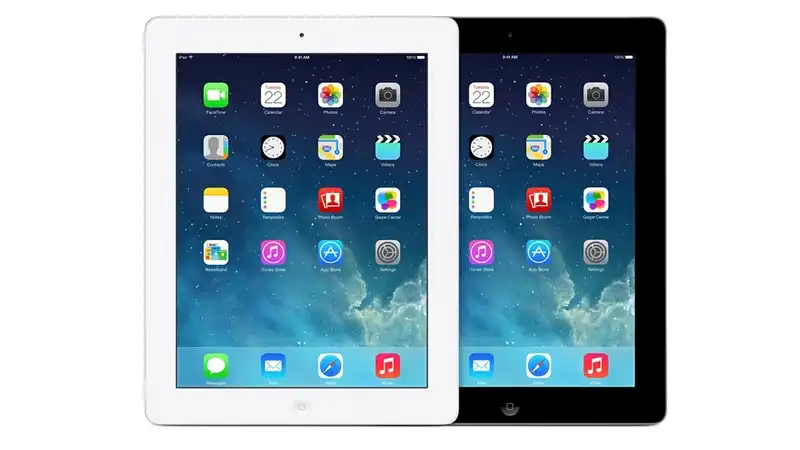
Updating Your Ipad 2: A Step-by-step Guide
Are you still using an iPad 2? While it’s not the most recent device, it’s still a great tool with many useful features. However, if you’re looking to upgrade your experience, you might be wondering if you can update your iPad 2 to a more recent version of iOS.
Understanding The Limitations
Before we dive into the process, it’s essential to understand that updating an iPad 2 is not as straightforward as it would be with newer devices. The reason for this is that the iPad 2 was released in 2011 and stopped being produced in 2014. As a result, Apple has limited support for the device, and it can’t run the latest versions of iOS.
The Current State of Your Ipad 2
To check if your iPad 2 is eligible for an update, follow these steps:
- Go to Settings > General > Software Update
- If there’s an available update, you’ll see a notification
However, it’s likely that your iPad 2 won’t be able to run the latest versions of iOS. The last supported version is iOS 9.3.6.
Why Can’t I Update My Ipad 2?
There are several reasons why your iPad 2 might not be eligible for an update:
- Ios 10 And Later: Apple has stopped supporting iOS 10 and later on the iPad 2.
- Hardware Limitations: The iPad 2’s hardware can’t handle the demands of newer iOS versions.
- Security Concerns: Updating your iPad 2 to a more recent version of iOS could expose it to security vulnerabilities.
Updating Your Ipad 2 With Itunes
If you still want to update your iPad 2, you can do so using iTunes on your computer. Here’s how:
- Connect your iPad 2 to your computer using a USB cable.
- Open Itunes and select your iPad 2 from the top left corner of the screen.
- Click on Summary, then click on Check For Update.
If an update is available, iTunes will download it for you. However, keep in mind that this process can take some time, depending on your internet connection speed.
Preparing Your Ipad 2 For The Update
Before updating your iPad 2, make sure to:
- Backup Your Data: Use iTunes or iCloud to backup all your data.
- Free Up Space: Delete any unnecessary files or apps to free up space for the update.
- Charge Your Battery: Ensure your iPad 2 is fully charged before starting the update process.
Updating Your Ipad 2 With Ios
If you’ve prepared your iPad 2 and want to proceed with the update, follow these steps:
- Connect your iPad 2 to your computer using a USB cable.
- Open Itunes and select your iPad 2 from the top left corner of the screen.
- Click on Summary, then click on Update.
The update process will begin, and your iPad 2 will restart. Once it’s complete, you’ll be running the latest supported version of iOS.
Conclusion
While updating an iPad 2 to a more recent version of iOS might seem appealing, it’s essential to understand the limitations and potential security concerns involved. If you do decide to update, make sure to follow these steps carefully and prepare your device for the process.
Frequently Asked Questions (FAQs)
- Can I Update my Ipad 2 to a Newer Version of Ios?
- No, Apple has stopped supporting iOS 10 and later on the iPad 2.
- What is The Last Supported Version of Ios For The Ipad 2?
- The last supported version is iOS 9.3.6.
- Why Can’t I Update my Ipad 2 to a Newer Version of Ios?
- Due to hardware limitations and security concerns, Apple has limited support for the iPad 2.
- How do I Prepare my Ipad 2 For an Update?
- Backup your data, free up space, and charge your battery before updating.
- Can I Use Itunes to Update my Ipad 2?
- Yes, you can use iTunes on your computer to update your iPad 2.
- What Are The Risks of Updating my Ipad 2 to a Newer Version of Ios?
- Potential security vulnerabilities and compatibility issues with apps.
- Can I Still Use an Older Version of Itunes to Update my Ipad 2?
- Yes, you can use an older version of iTunes to update your iPad 2, but it’s recommended to use the latest version for a smoother experience.
- How do I Know if my Ipad 2 is Eligible For an Update?
- Check in Settings > General > Software Update to see if there are any available updates.


