
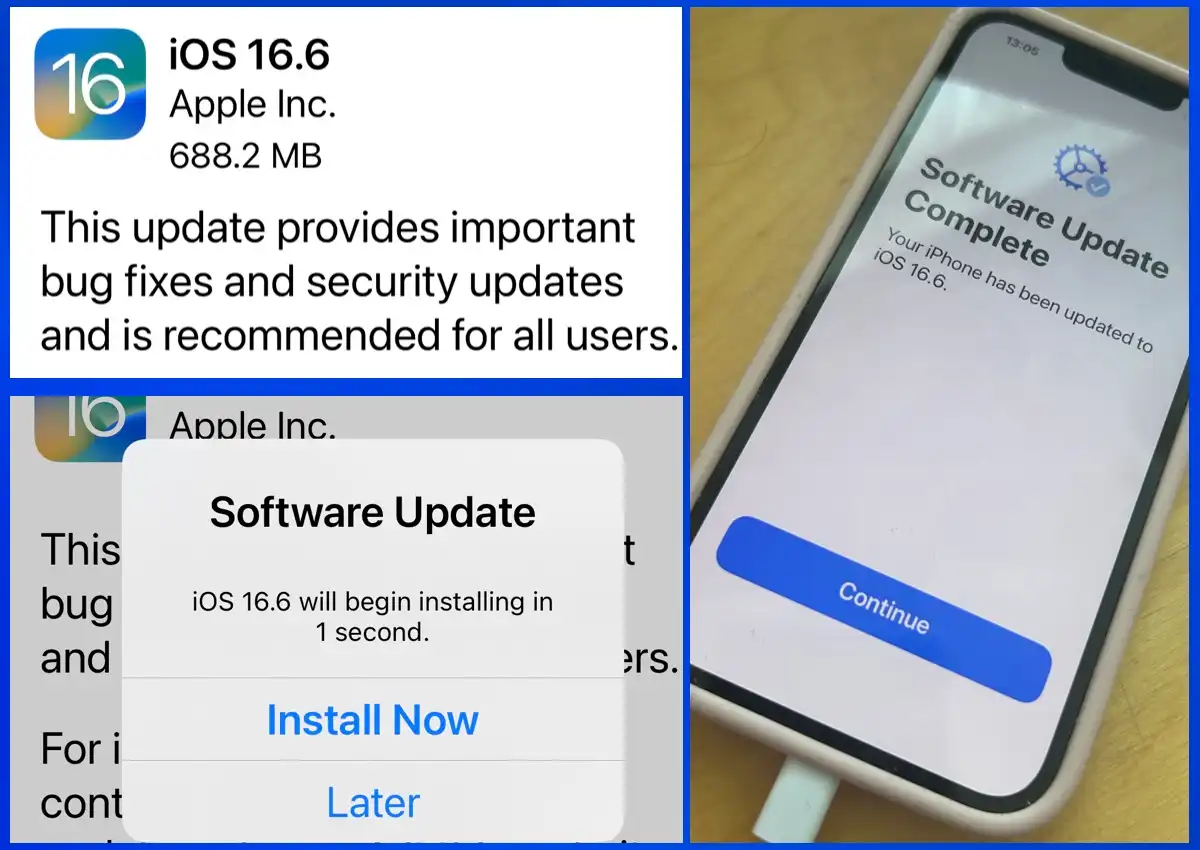
Updating Your Iphone: A Step-by-step Guide
Are you tired of waiting for Apple to release new updates for your iPhone? Do you want to stay ahead of the curve and get the latest features and security patches on your device? Look no further! In this article, we’ll show you how to update your iPhone quickly and easily.
Why Update Your Iphone?
Updating your iPhone is an essential part of maintaining its performance and security. New updates often bring bug fixes, performance improvements, and new features that can enhance your overall experience with the device. Additionally, updating your iPhone ensures that you have the latest security patches, which can protect your device from various threats and vulnerabilities.
How to Update Your Iphone
Updating your iPhone is a relatively straightforward process that can be completed in a few simple steps. Here’s how to do it:
- Check For Updates: Go to Settings > General > Software Update on your iPhone. If an update is available, you’ll see a notification.
- Download And Install The Update: Tap “Download and Install” to begin the update process. Your iPhone will download the update in the background, and then install it when you’re ready.
- Restart Your Iphone: Once the update is installed, your iPhone will restart automatically. This may take a few minutes, so be patient!
- Verify The Update: After your iPhone has restarted, go back to Settings > General > Software Update to verify that the update was successful.
Updating Your Iphone Without Wi-fi
If you don’t have access to Wi-Fi or prefer not to use it for updates, you can still update your iPhone using cellular data. Here’s how:
- Go to Settings > General > Software Update.
- Tap “Download and Install” to begin the update process.
- Choose “Use Cellular Data” when prompted.
Updating Your Iphone With Itunes
If you prefer to use iTunes to update your iPhone, here’s how to do it:
- Connect your iPhone to your computer using a USB cable.
- Open iTunes on your computer and select your iPhone from the top navigation bar.
- Click “Check for Update” in the Summary tab.
Updating Your Iphone With Macos
If you have a Mac with macOS 10.15 Catalina or later, here’s how to update your iPhone:
- Connect your iPhone to your Mac using a USB cable.
- Open Finder on your Mac and select your iPhone from the top navigation bar.
- Click “Check for Update” in the Summary tab.
Updating Your Iphone Without Wi-fi
If you don’t have access to Wi-Fi or prefer not to use it for updates, you can still update your iPhone using cellular data. Here’s how:
- Go to Settings > General > Software Update.
- Tap “Download and Install” to begin the update process.
- Choose “Use Cellular Data” when prompted.
Conclusion
Updating your iPhone is an essential part of maintaining its performance, security, and features. By following these simple steps, you can ensure that your device stays up-to-date with the latest software and security patches. Whether you prefer to use Wi-Fi or cellular data for updates, we’ve got you covered!
Frequently Asked Questions (FAQs)
- How Often Should I Update my Iphone?
You should update your iPhone as soon as an update is available, but at least once a month. - Will Updating my Iphone Delete my Data?
No, updating your iPhone will not delete any of your data, including photos, contacts, and apps. - Can I Update my Iphone Without Wi-fi?
Yes, you can update your iPhone using cellular data if you don’t have access to Wi-Fi. - How Long Does The Update Process Take?
The update process typically takes a few minutes, but may vary depending on the size of the update and the speed of your internet connection. - What Happens if I Interrupt The Update Process?
If you interrupt the update process, your iPhone may become unstable or freeze. It’s best to let the update complete without interruption. - Can I Roll Back an Update if it Causes Problems?
Yes, you can roll back an update if it causes problems with your device.
More Resources
For more information on updating your iPhone, please visit our website at [website URL]. You can also check out our YouTube channel for video tutorials and step-by-step guides.


