
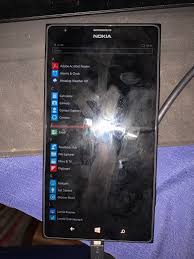
How to Update Your Lumia to Windows 10 Mobile: A Step-by-step Guide
Are you eager to upgrade your Lumia smartphone to the latest Windows 10 Mobile operating system? Look no further! In this article, we’ll guide you through the process of updating your device to Windows 10 Mobile, step by step.
What You Need to Know Before Updating Your Lumia
Before we dive into the update process, there are a few things you should know:
- Not All Lumia Devices Can be Updated to Windows 10 Mobile: Unfortunately, only certain Lumia models are eligible for the update. Make sure your device is one of them.
- You Need to Have Enough Free Storage Space on Your Phone: With Windows 10 Mobile, you’ll need at least 1.4 GB of free storage space on your device. If you don’t have enough space, we’ll show you how to clear it up.
- Your Lumia Needs to be Running Windows Phone 8.1 Gdr1 Qfe8 or a Later Version: Ensure that your phone is running the required operating system before proceeding with the update.
Step 1: Back Up Your Data
Before updating your Lumia, it’s essential to back up all your important data, such as photos, videos, and apps. You can do this by following these steps:
- Back up Online: Go to Settings > System > Backup & reset, and ensure that the backup option is turned on.
- Back up Offline: Connect your Lumia to a computer, open File Explorer, and copy the files you want to back up to the computer.
Step 2: Check Your Storage Space
Make sure you have enough free storage space on your phone. If not, follow these steps:
- Connect Your Lumia to a Computer: Open File Explorer and look for the “Phone” folder.
- Copy Unnecessary Files to The Computer: Move any files you no longer need or want to keep on the computer.
Step 3: Download And Install Management Blank Updates
To update your Lumia, you’ll need to download and install the “Management Blank Updates” app from the Windows Phone Store. Here’s how:
- Open The Windows Phone Store: Search for “Management Blank Updates” and download the app.
- Install The App: Launch the app and follow the prompts to install it.
Step 4: Check For Updates
Once you’ve installed the Management Blank Updates app, follow these steps to check for updates:
- Launch The App: Open the app and select “Check for updates”.
- Wait For The Update to Download: The update will be downloaded and prepared for installation.
- Follow The Prompts: Select “Install” when prompted, and wait for the update to complete.
Step 5: Install Windows 10 Mobile
After the update has been downloaded, follow these steps to install it:
- Select “Install” on The Notification: When the update is ready, select “Install” on the notification.
- Wait For The Installation to Complete: The installation process may take a few minutes.
Troubleshooting Common Update Errors
If you encounter any issues during the update process, don’t worry! We’ve got some troubleshooting tips to help you resolve common errors:
- Error 801881cd And 80188308: Check your available storage space on your phone. If it’s not sufficient, clear up some space by deleting unnecessary files.
- Error 80188264, 80188265, or 801882cb: Ensure that your internet connection is stable. Try restarting your phone or connecting to a different Wi-Fi network.
Conclusion
Updating your Lumia to Windows 10 Mobile can seem daunting, but with these steps and troubleshooting tips, you should be able to do it successfully. Remember to back up your data, check your storage space, and follow the prompts carefully. If you encounter any issues during the update process, don’t hesitate to reach out for help.
Frequently Asked Questions
- Q: Which Lumia Devices Are Eligible For The Windows 10 Mobile Update?
A: Only certain Lumia models, such as the Icon, 1520, 930, 640, and others, can be updated to Windows 10 Mobile. - Q: How Much Free Storage Space do I Need on my Phone?
A: You’ll need at least 1.4 GB of free storage space on your device. - Q: What Should I do if I Encounter an Error During The Update Process?
A: Try troubleshooting common errors by checking your available storage space, ensuring a stable internet connection, or restarting your phone.
Additional Resources
- Microsoft’s Official Guide to Updating Windows Phone
- Windows 10 Mobile Update Requirements and Specifications
I hope this article has helped you understand the process of updating your Lumia to Windows 10 Mobile. If you have any further questions or concerns, please don’t hesitate to reach out!


