
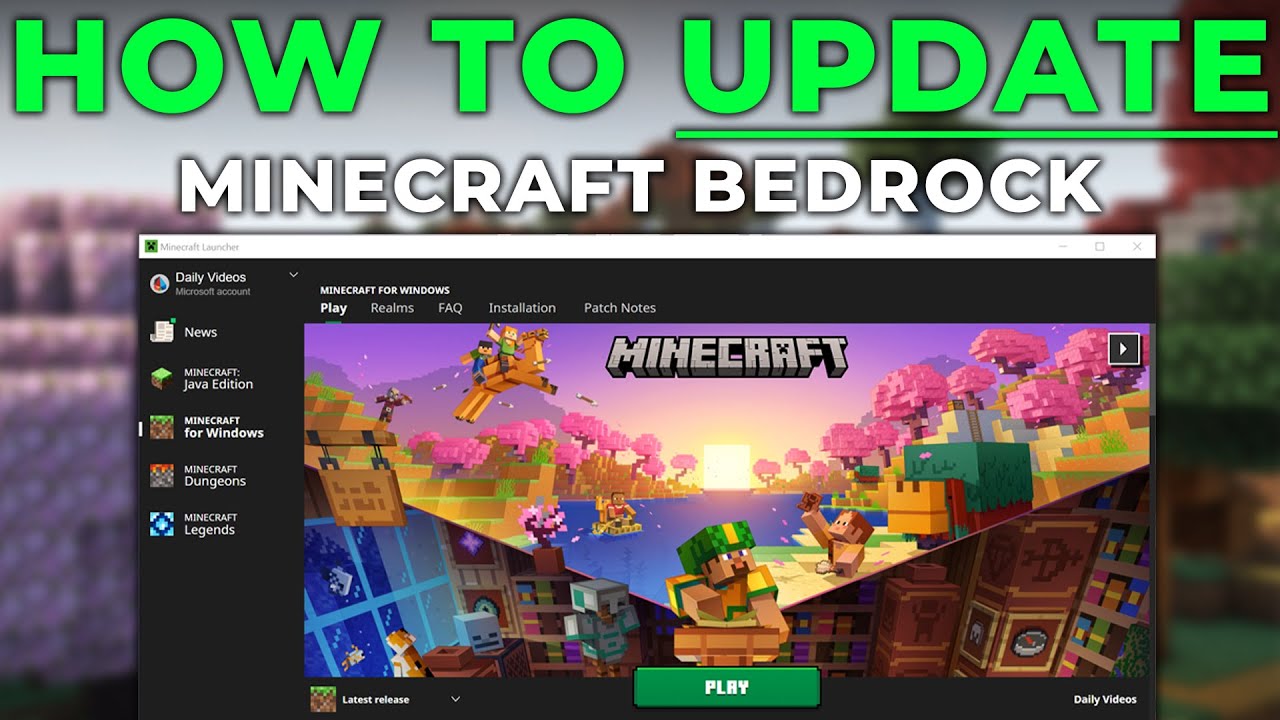
How to Update Minecraft: A Comprehensive Guide
Are you eager to dive into the world of Minecraft but not sure how to update it? Look no further! This guide will walk you through the steps to update Minecraft on your PC, console, or mobile device.
Updating Minecraft on PC
If you’re playing Minecraft on your PC, updating it is a straightforward process. Here’s what you need to do:
- Check For Updates: Launch the Minecraft Launcher and navigate to Settings.
- Update The Launcher: Check if the launcher is up-to-date by going to Settings > Informations.
- Check For Game Updates: If an update is available, a message will appear or you can manually update it.
Updating Minecraft: Bedrock Edition
If you’re playing Minecraft: Bedrock Edition on your PC, updating it is automatic. However, if you want to install the latest beta version (snapshot), here’s what you need to do:
- Launch The Minecraft Launcher: Go to the launcher and select Minecraft for Windows.
- Click on Installations: Select the button that says “Install” next to the preview version.
Updating Minecraft: Java Edition
If you’re playing Minecraft: Java Edition, updating it is a bit more involved. Here’s what you need to do:
- Launch The Minecraft Launcher: Go to the launcher and select Minecraft: Java Edition.
- Click on Installations: Select “New installation” and choose the latest version or snapshot.
Updating Minecraft on Console
If you’re playing Minecraft on your console, updating it is relatively easy. Here’s what you need to do:
- Check For Updates: On PlayStation 4/5, go to Settings > System > Download automatic.
- Update Manually: If an update is available, select the game and click “Check Update”.
Updating Minecraft on Xbox
If you’re playing Minecraft on your Xbox console, updating it is similar to the PlayStation process:
- Check For Updates: Go to Settings > System > Updates and download.
- Update Manually: Select the game and click “Check Update”.
Updating Minecraft on Nintendo Switch
If you’re playing Minecraft on your Nintendo Switch, updating it is easy:
- Check For Updates: Go to Settings > System > Automatic update.
- Update Manually: If an update is available, select the game and click “Update software”.
Updating Minecraft on Mobile Devices (Android/iOS)
If you’re playing Minecraft on your mobile device, updating it is simple:
- Open The App Store: Go to the Google Play Store (for Android) or App Store (for iOS).
- Search For Minecraft: Select the game and click “Update” if an update is available.
Frequently Asked Questions
Q: How do I know if my Minecraft launcher is up-to-date?
A: You can check by going to Settings > Informations in the Minecraft Launcher.
Q: Can I update Minecraft manually on console?
A: Yes, you can update Minecraft manually on PlayStation and Xbox consoles.
Q: Do I need to restart my console after updating Minecraft?
A: No, your console will automatically restart once the update is complete.
Q: How often do updates for Minecraft come out?
A: Updates for Minecraft are released periodically, but the frequency depends on the platform and edition.
Q: Will I lose any progress if I update Minecraft?
A: No, your progress will be saved and updated along with the game.
Q: Can I play Minecraft while it’s updating?
A: Yes, you can continue playing Minecraft while it’s updating in the background.
Conclusion
Updating Minecraft is a straightforward process that can be completed on PC, console, or mobile devices. By following these steps, you’ll ensure that your game is up-to-date and ready for adventure. Remember to always check for updates regularly to stay ahead of the game!


