
How to Update Microsoft Office: A Comprehensive Guide
Are you tired of using an outdated version of Microsoft Office? Do you want to take advantage of the latest features and improvements in your productivity suite? Look no further! In this article, we will guide you through the process of updating Microsoft Office on your PC, Mac, smartphone, or tablet.
Why Update Microsoft Office?
Updating Microsoft Office ensures that you have the most recent security patches, bug fixes, and feature enhancements. With a newer version of Office, you can:
- Take advantage of improved performance and stability
- Enjoy enhanced collaboration features
- Access new and updated templates and themes
- Benefit from better integration with other Microsoft products and services
Updating Microsoft Office on PC (Windows)
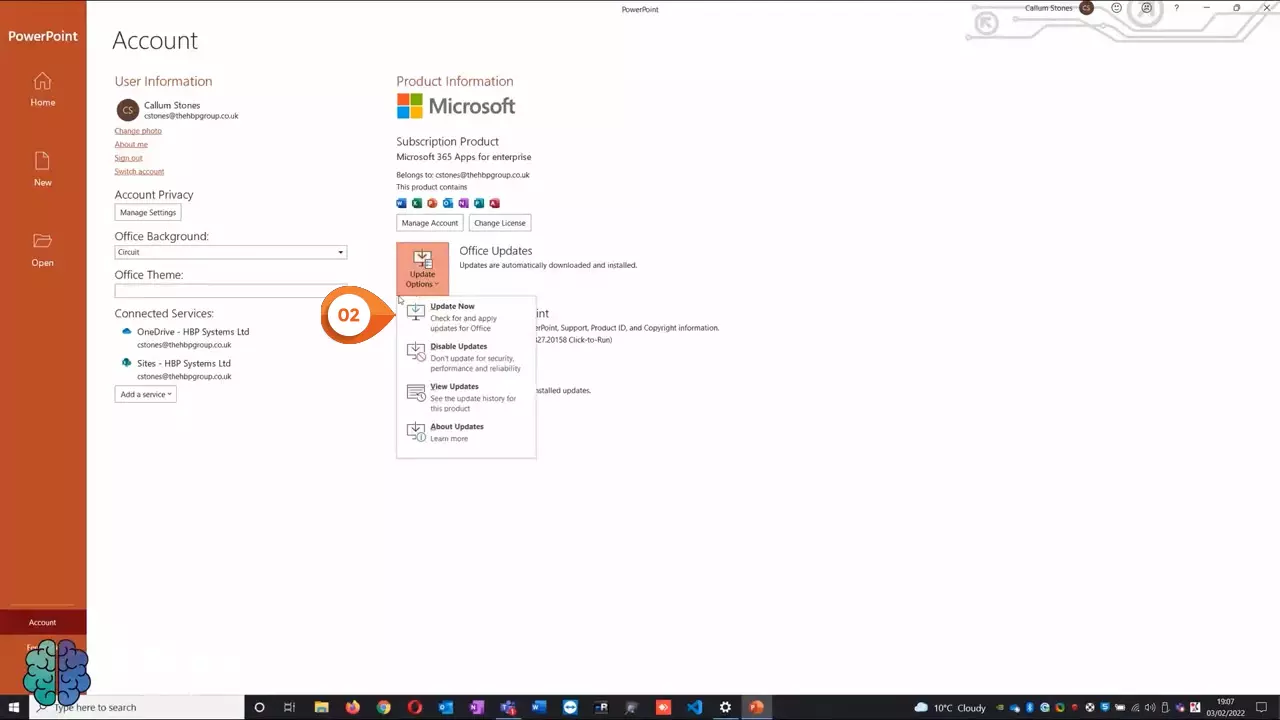
To update Microsoft Office on your Windows PC, follow these steps:
- Launch an Office Application: Open any Office program, such as Word, Excel, or PowerPoint.
- Click on The “File” Menu: Select “Account” from the dropdown menu.
- Click on “Update Options”: Choose “Enable Updates” to enable automatic updates.
- Check For Updates: Click on the “Update Now” button to initiate the update process.
Updating Microsoft Office on Mac (macOS)
To update Microsoft Office on your Mac, follow these steps:
- Launch an Office Application: Open any Office program, such as Word, Excel, or PowerPoint.
- Click on The “Help” Menu: Select “Check for Updates” from the dropdown menu.
- Follow The Prompts: The update process will automatically begin.
Updating Microsoft Office on Smartphone And Tablet (Android And Ios)
To update Microsoft Office on your Android or iOS device, follow these steps:
- Open The Play Store (Android) or App Store (iOS): Search for “Microsoft Office” in the store.
- Click on The “Update” Button: If an update is available, click on the “Update” button to download and install it.
Troubleshooting Common Issues
If you encounter any issues during the update process, try the following:
- Close Unnecessary Programs: Close any programs that may be interfering with the update process.
- Restart Your Device: Restarting your device can resolve connectivity issues or other problems.
- Contact Microsoft Support: If you’re still experiencing issues, contact Microsoft support for assistance.
Updating Microsoft Office: Frequently Asked Questions
Here are some frequently asked questions about updating Microsoft Office:
- Q: What happens if I don’t update Microsoft Office?
A: If you don’t update Microsoft Office, you may miss out on important security patches and feature enhancements. - Q: Will updating Microsoft Office affect my existing files and settings?
A: No, updating Microsoft Office will not affect your existing files and settings. - Q: Can I update Microsoft Office manually or do I need to use the automatic update feature?
A: You can choose to use either the manual or automatic update feature, depending on your preferences.
Conclusion
Updating Microsoft Office is a straightforward process that ensures you have the most recent security patches and feature enhancements. By following the steps outlined in this article, you can easily update Microsoft Office on your PC, Mac, smartphone, or tablet. Don’t miss out on the benefits of using the latest version of Office – update today!
Frequently Asked Questions (FAQs)
Here are some additional FAQs about updating Microsoft Office:
- Q: Can I Update Microsoft Office on my Android Device?
A: Yes, you can update Microsoft Office on your Android device by following the steps outlined in this article. - Q: Will Updating Microsoft Office Affect my Existing Files And Settings?
A: No, updating Microsoft Office will not affect your existing files and settings. - Q: Can I Use Both Manual And Automatic Updates For Microsoft Office?
A: Yes, you can choose to use either the manual or automatic update feature, depending on your preferences.
Update Microsoft Office Today!
Don’t miss out on the benefits of using the latest version of Microsoft Office – update today!
- Visit The Official Microsoft Website: Go to the official Microsoft website to download and install the latest version of Office.
- Contact Microsoft Support: If you have any questions or concerns, contact Microsoft support for assistance.


